Planning data levels are used for recreating your corporate planning. With the help of planning data levels, you can create not only the general planning but also scenarios and forecasts.

There is exactly one actual data level and up to 254 planning data levels with different descriptions. The planning data levels are based on the actual data level. This means the opening balance sheet of the planning data level corresponds to the closing balance sheet of the actual data level.

To create a planning data level:

1

Right-click the Data levels root folder.

2

Choose Create | Planning data level level from the context menu.

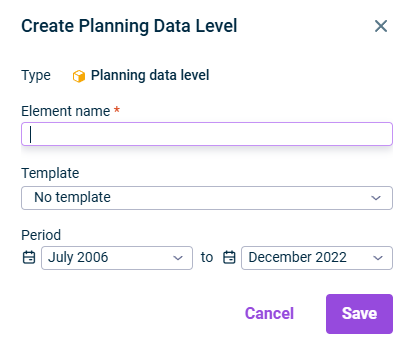
The following options are available in the Create Planning Data Level dialog:

The dialog for creating a planning data level is displayed.
Create a planning data level

Name of the element

Existing planning data levels as templates:

  • Keep the default setting if you want to adopt planning data, planning wizards, and accounting rules.
  • Select Planning wizards and accounting rules or Accounting rules only to restrict the scope of the data to be transferred accordingly.

No data is transferred for elements of type Group.

Start and end period of the data level

If you specify a template and then change the period, only the data of the template data level that is in the selected period will be copied.

When configuring a data level, the following options are available:

The dialog for editing a plan data level is displayed.
Editing a planning data level

Start period and end period of the data level

The planning data level can be closed in order to block an entire data level against postings. This prevents plannings from being inadvertently altered afterwards.

Planning data levels can be archived in such a way that they cannot be selected in the dimension bar. This is useful when outdated plannings are retained but should no longer be visible.

You can cancel the archiving at any time by deactivating the check box.

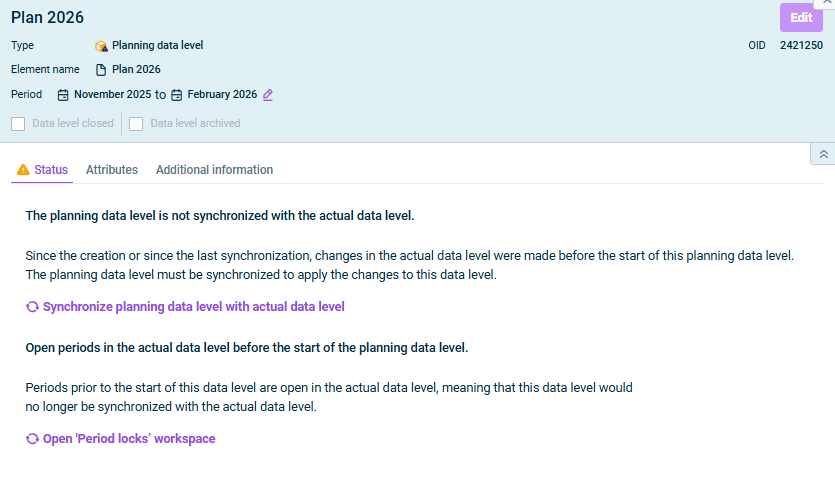
Each planning data level has one of the following statuses, whicg is shown on the Status tab.

This data level is synchronised with the actual data level. Furthermore, all periods before the start of this data level are closed in the actual data level. This ensures that the actual data level can no longer be changed before the start of this data level, meaning that the planning data level would no longer be synchronized with the actual data level.

Periods prior to the start of the planning data level are open in the actual data level. It is possible that the actual data level can be changed before the start of the planning data level, meaning that the planning data level would no longer be synchronized with the actual data level.

Open the Period locks workspace to close the open periods of the actual data level. Please note that you can only view, create, and/or edit period locks if you have the appropriate permissions (see Defining User Permissions for Data Model Roles).

Since the creation or since the last synchronization, changes have taken place in the actual data level before the start of the planning data level. To transfer the changes to the planning data level, the planning data level must be synchronized.

The data level can be synchronized at any time with the actual data level (see Synchronizing Planning Data Levels).