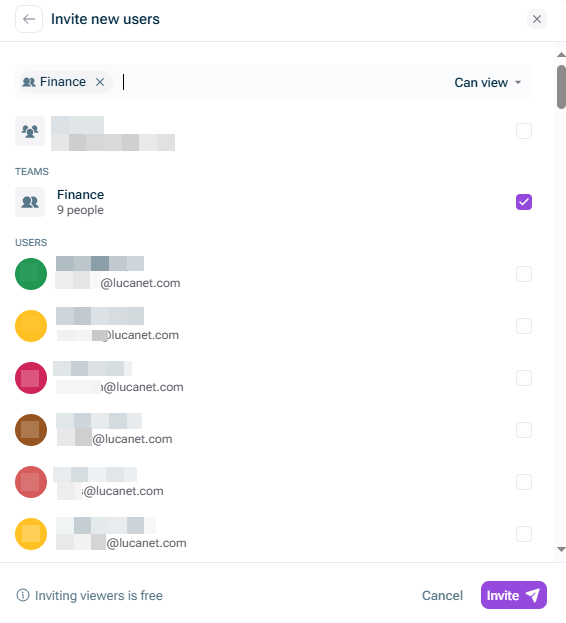
As well as sharing models, you can also share entire folders. This is useful when you have various models that you want to organize in a folder structure, and share with a common set of people (similar to Google Drive).

1

Navigate to the start page and select the desired folder.

2

Click the three-dot icon and select Share from the context menu.

3

Select the desired user(s) or team(s) and specify the access type:

Can view: can see the folder and see the dashboards of the models inside

Can edit: can see the folder and its contents, and create/edit the spreadsheets and dashboards of models inside

Full access: can see the folder and its contents, create/edit models inside, and change the sharing settings of the folders/models (you can even unshare the folder with the original creator) .

4

Click Invite.

The dialog to share a folder is displayed.
Dialog to share a folder

When you share a folder, it shares everything within that folder too (including models, as well as folders). Anyone you share the folder with will have at least that much access to all of the models or folders within the folder.

You can also grant higher access to specific models or folders within the folder. For example:

  • You are the CFO of Company X.
  • You create a folder called Finance, and share it with your Finance team by giving them View access.
  • However, you want your VP Strategic Finance to have edit access to the Revenue model within the Finance folder.
  • You can head to the sharing settings of the Revenue model and grant that specific user edit access on the model.

No. If you share a folder with someone, they will have at least that much access to all of the models or folders within the folder.

Yes! The model will just show up by itself on their model home page, as opposed to being within the folder. See more on Sharing models here.

Folder admins can move folders, and model admins can move models if the mover has edit access to the folder they are moving from/to.

Last updated on Aug 16, 2023