Often, you will import data broken down into dimensions — for example, employee data from your Payroll/HRIS system, or department expenses in Accounting/ERP systems.

When you link a data item that has dimensions to a variable, xP&A will not breakdown the variable until you link an xP&A dimension to the dimension in the data source explicitly.

You can link a dimension either from a model or from a data source.

Once a dimension of a data source is linked to a dimension in xP&A:

  • The dimension items will be kept in sync automatically whenever you refresh your data source:

    • If you add new items in the data source, they will be added to the xP&A dimension as well.
    • If you remove items in the data source, they will not be removed - they will just be unlinked in xP&A.
    • You can also see a full history of your data/dimension synchronization in the data sync history.
  • Any dimension items coming from your data source are "linked". You can change the name of the dimension item in xP&A, and the link will not be broken.

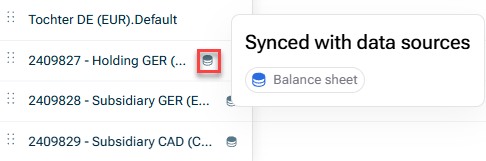
  • A linked dimension item is displayed with the icon:

Shows an example of linked dimensions that which is signalized by a hamburger icon
Symbol for linked dimensions

To link a dimension to a data source from a model:

1

Navigate to the variable in your model for which you want to link the dimensions to the data source. The variable must be linked to integrated data.

2

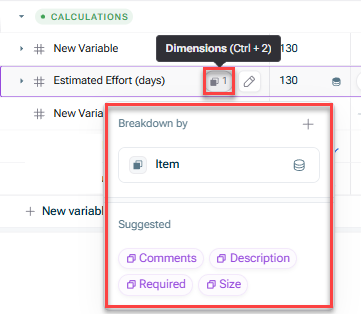
Click the Dimensions button.

3

Select the dimension you want to link.

This will automatically create the dimension in xP&A, and link it to the data source connected to this variable.

Shows the configuration field to link dimensions of a variable to a data source when clicking on the 'Dimensions' button of a variable
Linking a dimension to a data source from a model

To link a dimension of a data source to a dimension in xP&A from a data source:

1

Open the Data workspace and click on the data source for which you want to link the dimensions.

2

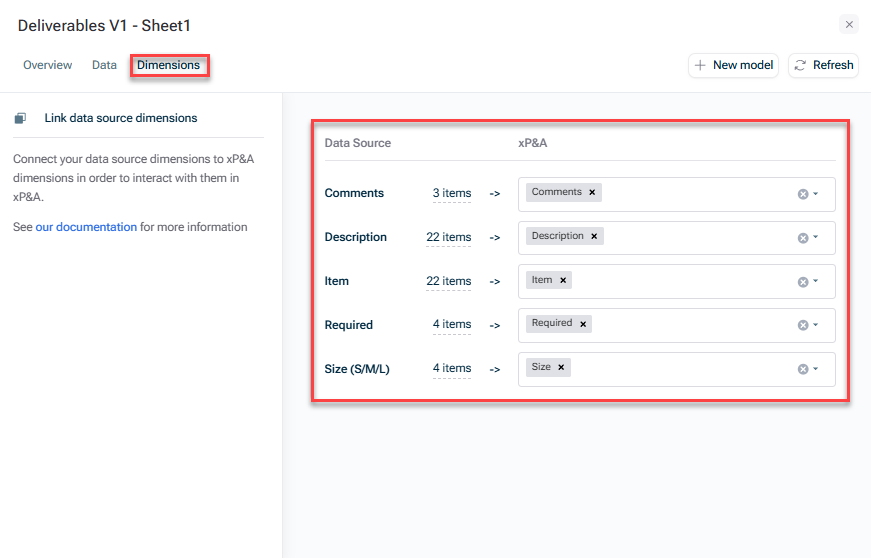
Open the Dimensions tab.

3

Assign the dimensions of the data source to the dimensions in xP&A. You can switch the dimensions by opening the dropdown menu of the respective dimension field.

Shows the configuration field to link categories of a data source to categories in xP&A when opening the 'Categories' tab of a data source.
Linking a category to a category in xP&A from a data source