![]()
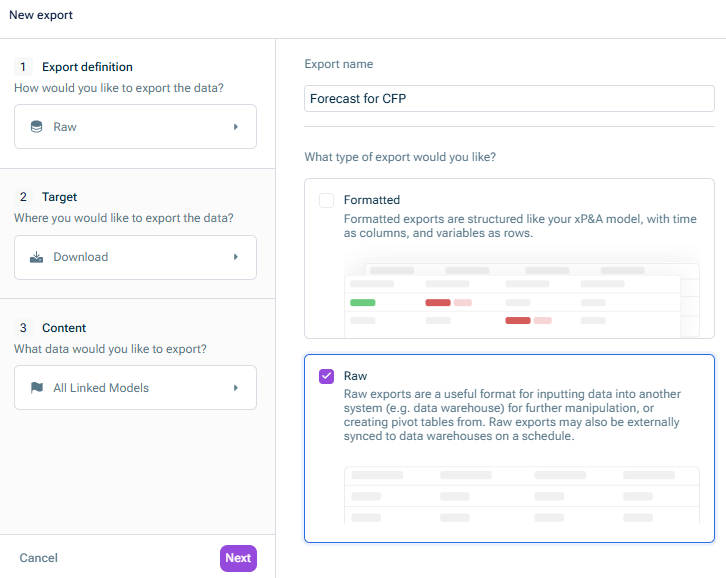
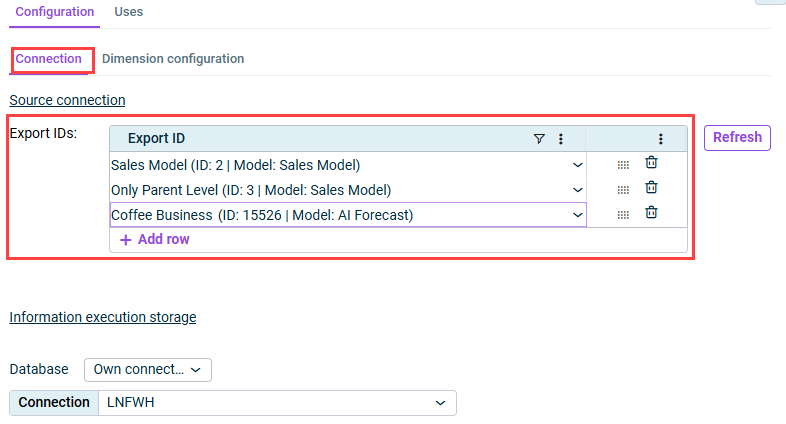
Give the export a clear that matches the model (e.g. "Sales forecast").name Choose the export type .Raw

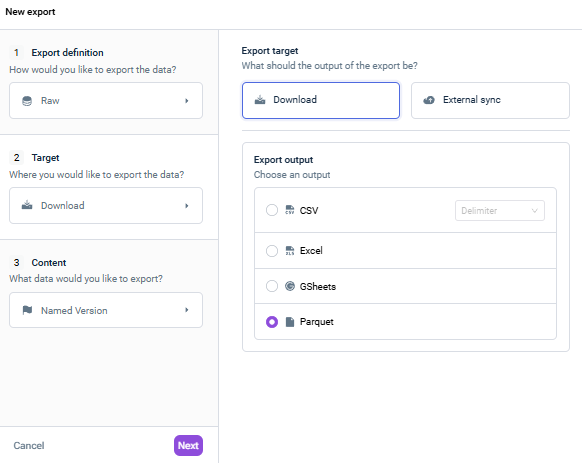
Under , keep theExport target preselectionDownload Under , chooseExport output Parquet.

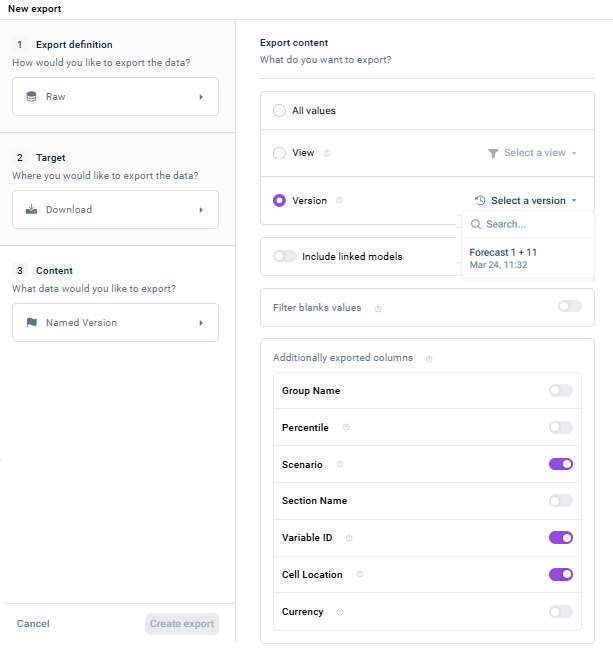
Choose what data you want to export: , a specificAll values , or a namedView .Version
Under select at least the columnsAdditionally exported columns, andVariable ID . You can optionally activateScenario if you want to drill down from CFP to the data in xP&A.Cell location


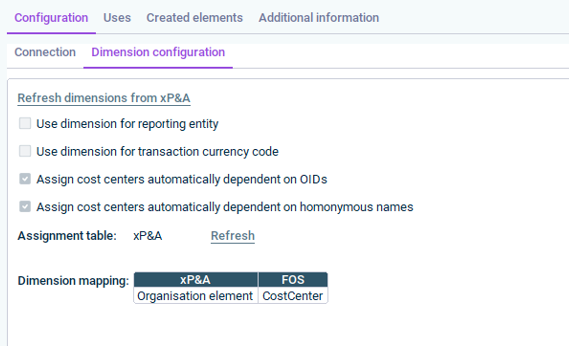
: Choose this option, when you use a custom dimension in xP&A (not synced from CFP) and want to map it to entities manually.Use dimension for reporting : This is a legacy option andUse dimension for transaction currency code not needed in current xP&A setups : Choose this option when you use theAssign cost centers automatically dependent on OIDs structure from CFP in xP&A. The OID (unique identifier per cost center) enables automatic matching.Organization element : This is a fallback option for matches based on name. Requires a dedicated assignment table.Assign cost centers automatically dependent on homonymous names
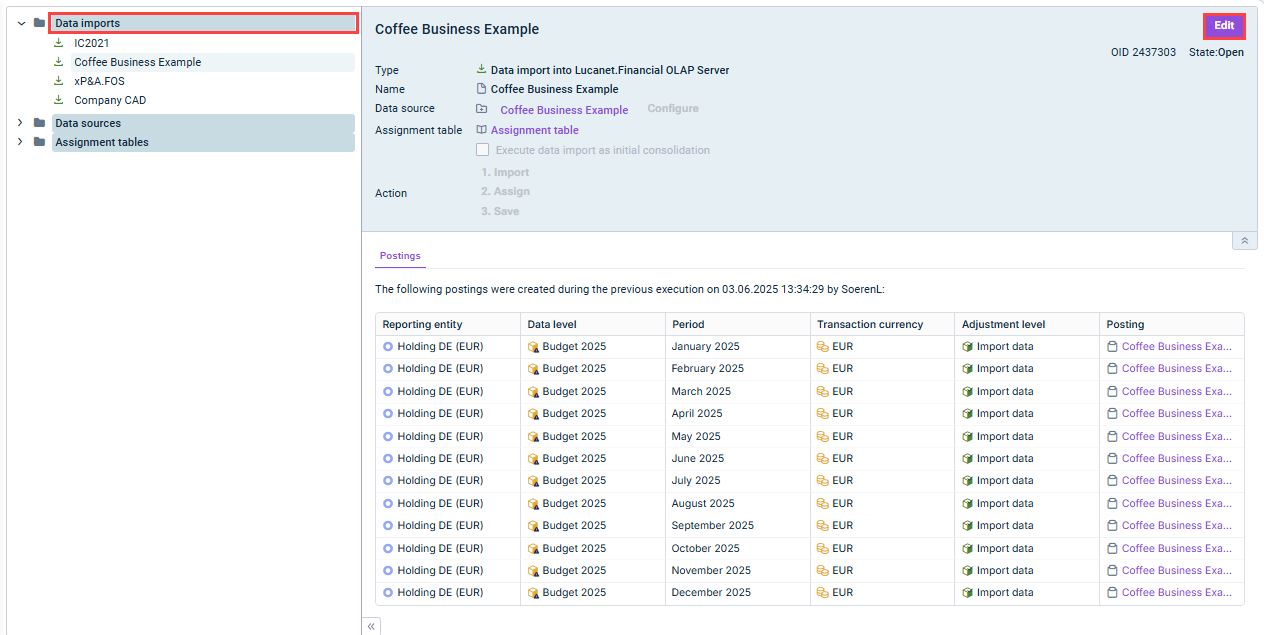

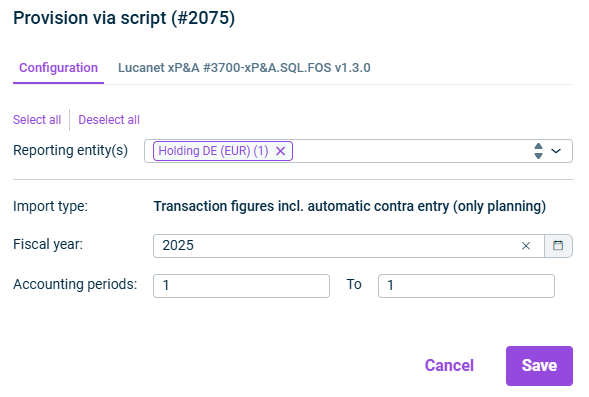
: Select the reporting entity(ies) in CFP to import intoReporting entity(ies) : ChooseImport type .Transaction figures incl. automatic contra entry (only planning) : Set the time range matching your planning horizon.Fiscal year and accounting periods

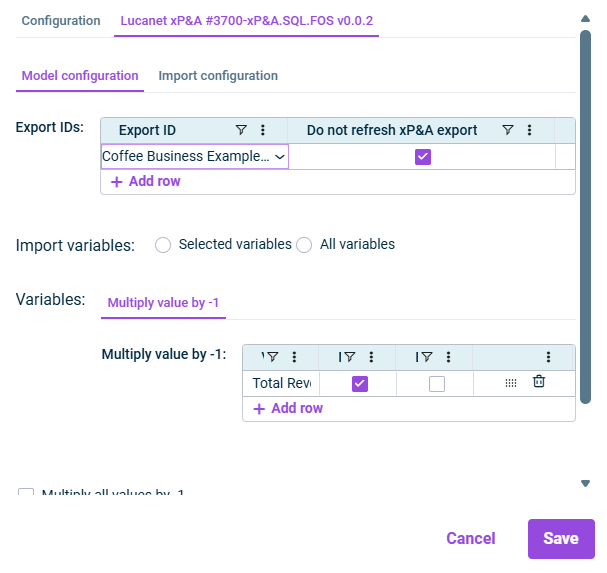
: ID of the export from xP&A whose values are to be read (selectable options are based on the script configuration).Export IDs : ChooseImport variables (recommended) and select individual variables or sections to be imported or chooseSelected variables .All variables : xP&A typically stores revenue as positive values, but CFP uses debit/credit logic where revenue (P&L credit) must be imported as negative to display correctly. You can apply this option per variable or per section in the table, or globally via the checkbox at the bottom.Multiply value by -1

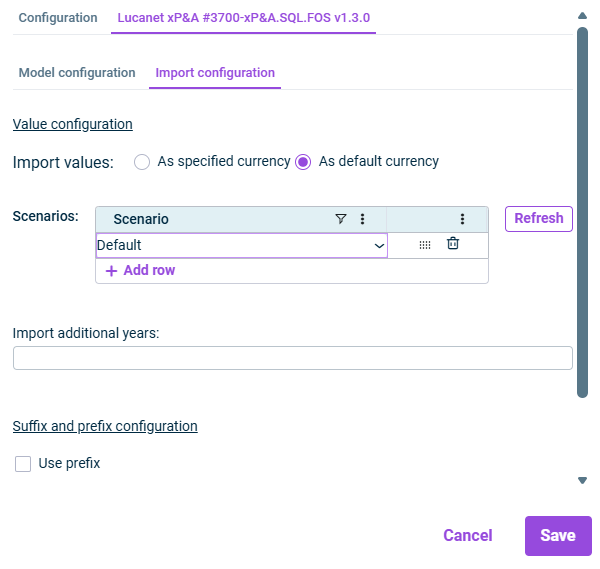
: Choose betweenImport values (uses the currency from xP&A) orAs specified currency (uses the entity's default currency in CFP).As default currency : Select one or more scenarios to import.Scenarios : If your model spans more than one year into the future, specify how many extra years to include.Import additional years : Optionally add a prefix or suffix to a specific dimension to control how values are mapped (e.g. for sub-ledger account differentiation).Prefix/Suffix