You can establish a direct connection to Microsoft SQL Server to pull in data into xP&A.

It is possible to use an SSH tunnel for the connection.

This article contains a description of the prerequisites and the individual steps of the set-up process.

The fields that are pulled in must be defined during the set-up process using a database query. For a detailed instruction on how to structure such a query, see Defining Database Queries.

If your database is behind a firewall, you have to whitelist the following static IP address before connecting Microsoft SQL Server with xP&A:

  • 52.59.129.235

If you want to establish a connection via an SSH tunnel, a user called causal must be created on the remote SSH server and the following public key must be associated with it:

ssh-ed25519 AAAAC3NzaC1lZDI1NTE5AAAAIP9DCR3hBNU/01YU9iK1JMKx2HNsK1+3ChWj3yBqb+Kr causal

1

Choose one of the following options:

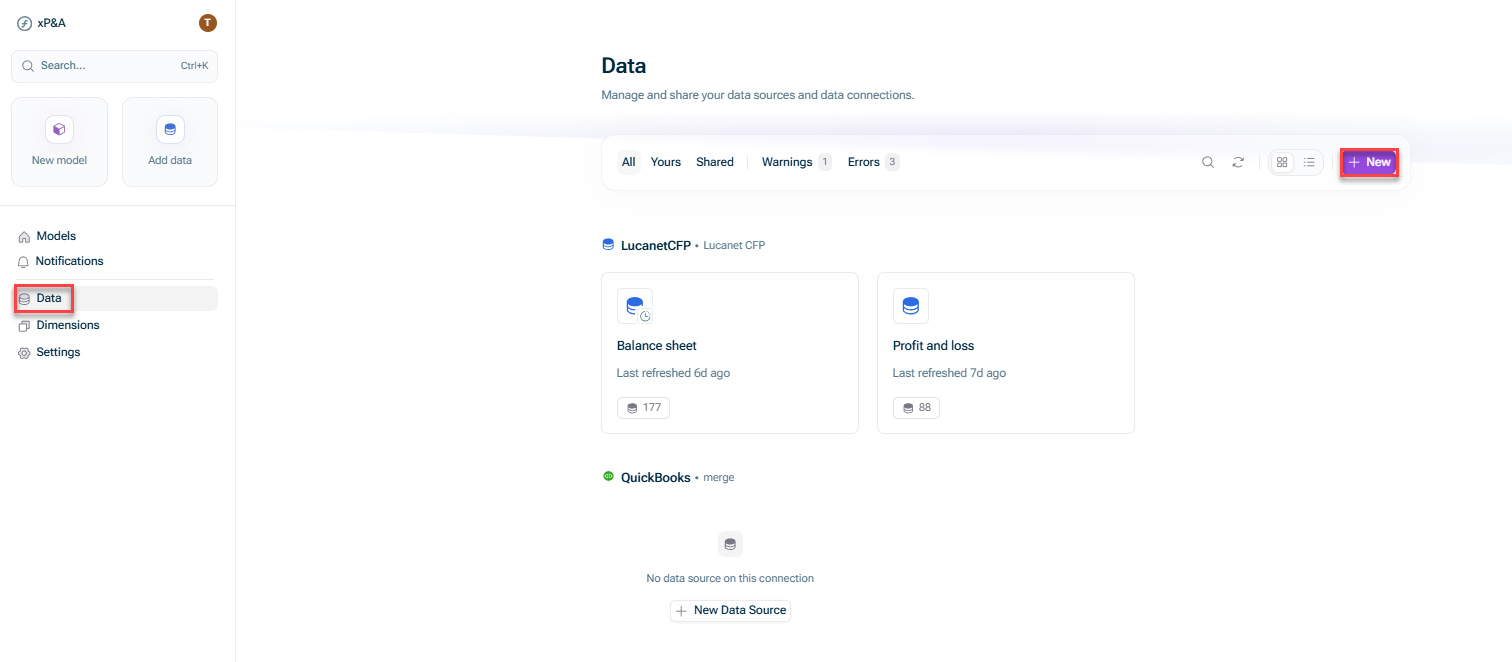
  • Open the Data workspace from the overview on the start page and click + New.
Shows the start page of Lucanet xP&A. Highlighted are the buttons that need to be used to create a new data source connection from the start page.
New data source connection from the Data workspace
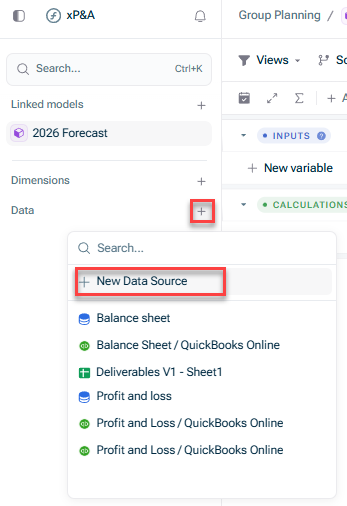
  • Open the model into which you would like to integrate the data, click the + sign next to Data in the overview, and choose New data source:
Shows the view of a model. Highlighted are the buttons that need to be used to create a new data source connection from the model view.
New data source connection from within a model
2

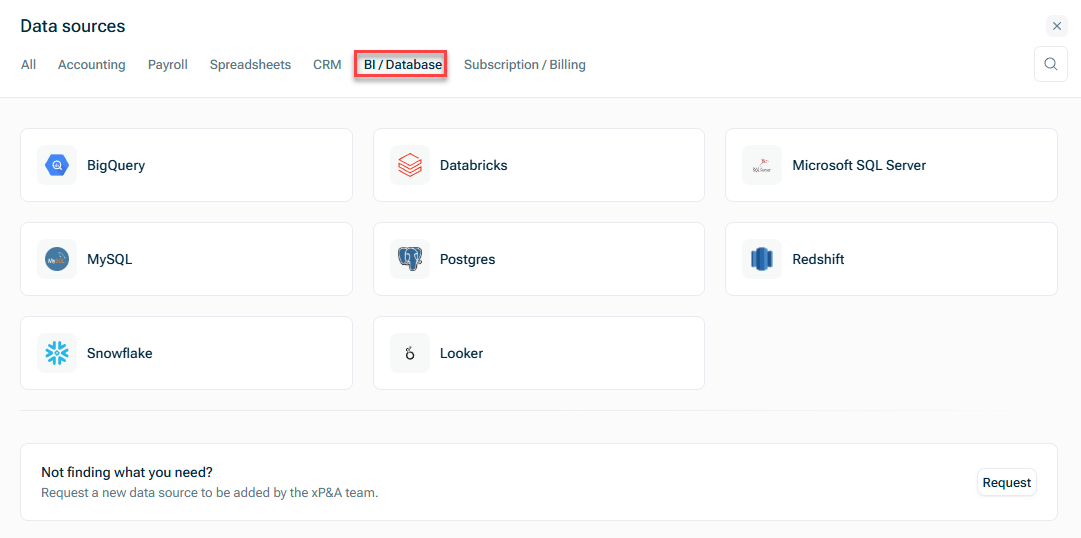
In the Data sources dialog, open the BI/Database tab and choose Microsoft SQL Server:

Shows the Data Sources dialog. Highlighted in red is the 'BI/Database' tab.
'BI/Database' tab
3

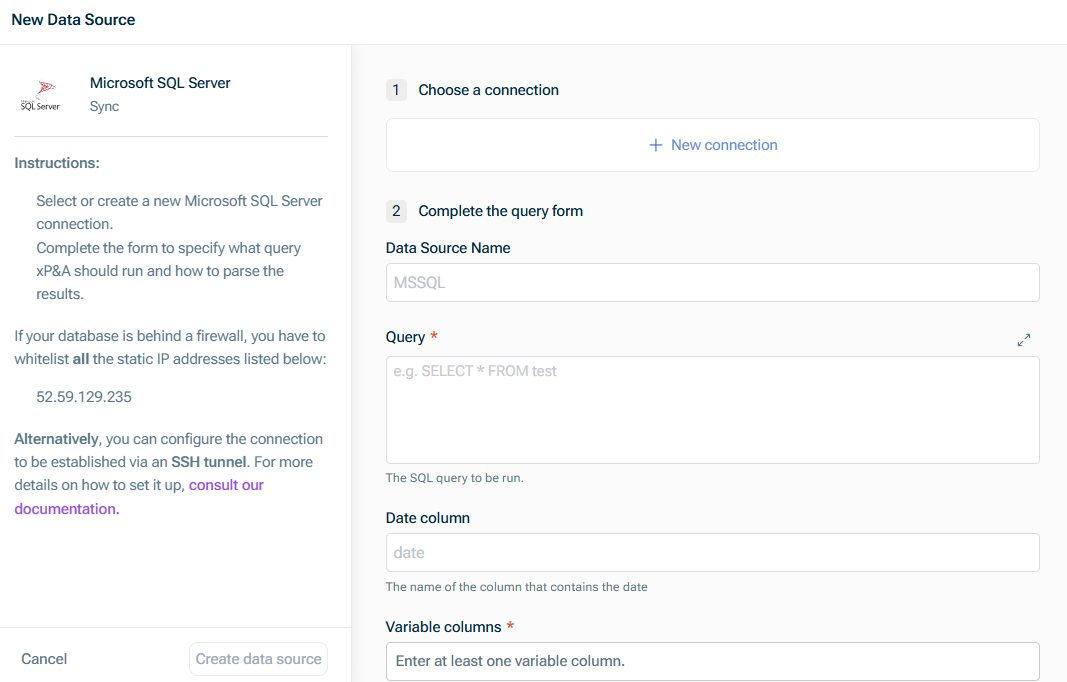
The New Data Source dialog is displayed as follows:

Shows the 'New Data Source' dialog for an MS SQL Server connection
'New Data Source' dialog
4

Configure the steps as described in the following section.

5

Click Create data source.

Choose an existing connection, or, if you have not configured a connection yet, click New Connection and enter the following in the New Microsoft SQL Server connection dialog:

  • Microsoft SQL Server database host name without port and database
  • Microsoft SQL Server database port
  • N ame of the database to which you want to connect
  • Database user name
  • Database user password
  • Whether to use encryption when connecting to Microsoft SQL Server

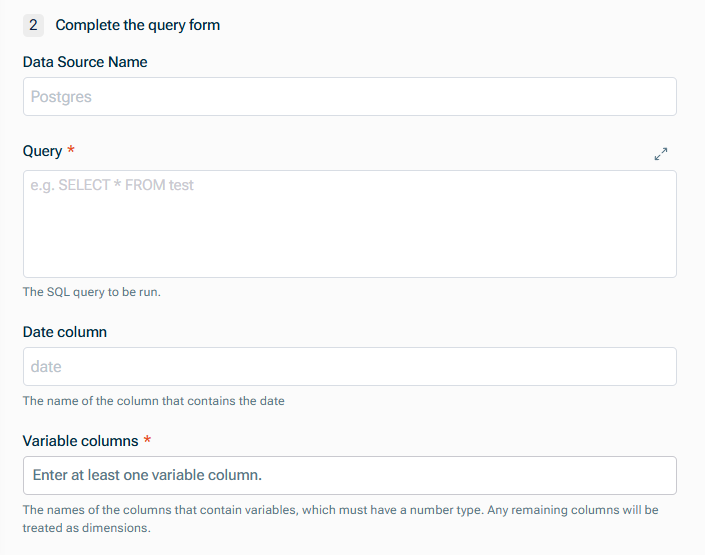
Enter the following:

  • Data Source Name
  • Query to define the fields which are to be pulled in. For more information, see Defining Database Queries.
  • Name of the Date column, which must be one of Microsoft SQL Server's date formats
  • Names of the columns that contain variables(which must have a numeric data type.)

Any remaining columns will be treated as dimensions, and must have a string data type.

An exception is the cohort dimension, which must be a date, with the column header explicitly labelled Cohort.