With a change of lessee in Lucanet Lease Accounting, you transfer an active, calculated contract component from one lessee to another lessee as of a transfer date — for example, when a lease is taken over by another company of your group. You do not have to enter the component again for the new lessee.

A change of lessee in Lease Accounting always produces two results:

  • The source component is terminated in its reporting entity on the transfer date and receives the component event status Terminated by change of lessee.
  • A new component is created in the target reporting entity as a copy of the source component and receives the status Added due to change of lessee. The master data dimensions that you specify for the target — cost center, profit center, accounting area, and business unit — are applied to the new component.

At group level, the disposal in the source reporting entity and the addition in the target reporting entity balance each other out.

Because a change of lessee usually affects several components at once, you transfer the components with a file upload: download the template, enter one transfer per row, and upload the completed file in the Change of lessee workspace.

Lease Accounting validates each row of the uploaded change of lessee file individually. A transfer is only performed if all of the following conditions are met; otherwise, the row is rejected with the reason, and no data is changed for that row:

  • The source component is a regular lease, is active, and has been calculated.
  • The source reporting entity and the target reporting entity are different.
  • The target reporting entity, the target contract, and the master data dimensions specified for the target exist.
  • The transfer date is the first day of a month and is in the past.
  • The transfer date is within the lease term of the component, is not the start date of the component, and — for transition components — is after the transition date.
  • No component events exist on or after the transfer date.
  • The liability currency of the source component matches the currency of the target contract.
  • The exchange rates required for the currency translation are available (see Exchange Rate Management).

To transfer contract components to another lessee in Lease Accounting:

1

Navigate to Data collection | Change of lessee.

Shows the 'Change of lessee' workspace in Lucanet Lease Accounting with the 'Reporting entity' drop-down list, the 'Download template' link, and the upload area with the text 'Attach file using drag and drop, or browse' and 'Supported formats: Excel (.xlsx)'.
The 'Change of lessee' workspace
2

Click Download template. The template is downloaded as an XLSX file and contains the ChangeOfLessee sheet with a description and an example for each column, as well as an Instructions sheet.

3

Enter one transfer per row in the ChangeOfLessee sheet. For each transfer, specify the transfer date, the company code, contract number, and component number of the source component, the company code, contract number, and component number of the target, and the cost center, profit center, accounting area, and business unit to be applied to the target component. The business unit must belong to the target reporting entity or be available for all reporting entities.

4

Upload the completed file in the Change of lessee workspace using drag and drop, or click browse and select the file. Only the XLSX format is supported.

Lease Accounting processes the file in the background. Each valid row is transferred; each invalid row is reported with the reason, and the remaining rows are still processed.

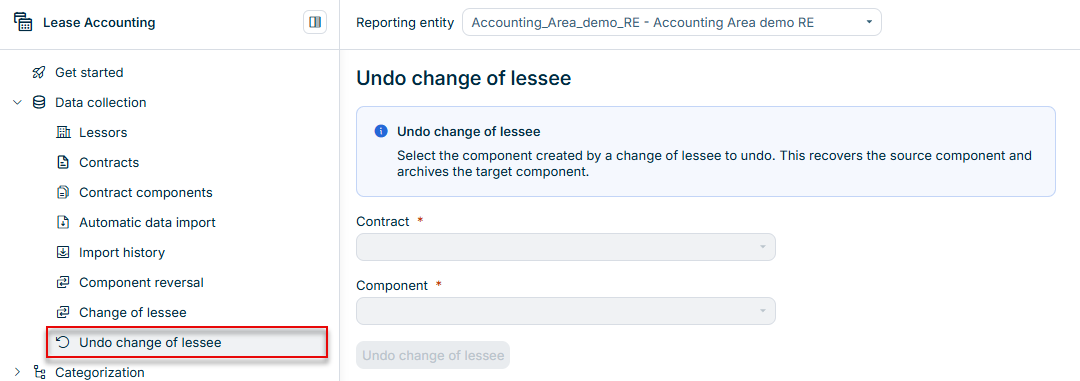
You can undo a change of lessee in Lease Accounting. Undoing recovers the source component and archives the component that was created in the target reporting entity.

To undo a change of lessee:

1

Navigate to Data collection | Undo change of lessee.

Shows the 'Undo change of lessee' workspace in Lucanet Lease Accounting with the info box 'Undo change of lessee' and the text 'Select the component created by a change of lessee to undo. This recovers the source component and archives the target component.', the mandatory 'Contract' and 'Component' drop-down lists, and the 'Undo change of lessee' button. Highlighted in red is the 'Undo change of lessee' item in the 'Data collection' navigation.
The 'Undo change of lessee' workspace
2

Select the Contract and the Component that were created by the change of lessee.

3

Click Undo change of lessee and confirm the dialog.

This content was generated using AI and reviewed by Lucanet subject matter experts before publication.