In the VAT-Audits workspace in Lucanet VAT (Value Added Tax), you create the audits that VAT-Audit applies to the imported document data from the ERP system. To do so, you choose a predefined audit template, configure the parameters of the audit template, and activate the audit for the period and the company.

VAT-Audit only executes activated audits. The results flow into the evaluations of VAT-Audit.

The VAT-Audits workspace can be found under VAT | Master data | VAT-Audits and is displayed as follows, for example:

Shows the 'VAT-Audits' workspace in VAT with the heading 'Audits', the 'Add' and 'Save' buttons, the three-dot icon, and the columns 'Valid for CC', 'Name of the audit', 'Description of the audit', 'Audit', and 'Existing parameters'. The table does not contain any entries yet.
'VAT-Audits' workspace

To create an audit in VAT, proceed as follows:

1

In the breadcrumb navigation, choose the period and the company for which you want to create the audit.

2

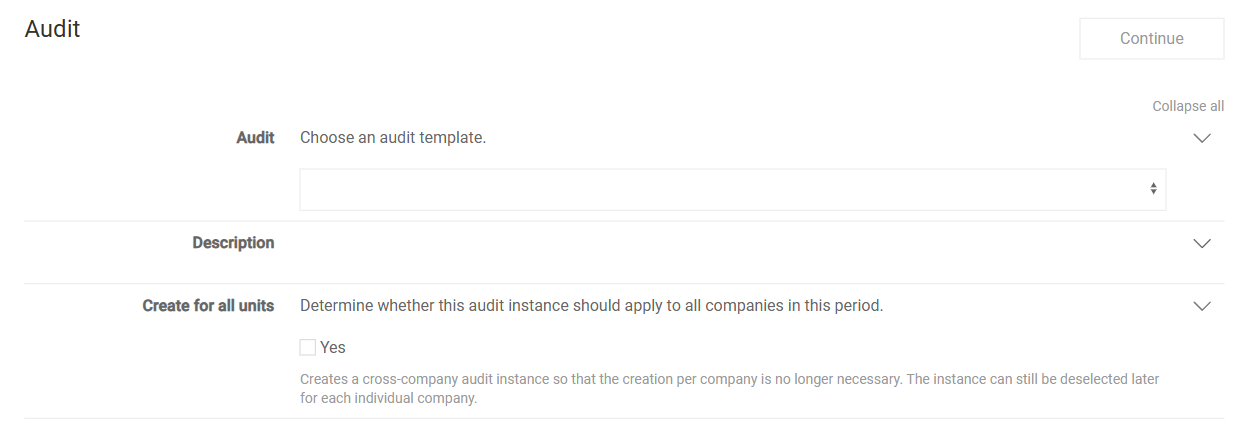
In the VAT-Audits workspace, click Add. The first page for creating an audit is displayed:

Shows the first page for creating an audit in VAT with the 'Continue' button, the 'Audit' drop-down list for choosing an audit template, the 'Description' area, and the 'Create for all units' check box.
First page for creating an audit
3

In the Audit drop-down list, choose an audit template. In the Description area, VAT displays the description of the audit template. For an overview of all audit templates, see the section Audit Templates in VAT-Audit.

4

If required, activate the Create for all units check box to create the audit for all companies of the period. If required, you deactivate the audit for individual companies later.

5

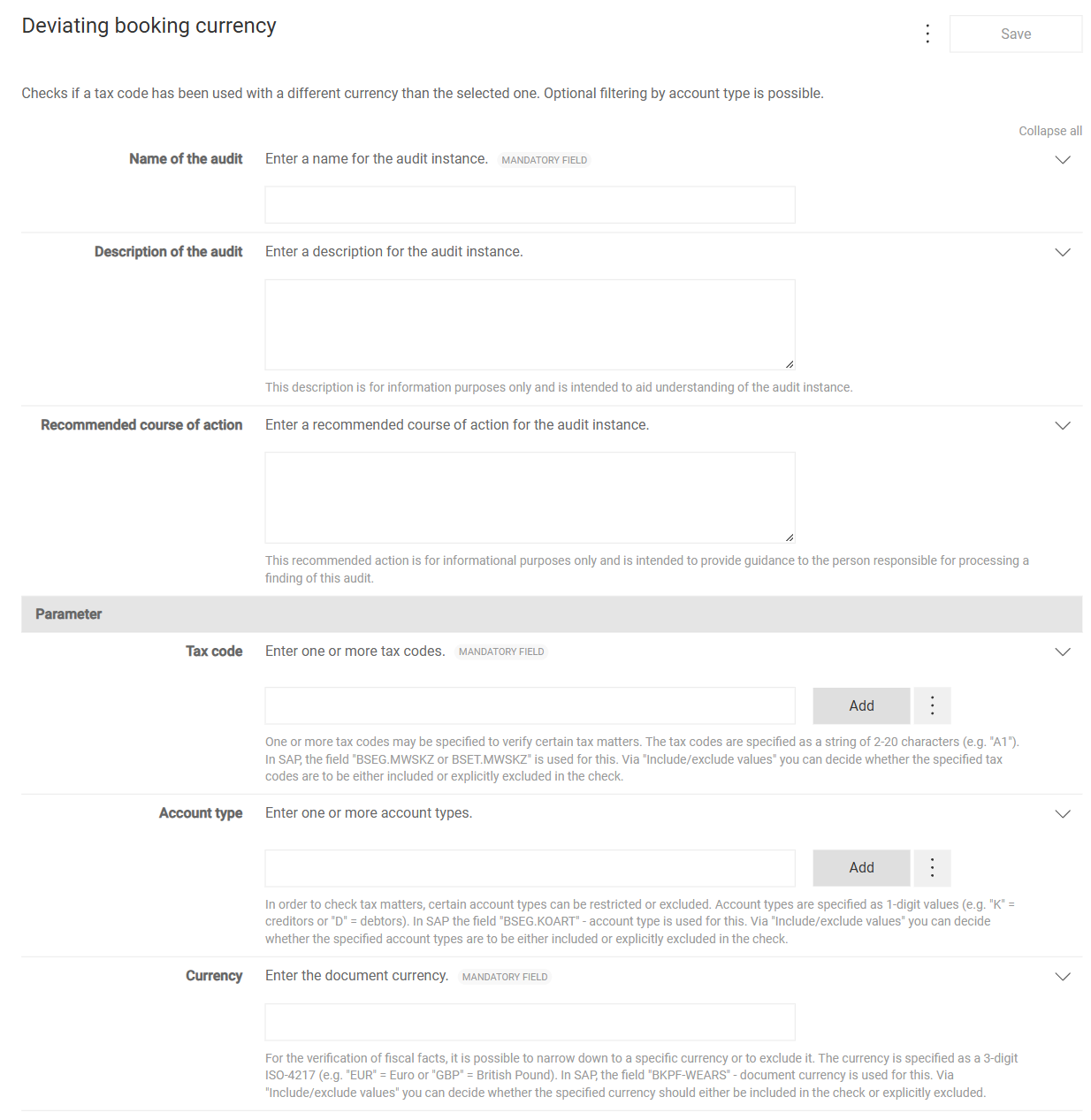
Click Continue. The second page for creating an audit is displayed:

Shows the second page for creating an audit in VAT using the example of the 'Deviating booking currency' audit template with the description of the audit template, the 'Save' button, the fields 'Name of the audit', 'Description of the audit', and 'Recommended course of action', and below them the 'Parameter' area with the parameters 'Tax code', 'Account type', and 'Currency' and the 'Add' buttons.
Second page for creating an audit
6

Fill in the fields. For a description of the fields, see the following table.

7

In the Parameter area, configure the criteria by which VAT-Audit evaluates the documents. The available parameters depend on the audit template. For a description of the parameters, see the section Parameters of the Audits in VAT-Audit.

8

Click Save.

The following fields are available on the second page, regardless of the audit template:

FieldDescription
Name of the auditSpecifies the name of the audit under which VAT displays the audit in the table. The field is mandatory.
Description of the auditDescribes the audit. The description is for information purposes only.
Recommended course of actionSpecifies a recommended course of action that serves as guidance when someone processes a finding of this audit.

VAT-Audit only executes activated audits. To activate an audit for the chosen period and company, activate the check box in the row of the audit in the VAT-Audits workspace and click Save.

To edit an existing audit, click the audit in the VAT-Audits workspace. Adjust the fields and parameters and click Save.

The following audit templates are available in the Audit drop-down list:

Audit templateDescription
Comparison of the booked tax with the calculated tax of all documentsFinds documents for which the difference between the posted tax and the tax calculated from the base exceeds the specified tolerance. The audit requires that you have stored the tax codes of the company code in the master data. If required, you exclude document types and accountants, for example technical users.
Deviating booking currencyFinds documents in which a document currency other than the specified document currency was used for one or more tax codes. Optionally, you restrict the audit to account types.
Bookings with base amount and no tax, and vice versaFinds documents for the specified tax codes for which a tax base amount without a tax amount or a tax amount without a tax base amount was posted.
Double bookingFinds documents in the audit period that have the same reference number. Optionally, you additionally require identical tax amounts, identical tax codes, or identical debtors and creditors.
Comparison of booking and posting dateFinds documents for which two dates are not in the specified relationship to each other, for example the posting date and the document date.
Postings where the tax type does not match the credit/debit indicatorFinds documents on expense or revenue accounts for which the tax type does not match the credit/debit indicator of the account. For this purpose, VAT-Audit uses the accounts that you have stored in the Reconciliation accounts workspace.
Custom auditFinds documents that match the parameters that you combine freely.
Custom random samplesSelects a sample from the documents that match the parameters, for example the documents with the highest amounts.
Sample: X trading partners with more than one taxcode usedOutputs the documents of a specified number of randomly chosen trading partners for which more than one tax code was used. If required, you exclude tax codes.

In the Parameter area, you configure the criteria by which VAT-Audit evaluates the documents. For parameters with several values, you add each value via Add. For many of these parameters, you use Include/exclude values in the three-dot menu (⋮) next to the parameter to specify whether VAT-Audit should include the specified values in the audit or exclude them.

The following table describes all parameters that are available for the audits in VAT-Audit. For the parameters that are available for each audit template, see the section Available Parameters per Audit Template in VAT-Audit.

ParameterDescription
Tax codeRestricts the audit to one or more tax codes. Enter each tax code as a character string with 2 to 20 characters, for example A1.
Tax code TypeRestricts the audit to one or more tax code forms with up to three characters, for example MWS or VST.
Account numberRestricts the audit to one or more account numbers with exactly 10 characters. For the Postings where the tax type does not match the credit/debit indicator audit template, you use Include/exclude values to specify whether VAT-Audit adds the accounts to the accounts from the master data or removes them from the accounts from the master data.
Account TypesRestricts the accounts from the master data to specific account types, for example to expense accounts.
Account typeRestricts the audit to one or more account types with one character, for example K for creditors or D for debtors.
Debit / credit indicatorRestricts the audit to debit or credit postings.
Document typeRestricts the audit to one or more document types with two characters.
AccountantRestricts the audit to the documents of one or more users with up to 12 characters. As a rule, you exclude technical users here.
CurrencySpecifies the document currency as a three-digit ISO 4217 code, for example EUR or GBP.
Tolerance limit (amount)Defines the amount up to which VAT-Audit tolerates a difference between the posted tax and the calculated tax.
Tolerance limit (percent)Defines the tolerance as a percentage for the difference between the posted tax and the calculated tax. If you specify both tolerance limits, VAT-Audit uses the lower value.
Date ComparisonSpecifies which two dates VAT-Audit compares and in which relationship, for example whether the posting date is greater than the document date. The posting date, the document date, the entry date, and the VAT reporting date are available.
Only compare monthsSpecifies that VAT-Audit only compares the months instead of the exact days during the date comparison.
Audit period in monthsExtends the audit by the specified number of previous months, up to a maximum of 99.
Equality of tax amounts requiredSpecifies that duplicate documents must have identical tax amounts. Even differences in the cent range then prevent VAT-Audit from detecting a double booking.
Equality of tax codes requiredSpecifies that duplicate documents must have identical tax codes.
Equality of debitor/creditor requiredSpecifies that duplicate documents must have the same debtor or creditor accounts.
Ignore offsetting entriesExcludes offsetting entries from the audit.
Type of trading partnersSpecifies whether VAT-Audit checks debtors or creditors.
Number of random trading partnersSpecifies the number of randomly chosen trading partners for which VAT-Audit outputs the documents.
Customer (Debtor), Supplier (Creditor)Restricts the audit to individual customers or suppliers with up to 10 characters.
Company ID of trading partnerRestricts the audit to trading partners with a specific company ID.
Part of the company nameRestricts the audit to trading partners whose name contains the specified character string, for example a legal form.
Country code of the trading partnersRestricts the audit to trading partners from one or more countries. Enter the two-digit country code, for example FR. The value EU stands for all EU member states.
Country code of the VAT IDRestricts the audit to documents whose VAT ID belongs to one or more countries. The value EU stands for all EU member states.
Purchasing document tax codeRestricts the audit to one or more tax codes of the related purchasing documents.
Tax typeRestricts the audit to a tax type with one character, for example V for input tax or A for output tax.
Only tax-relevant linesSpecifies that VAT-Audit only checks the tax-relevant lines of a document.
Number of highest documentsSpecifies how many documents with the highest amounts VAT-Audit uses for the sample.
Number of random documentsSpecifies how many documents VAT-Audit chooses randomly. If you additionally specify the Number of highest documents, VAT-Audit chooses the random documents from the highest documents.
Tax base amount greater than, Tax base amount less thanRestricts the audit to documents whose tax base amount is within the specified range.
Tax greater than, Tax less thanRestricts the audit to documents whose tax amount is within the specified range.
Sum amounts per tax codeSpecifies that VAT-Audit sums the amounts of a document per tax code.
Include reversalSpecifies that VAT-Audit includes reversal documents in the audit, that is, the documents with which another document was reversed.
Include reversed documentsSpecifies that VAT-Audit includes reversed documents in the audit, that is, the original documents that were reversed.

The Include reversal and Include reversed documents parameters are available for all audit templates. The other parameters are available per audit template as follows. Mandatory parameters are marked with Mandatory:

Audit templateAvailable parameters
Comparison of the booked tax with the calculated tax of all documents- Tolerance limit (amount)
- Tolerance limit (percent)
- Document type
- Accountant
- Tax code
Deviating booking currency- Tax code Mandatory
- Account type
- Currency Mandatory
Bookings with base amount and no tax, and vice versa- Tax code Mandatory
Double booking- Tax code
- Document type
- Equality of tax amounts required
- Equality of tax codes required
- Equality of debitor/creditor required
- Ignore offsetting entries
- Audit period in months
Comparison of booking and posting date- Date Comparison Mandatory
- Only compare months
- Tax code
Postings where the tax type does not match the credit/debit indicator- Account number
- Account Types
- Tax code Type
- Debit / credit indicator
Custom audit- Tax code
- Tax code Type
- Country code of the trading partners
- Document type
- Country code of the VAT ID
- Type of trading partners
- Account number
- Company ID of trading partner
- Purchasing document tax code
- Part of the company name
- Only tax-relevant lines
- Supplier (Creditor)
- Customer (Debtor)
- Date Comparison
- Only compare months
- Account type
- Currency
Custom random samples- Number of highest documents Mandatory
- Tax code
- Account number
- Country code of the trading partners
- Document type
- Country code of the VAT ID
- Tax base amount greater than
- Tax base amount less than
- Tax greater than
- Tax less than
- Tax type
- Number of random documents
- Type of trading partners
- Sum amounts per tax code
- Supplier (Creditor)
- Customer (Debtor)
- Part of the company name
- Accountant
Sample: X trading partners with more than one taxcode used- Number of random trading partners Mandatory
- Type of trading partners Mandatory
- Tax code
- Audit period in months

In addition to the general functions, the following functions are available in the VAT-Audits workspace in VAT:

FunctionDescription
Import auditImports a previously exported audit from a file. The function is available via the three-dot menu (⋮) in the top right corner.
ExportExports the configuration of an audit as a file, for example to import the audit in another environment. The function is available via the three-dot icon (⋮) in the row of the audit.
DeleteDeletes an audit after you confirm the deletion. The function is available via the trash can icon in the row of the audit.

This content was generated using AI and reviewed by Lucanet subject matter experts before publication.