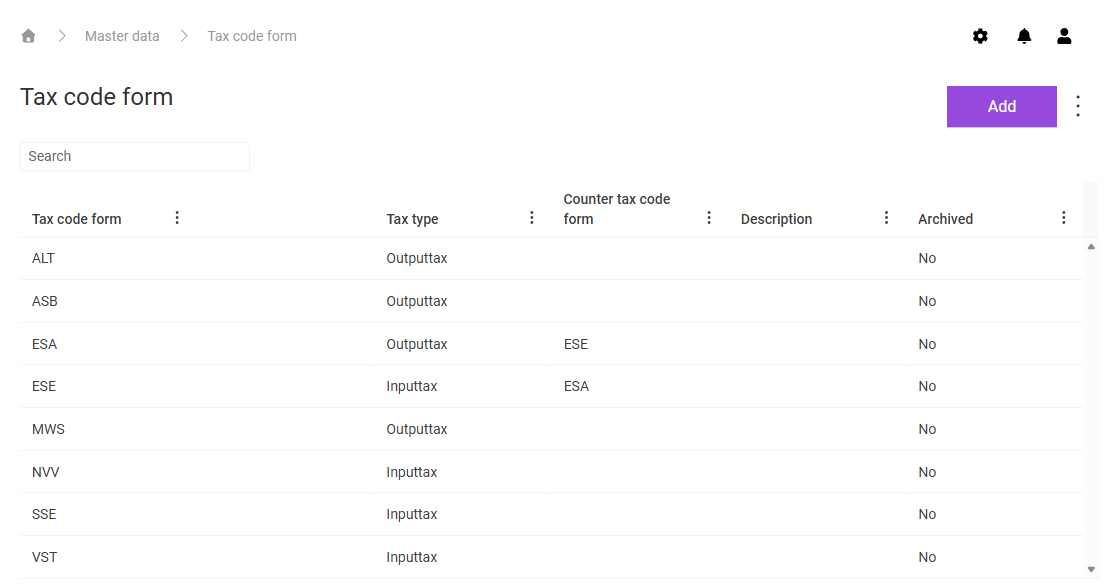
In the Tax code form workspace in Lucanet VAT (Value Added Tax), you manage the forms of tax codes. VAT already contains standard forms, for example MWS for output tax and VST for input tax, which you can supplement with your own forms.
VAT identifies each tax code form via a three-character abbreviation that corresponds to the designation in the ERP system. You assign each form either to input tax or to output tax.
For transactions in which input tax and output tax arise at the same time, for example for intra-Community acquisitions or reverse charge cases, you assign a counter tax code form to a tax code form. In VAT, for example, the forms ESA and ESE are assigned to each other as counter forms.
Proceed as follows to create a tax code form in VAT:
1
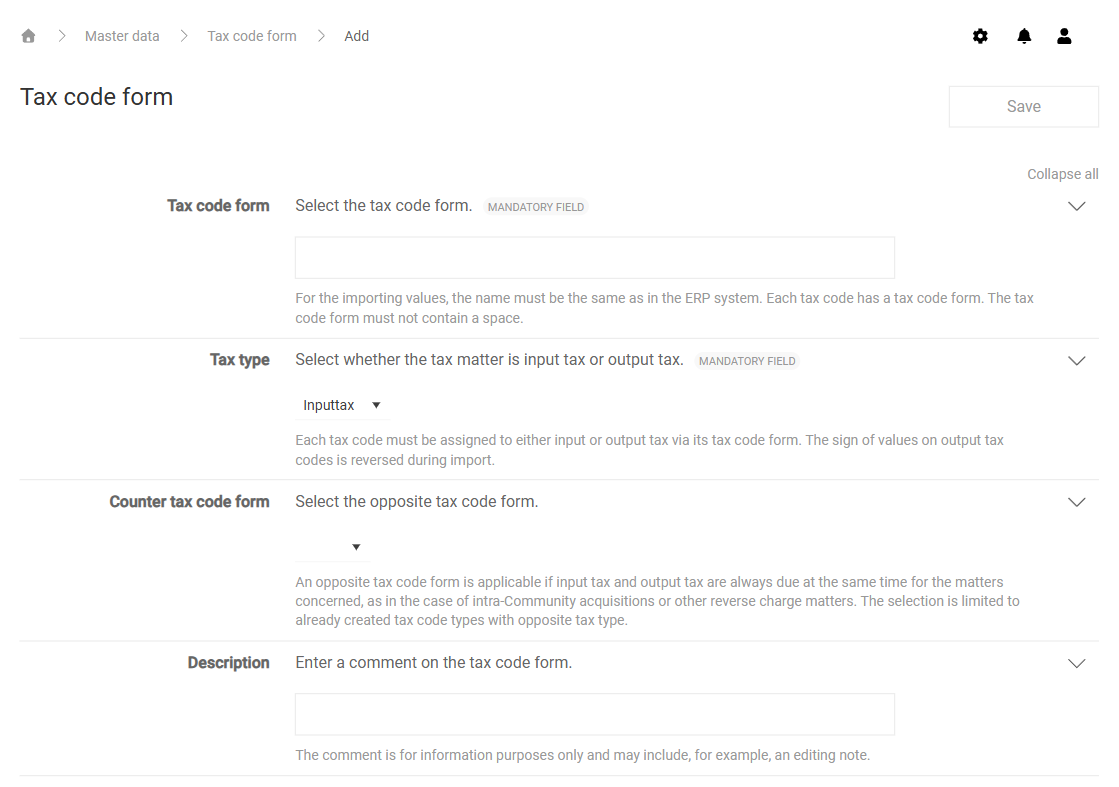
In the Tax code form workspace, click Add. The page for creating a tax code form is displayed:
Page for creating a tax code form
2
Fill in the fields. For a description of the fields, see the following table.
3
Click Save.
The following fields are available when you create and edit a tax code form:
Field
Description
Tax code form
Specifies the abbreviation of the tax code form. The abbreviation must match the identifier in the ERP system exactly so that VAT imports the declaration values correctly. Exactly three characters without spaces are permitted. The field is mandatory.
Tax type
Assigns the tax code form to Inputtax or Outputtax. For tax codes of the output tax, VAT inverts the sign of the values during the import. The field is mandatory.
Counter tax code form
Assigns an already created tax code form with the opposite tax type. You only need the assignment if input tax and output tax always arise at the same time for the same transactions, for example for intra-Community acquisitions or reverse charge cases.
Description
Records additional notes on the tax code form as free text. The description is for information purposes only.
In addition to the general functions, the Show archived function is available in the three-dot menu (⋮) in the top right corner of the Tax code form workspace in VAT. Use this function to display only the archived tax code forms in the table. To return to the active tax code forms, select Show active.
This content was generated using AI and reviewed by Lucanet subject matter experts before publication.