The homepage is the first page that is displayed after you log in to the Lucanet CFO Solution Platform. The homepage is made up of sections, and you can choose which sections are displayed. Your selection is saved for your user account only, so every user can set up their own homepage.

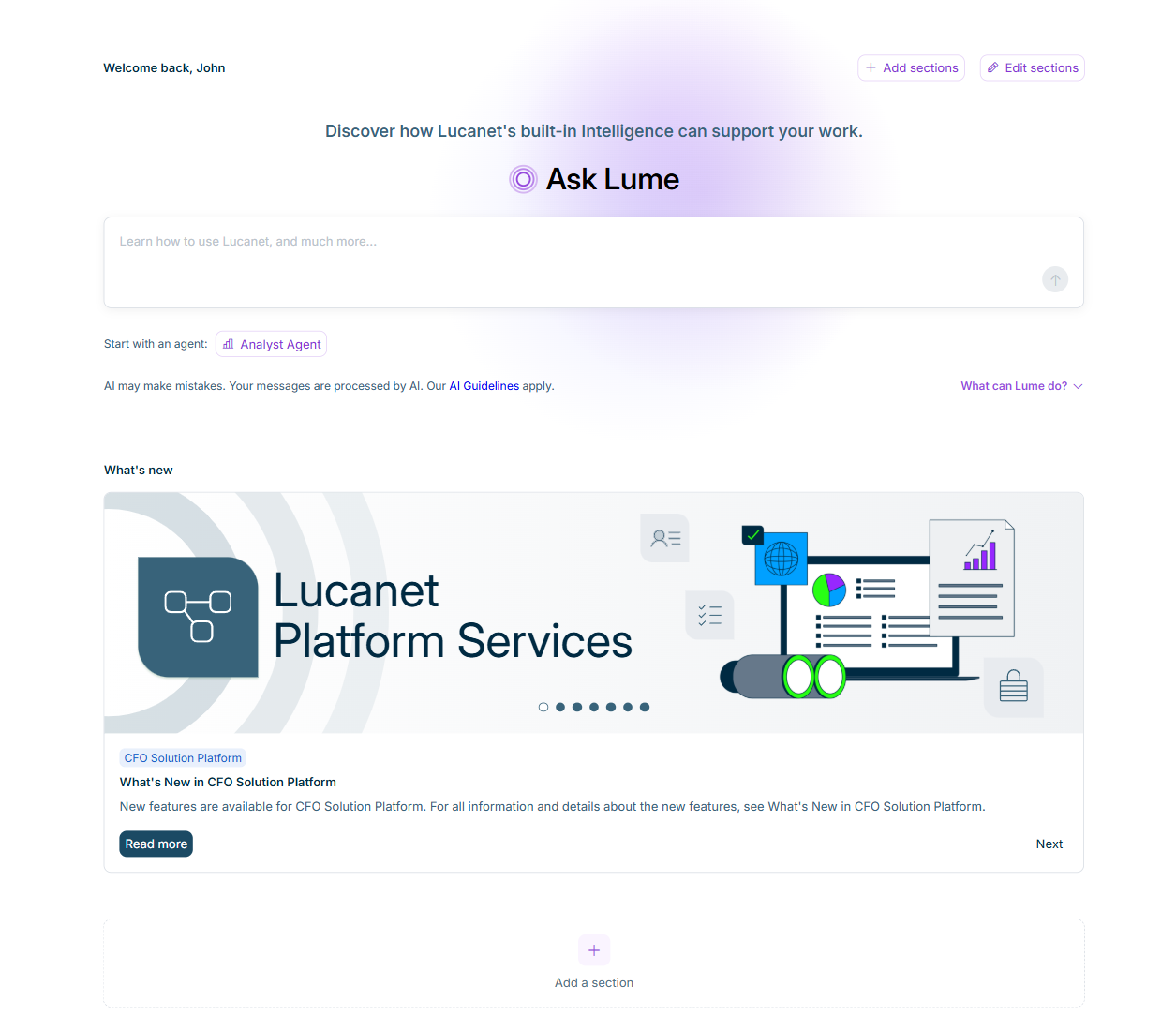
The homepage is displayed as follows, for example:

Shows the homepage of the Lucanet CFO Solution Platform with the greeting, the buttons 'Add sections' and 'Edit sections', the 'Ask Lume' section, the 'What's new' section with the entry 'What's New in CFO Solution Platform' and the buttons 'Read more' and 'Next', and the 'Add a section' button.
Homepage of the Lucanet CFO Solution Platform

The following sections are available on the homepage:

  • Ask Lume: Contains the input field for Lume and, below it, the overview of the agents that are available today and of those that are coming soon. This section is always displayed first and cannot be moved or removed. For more information, see Lucanet Lume.
  • What's New: Contains one entry each for the Lucanet CFO Solution Platform, for Lume, and for every solution your organization has licensed. Click Next to display the next entry, or Read more to open the What's New page of the displayed entry in the Knowledge Base.

To add a section to the homepage of the Lucanet CFO Solution Platform:

1

Click Add sections at the top of the homepage, or Add a section at the end of the homepage.

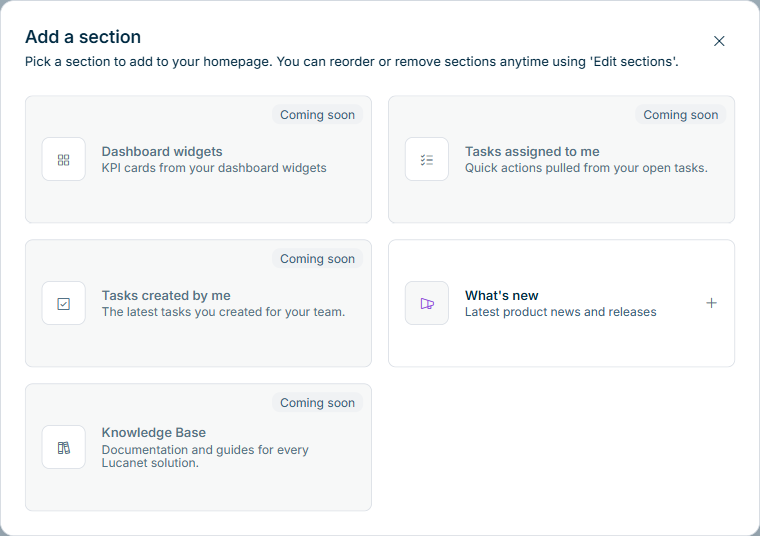
The Add a section dialog is displayed:

Shows the 'Add a section' dialog on the homepage of the Lucanet CFO Solution Platform with five cards. The cards 'Dashboard widgets', 'Tasks assigned to me', 'Tasks created by me', and 'Knowledge Base' are marked with 'Coming soon', the 'What's new' card can be selected.
Dialog for adding a section
2

Click the section you want to add.

The dialog is closed and the section is added to your homepage.

Only sections that are not on your homepage yet can be selected in the dialog. Sections marked with Coming soon cannot be added yet.

To remove a section from the homepage of the Lucanet CFO Solution Platform:

1

Click Edit sections at the top of the homepage.

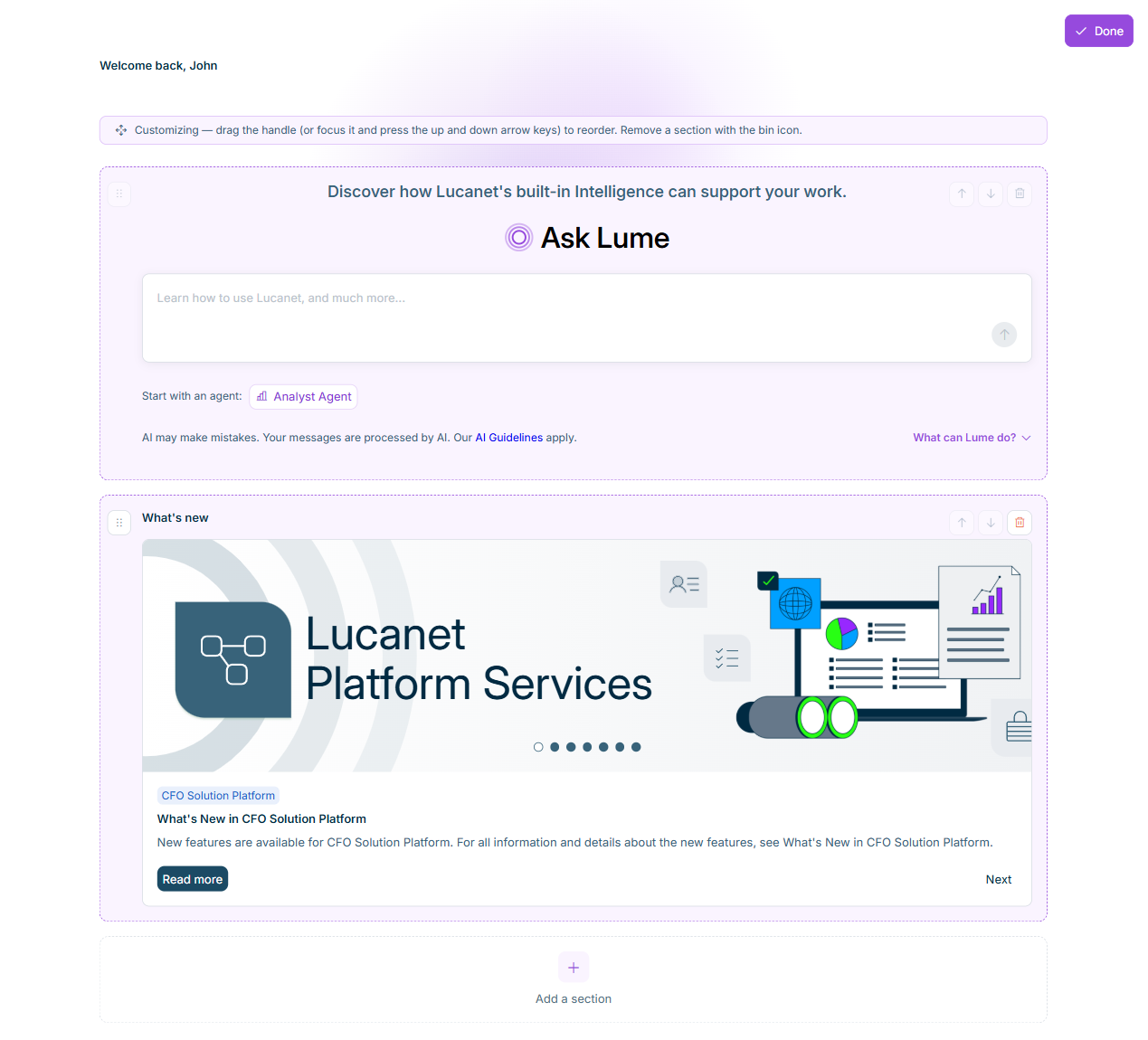
The homepage is displayed in the editing mode:

Shows the homepage of the Lucanet CFO Solution Platform in the editing mode with the note on customizing, the 'Done' button, and the framed sections 'Ask Lume' and 'What's new', each with a drag handle on the left and the icons for moving and removing on the right.
Homepage in the editing mode
2

Click the icon Bin icon of the section you want to remove.

3

Click Done.

Your changes are only saved when you click Done. If you leave the homepage while the editing mode is active, the changes are discarded.

The Ask Lume section cannot be removed. You can add a removed section again at any time, see Adding a Section to the Homepage of the Lucanet CFO Solution Platform.

This content was generated using AI and reviewed by Lucanet subject matter experts before publication.