In ESG Reporting, you can import an Excel file that was exported from the questionnaire of a reporting entity and filled out in MS Excel. The import saves the answers in the questionnaire as if you had entered them in ESG Reporting. The import is available only while the reporting entity has the status In progress, the report is in the Data collection step, and you are assigned to the reporting entity. To get the Excel file, export the questionnaire first (see Exporting the Questionnaire to MS Excel).

To import the completed Excel file into the questionnaire of a reporting entity in ESG Reporting:

1

Navigate to the questionnaire of the reporting entity in the Data collection step of the report.

2

Click Import questionnaire from Excel in the header of the questionnaire.

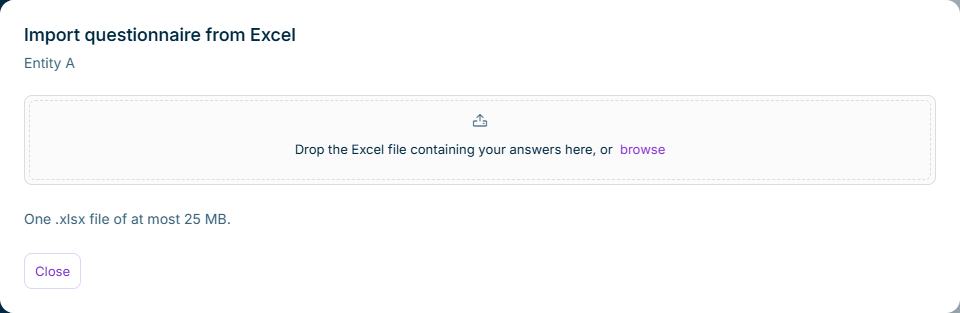
The Import questionnaire from Excel dialog is displayed:

Shows the 'Import questionnaire from Excel' dialog for the reporting entity 'Entity A' in ESG Reporting with the drop zone 'Drop the Excel file containing your answers here, or browse', the note 'One .xlsx file of at most 25 MB.', and the 'Close' button.
Dialog to import the questionnaire from MS Excel
3

Drag the Excel file into the drop zone, or click browse and choose the Excel file.

The import starts immediately. When the import has finished, the dialog displays the result (see Import Result in ESG Reporting).

Notes on the import into ESG Reporting:

  • You can import one .xlsx file of at most 25 MB. Other file types, e.g. .xls or macro-enabled files, are not accepted.
  • Only one import can be executed for a reporting entity at a time. If another user has already started an import for the same reporting entity, the dialog displays who started it.
  • If you close the dialog or reload the page while the import is running, you can open the Import questionnaire from Excel dialog again to display the status and the result of the latest import.
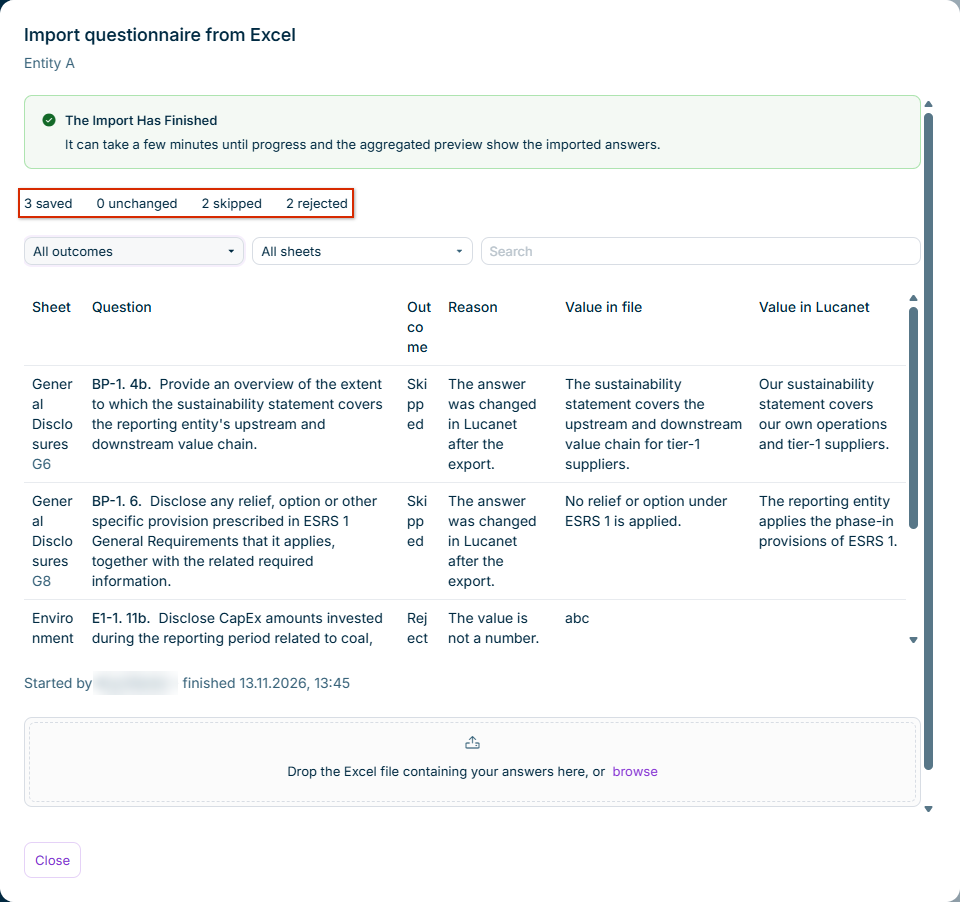
When the import into ESG Reporting has finished, the Import questionnaire from Excel dialog displays a summary and a list of all answers that were not saved:

Shows the result of an import in the 'Import questionnaire from Excel' dialog in ESG Reporting with the message 'The Import Has Finished', the summary '3 saved', '0 unchanged', '2 skipped', and '2 rejected', the 'All outcomes' and 'All sheets' filters, and a list with the columns 'Sheet', 'Question', 'Outcome', 'Reason', 'Value in file', and 'Value in Lucanet'. Highlighted in red is the summary of the import.
Result of an import from MS Excel

The following table describes the counts in the summary of the import result in ESG Reporting:

CountDescription
savedNumber of answers from the Excel file that the import saved in the questionnaire.
unchangedNumber of answers in the Excel file that are identical to the answers in ESG Reporting. These answers are not saved again.
skippedNumber of answers that the import did not save, e.g. because the answer was changed in ESG Reporting after the export, or because the question is no longer visible for the reporting entity.
rejectedNumber of values that the import did not save because they are invalid, e.g. text in a number field or a formula.

The list below the summary contains every answer that was not saved, with the sheet and the cell in the Excel file, the question, the outcome, the reason, the value in the Excel file, and the current value in ESG Reporting. You can filter the list by outcome and by sheet, and search it. Correct the answers listed there directly in the questionnaire, or correct the Excel file and import it again.

After the import, it can take a few minutes until the progress and the aggregated preview in ESG Reporting display the imported answers. Answers saved by the import are not marked as completed or reviewed, and the reporting entity is not submitted.

Excel Files That ESG Reporting Rejects as a Whole

ESG Reporting rejects the whole Excel file without saving any answer in the following cases:

  • The Excel file belongs to another report, guideline, or questionnaire.
  • The reporting entity on the Cover sheet does not match the reporting entity you import into.
  • The hidden content of the Excel file was changed.
  • The Excel file is a read-only Excel file.
  • The file is not an .xlsx file, is macro-enabled, is too large, or cannot be read.
  • The reporting entity no longer has the status In progress, or the report is canceled, no longer in the Data collection step, or being restored.
  • You are not assigned to the reporting entity.

When you import an Excel file into ESG Reporting, the import compares each answer with the answer at the time of the export and with the current answer in ESG Reporting:

  • If an answer was changed both in ESG Reporting and in the Excel file since the export, the import keeps the answer in ESG Reporting. The answer is listed as Skipped with both values. If the value in the Excel file is correct, enter it directly in the questionnaire.
  • You can import the same Excel file several times. Answers that have not changed are skipped as unchanged.
  • New table rows from an Excel file are added only once, even if you import the Excel file several times. ESG Reporting recognizes these rows for one year after the last import of the Excel file. If you import the Excel file again after more than one year, the rows can be added a second time. This recognition applies only to Excel files from the same export. ESG Reporting treats an Excel file from a new export as a new file.
  • If the number of rows in a dynamic table was changed in ESG Reporting since the export, the import does not change the existing rows of this table. New rows from the Excel file are still added.
  • If you copied a table row in the Excel file and changed a value in the copy, the import adds the copy as a new row.
  • If an import stops before it has finished, the answers that were saved up to that point remain saved.

You can use an Excel file exported for one reporting entity to fill out the questionnaire of another reporting entity of the same report. To do so, select the other reporting entity in the drop-down list on the Cover sheet before you import the file. In this case, the import fills only the answers and dynamic tables that are still empty for the other reporting entity; it does not overwrite existing answers.

This content was generated using AI and reviewed by Lucanet subject matter experts before publication.