In Disclosure Management, you can reimport externally edited Word result documents back into the existing report structure. Disclosure Management automatically maps the edited content to the original chapters and saves each as a new version — for example, after an external audit review or after a translation.

Reimport is only available for full result documents (generated from a complete structure). For partial result documents, the Reimport option is visible in the history but disabled.

Reimport requires the Edit all result documents permission and is available at the Basic license level.

The Reimport and Generate as translation document options work together as an end-to-end translation workflow:

1

Generate a translation document
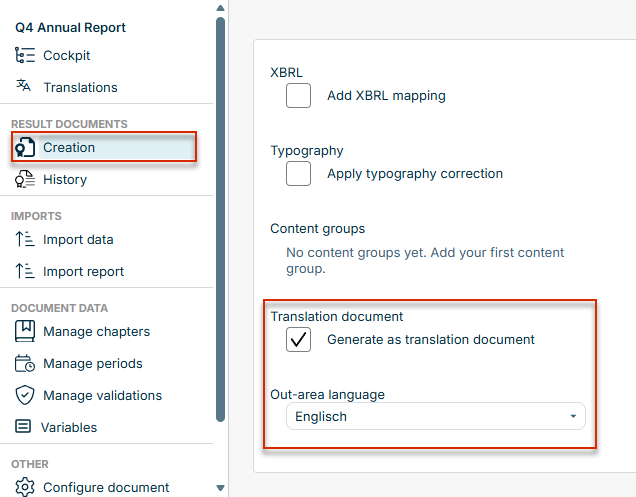
In the Creation workspace, enable Generate as translation document and select the target language.

Dialog 'Create result document' with the 'Generate as translation document' option enabled
Option 'Generate as translation document' in the 'Create result document' dialog

Click Create result document. The generated Word document contains the content in the default language, but uses the target-language out-areas for tables and charts.

2

Edit externally

Share the Word document with the external translator. They edit the content directly in the file.

3

Reimport

Open the document's History in Disclosure Management and reimport the translated file into the target language (see the following section).

To re-import a results document, follow these steps:

1

In the document overview, open the History workspace.

2

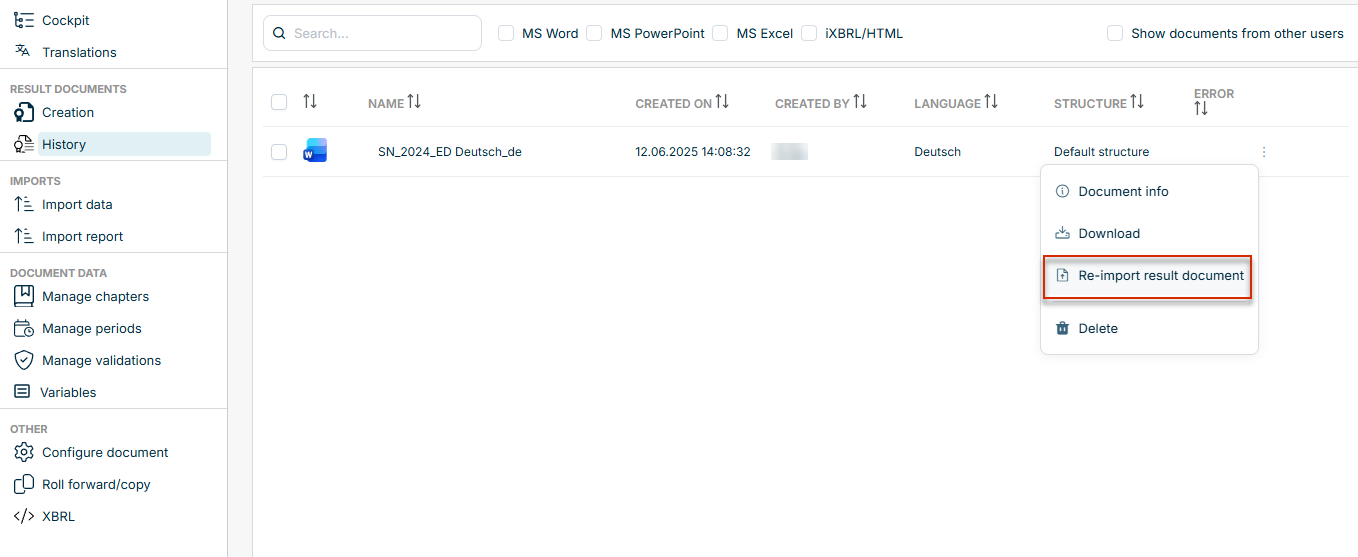
On the desired result document row, open the three-dot menu and select Re-import result document.

Three-dot menu in the History with the command 'Re-import result document' highlighted
Command 'Re-import result document' in the three-dot menu of the History
3

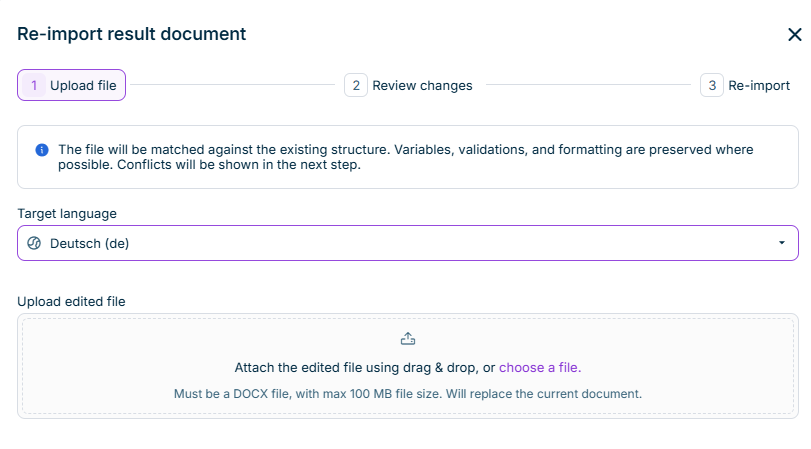
The following dialog is displayed.

Dialog 'Re-import result document' showing the 'Upload file' step
Dialog 'Re-import result document'
4

Upload the externally edited Word file (.docx).

5

In the Target language dropdown, select the target language for the reimport. The language of the original result document is preselected by default.

Only text content is written back. Values, number formats, and report-data bindings are not re-rendered in the target language.

6

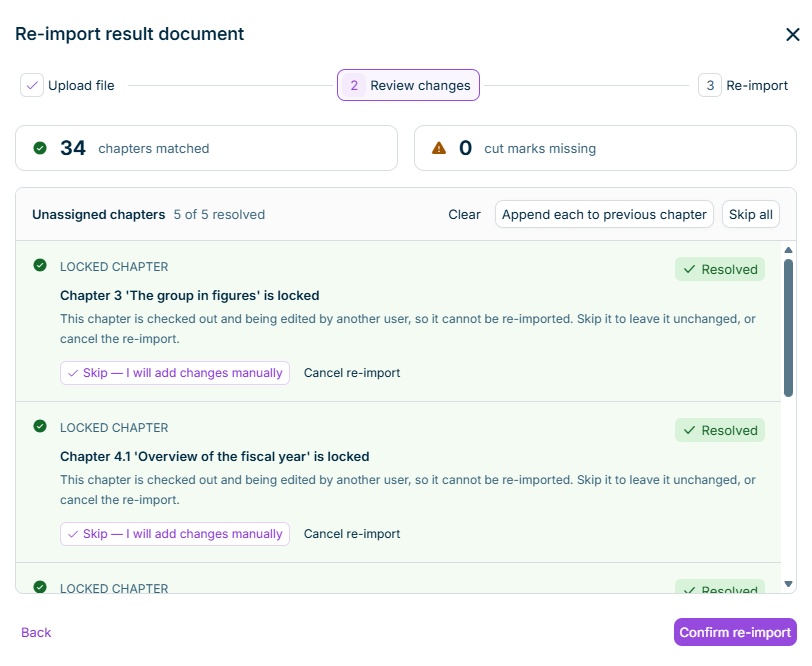
Review the summary. The dialog shows how many chapters were automatically recognized, unrecognized, or locked.

  • If all chapters were recognized, proceed to the next step.
  • If the dialog lists conflicts, resolve them before confirming (see Resolving Conflicts).
Dialog 'Re-import result document' showing the 'Review changes' step with conflict list and 'Confirm re-import' button
'Review changes' step with conflict list and 'Confirm re-import' button
7

Click Confirm re-import.

The recognized chapters are saved as new versions in the selected language.

If the dialog lists unrecognized or locked chapters, each row must be resolved before the Confirm re-import button becomes active.

Row typeAvailable options
Unrecognized chapter (chapter marker missing or unreadable)Append to previous chapter — adds the content to the previous chapter's Word document
Skip — leaves the chapter unchanged; you can update it manually afterward
Locked chapter (currently locked by another user or the workflow)Skip — I will add changes manually — leaves the chapter unchanged
Cancel re-import — aborts the entire reimport; no changes are saved

To apply an option to multiple rows at once, use the bulk actions in the conflict list header:

  • Append each to previous chapter — sets "Append" for all unrecognized rows
  • Skip all — sets "Skip" for all rows
  • Clear — resets all current selections
  • Each reimported chapter is saved as a new version; previous versions are retained in the version history.
  • The history row displays a Reimported badge. Hovering over the badge shows the timestamp of the most recent reimport.
  • An audit entry is created for each affected chapter, capturing user, timestamp, chapter, and language.