With the Excel template import in Lucanet Data Collection, collectors import values together with their dimension details from an Excel file based on the Lucanet Excel template. The import fills the drill down rows of the form by local account, partner, cost center, transaction type, and adjustment level. The free-form Excel import fills drill downs by local account and partner only. For more information about the free-form Excel import, see Importing Data from Excel.

An Excel file for the Excel template import contains one sheet. Row 1 contains the column headers, and the data start in row 2. Each row contains one value with its dimension details. The following table describes the columns of the Excel template:

ColumnDescriptionRequired
AccountContains the account that you map to a row of the form.Yes
PartnerContains the partner of the value.No
Cost CenterContains the cost center of the value.No
Adjustment levelContains the adjustment level of the value.No
Transaction TypeContains the transaction type of the value.No
Value in local currencyContains the value in local currency.Yes
Transaction currencyContains the three-letter ISO code of the transaction currency, for example USD. A transaction currency is required if the row contains a value in transaction currency.Conditional
Value in transaction currencyContains the value in transaction currency. A value in transaction currency is required if the row contains a transaction currency.Conditional

Do not rename, delete, or reorder the columns of the Excel template.

Rows with the same account, the same dimension elements, and the same transaction currency are summed into one drill down entry. Rows that differ in a dimension element or in the transaction currency create separate drill down entries.

To import data with the Excel template in Data Collection:

1

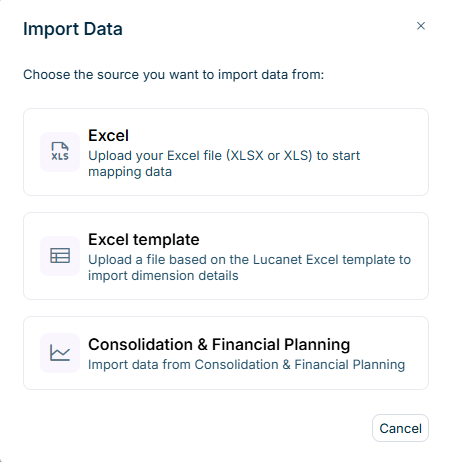
Open the form and click More actions > Import data. The Import Data dialog is displayed:

Shows the 'Import Data' dialog of a form in Lucanet Data Collection with the sources 'Excel', 'Excel template', and 'Consolidation & Financial Planning'. The 'Excel template' option has the description 'Upload a file based on the Lucanet Excel template to import dimension details'.
'Import Data' dialog
2

Select Excel template.

3

Drag the Excel file into the upload area, or click choose a file and select the file. XLSX and XLS files up to 50 MB are supported.

4

Click Next step.

5

Map the accounts to the rows and the value columns to the columns of the form, in the same way as for the free-form Excel import. For more information, see Importing Data from Excel.

6

Click Map dimension values in the form header. The Dimension Value Mapping dialog is displayed.

[Screenshot: 'Dimension Value Mapping' dialog with one tab per dimension — form in mapping step]

7

On the tab of each dimension, select the dimension element for each value from the file in the drop-down list. Values whose name exactly matches the name of a dimension element are assigned automatically, for example the value Partner 1 to the partner Partner 1. You can change these assignments. Data Collection saves each assignment immediately for the reporting entity and reuses the assignment in later imports.

8

Click Close.

9

Click Import. The Confirm Import dialog is displayed:

[Screenshot: 'Confirm Import' dialog with the 'Confirm' button]

10

Click Confirm.

The Import button is available only when every dimension value from the file that is not empty is assigned to a dimension element. The Map dimension values button displays the number of values that are not assigned yet. Assigning empty cells is optional. If you do not assign empty cells, the values of these rows are imported into a placeholder row named after the account.

The Excel template import replaces the existing drill down entries of the target rows, including entries that collectors entered manually. Rows of the form that the import does not cover keep their values.

The import completes in the following cases, and Data Collection names the affected values or dimensions:

  • If the form has no drill down for a dimension in the file, the import sums the rows of this dimension into the target row without a breakdown.
  • If a value from the file matches no dimension element available to the reporting entity, the import adds the value as text.
  • If a value cannot be stored in the target column, the import skips the value.

Correct the values in the file and import the file again if needed.

Data Collection rejects the whole file and names the reason, the sheet, and the row in the following cases:

  • The file contains more than one sheet.
  • The columns of the file differ from the Excel template, for example because a column is renamed, deleted, or moved.
  • A row has no account or no value in local currency.
  • A transaction currency in the file is not a valid three-letter ISO currency code.

This content was generated using AI and reviewed by Lucanet subject matter experts before publication.