In Consolidation & Financial Planning (CFP), consolidation reporting entities are used for postings during the consolidation and are assigned to consolidation areas in the Consolidation areas workspace.

To create a consolidation reporting entity in CFP:

1

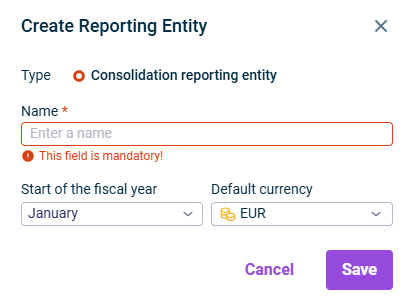
Right-click a folder and choose Create | Consolidation reporting entity from the context menu. The Create Reporting Entity dialog is displayed:

Shows the 'Create Reporting Entity' dialog in CFP with the type 'Consolidation reporting entity', the empty mandatory 'Name' field with the message 'This field is mandatory!', the 'Start of the fiscal year' drop-down list set to 'January', the 'Default currency' drop-down list set to 'EUR', and the 'Cancel' and 'Save' buttons.
Creating a consolidation reporting entity
2

Specify the name of the element.

3

Choose the start of the fiscal year and the default currency in which the transactions of the reporting entity are to be executed.

4

Click Save.

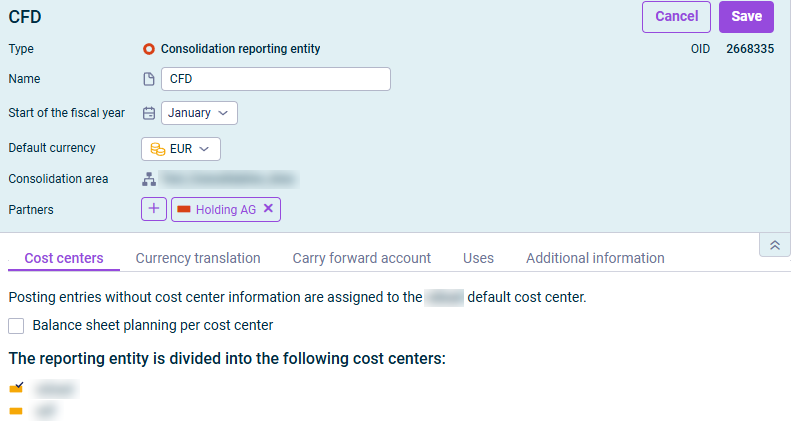
Shows the consolidation reporting entity 'CFD' in editing mode in CFP with the type 'Consolidation reporting entity', the 'Name' field, 'Start of the fiscal year' set to 'January', 'Default currency' set to 'EUR', a consolidation area, and the partner 'Holding AG' under 'Partners'. The 'Cost centers' tab is open next to the tabs 'Currency translation', 'Carry forward account', 'Uses' and 'Additional information', and displays the 'Balance sheet planning per cost center' check box and two cost centers.
Configuring a consolidation reporting entity

To configure a consolidation reporting entity in CFP:

1

Click a consolidation reporting entity in the tree view.

2

Click Edit at the top right to open the editing mode.

When configuring a consolidation reporting entity in CFP, the following options are available:

Allows selection of the first month of the fiscal year from a drop-down list.

Allows selection of the currency in which transactions of the reporting entity will be executed.

Partners can be assigned to reporting entities in the detail view of the respective partner (see Creating and Configuring Partners in CFP).

The following options are available on the Cost centers tab:

  • Create default cost center: Creates a default cost center if none exists.
  • Balance sheet planning per cost center: Accumulates planning values at the individual cost center level instead of using the default cost center.

Allows selection of exchange rates created in the Currency Translation workspace (see Creating and Configuring Exchange Rate Tables in CFP).

The message The changes shown in red will take effect only after exporting and importing the database is displayed when adding or deleting exchange rate tables. This indicates that the changes will not take effect until the current database is re-exported and re-imported. If needed, contact your Lucanet administrator.

The following options are available on the Carry forward account tab:

  • Specify an account and a transaction type for the cancellation of the carry forward when importing cumulative balances.
  • Activate historical exchange rate translation: Allows automatic translation of historical exchange rates for the next balance import.

Note: This option is only available if at least one active exchange rate table is assigned to the reporting entity.

This content was generated using AI and reviewed by Lucanet subject matter experts before publication.