In Consolidation & Financial Planning (CFP), the exchange rates between currencies are defined in exchange rate tables. CFP offers the option of storing year-to-date exchange rates for currency translation for all exchange rate relationships (transaction currencies and display currencies) in addition to average exchange rates, closing exchange rates, and historical exchange rates. You can create any number of exchange rate tables in order to model variants of the same exchange rate connections with different exchange rates in CFP, for example.

To create one or more exchange rate tables in CFP:

1

Right-click the Exchange rate tables root folder.

2

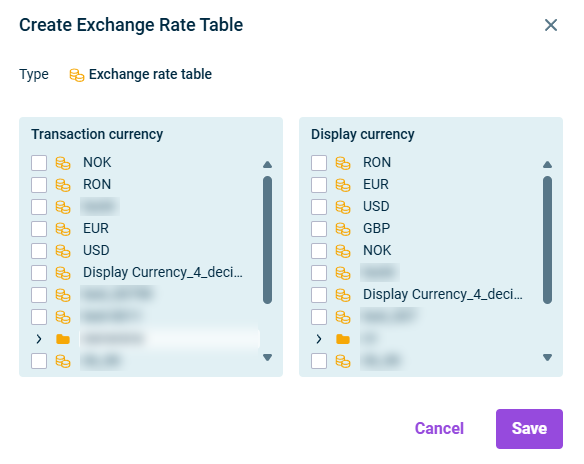
Choose Create | Exchange rate table from the context menu. The Create Exchange Rate Table dialog is displayed:

Shows the 'Create Exchange Rate Table' dialog in CFP with the type 'Exchange rate table', the 'Transaction currency' and 'Display currency' lists with check boxes for currencies such as 'EUR', 'USD', 'NOK' and 'RON', and the 'Cancel' and 'Save' buttons.
Creating an exchange rate table
3

Specify at least one transaction currency and one display currency.

4

Click Save.

In CFP, an exchange rate table is created automatically for each combination of different transaction currencies and display currencies. If you have, for example, selected both EUR and USD as both transaction currency and display currency, then two exchange rate tables will be created: EUR -> USD and USD -> EUR.

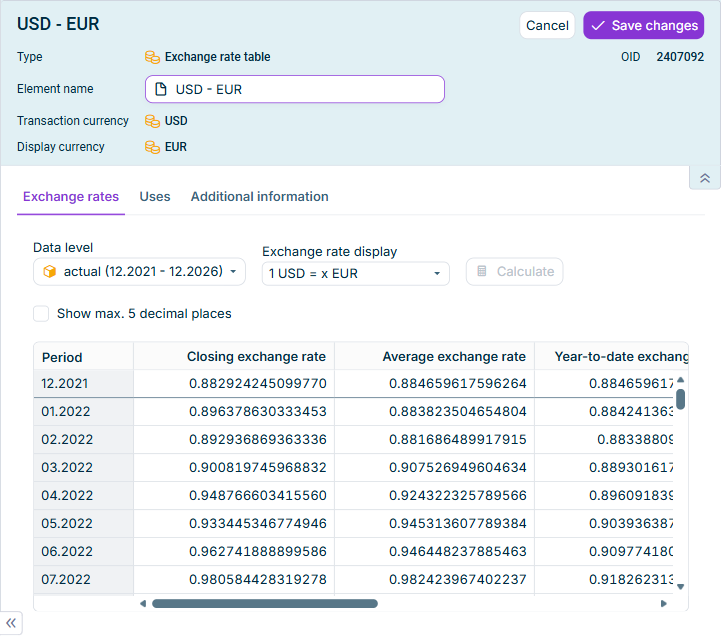
Shows the exchange rate table 'USD - EUR' in editing mode in CFP with the 'Element name' field, the transaction currency 'USD', the display currency 'EUR', and the 'Cancel' and 'Save changes' buttons. On the 'Exchange rates' tab, the 'Data level' drop-down list is set to 'actual (12.2021 - 12.2026)' and the 'Exchange rate display' drop-down list to '1 USD = x EUR', next to the 'Calculate' button and the 'Show max. 5 decimal places' check box. The table lists the 'Closing exchange rate', 'Average exchange rate' and 'Year-to-date exchange rate' for each period.
Configure an exchange rate table

To configure an exchange rate table in CFP:

1

Click the name of the exchange rate table in the tree view and then click Edit at the top right.

2

On the Exchange rates tab, choose the data level for which exchange rates are to be defined from the drop-down list Data level.

3

Define the currency detail:

Retain the preselection if the exchange rate display is to take place from the view of the transaction currency (= one currency unit of the transaction currency corresponds to x currency units of the display currency).

Choose the other option if the exchange rate display is to take place from the view of the display currency (= one currency unit of the display currency corresponds to x currency units of the transaction currency).

4

Deactivate the check box Show max. 5 decimal places if all decimal places are to be displayed for each exchange rate.

Usually, CFP rounds the complete exchange rates in accordance with commercial principles.

The following exchange rate settings are available for the actual data level in CFP for each period:

Closing exchange rate can be imported from the European Central Bank or from MS Excel (see Importing Exchange Rates in CFP).

Average exchange rate can be imported from the European Central Bank or from MS Excel (see Importing Exchange Rates in CFP).

The value is automatically determined by clicking Calculate.

Used to enter the year-to-date exchange rate.

The value is automatically determined by clicking Calculate.

Used to configure the beginning of the fiscal year and the determination of the year-to-date exchange rate to this period.

The Year-to-date start cell is active only if the On account level with year-to-date exchange rate value is selected as the default conversion type for transaction types.

The month for which the switch-over to the conversion with the Year-to-date exchange rate was selected is at the same time the beginning of the fiscal year for the aggregation of the year-to-date values to be converted.

The following options are available for the default translation type for transactions in CFP:

  • On document level with average or historical exchange rate: The average exchange rate or the historical exchange rate is used for the conversion.
  • On account level with year-to-date exchange rate: The exchange rate stored in the Year-to-date exchange rates column or the historical exchange rate is applied for the conversion.

If you change the translation type for transactions and if postings already exist for reporting entities that use this exchange rate table, then the message The changes shown in red will take effect only after a reorganization of the database is displayed. This means that this change will have no effect until the current database is exported and then imported again.

The following exchange rate settings are available for the planning data level in CFP for each period:

The closing exchange rate can be imported from the European Central Bank or from MS Excel (see Importing Exchange Rates in CFP).

The average exchange rate can be imported from the European Central Bank or from MS Excel (see Importing Exchange Rates in CFP).

The value is automatically determined by clicking Calculate.

This content was generated using AI and reviewed by Lucanet subject matter experts before publication.