This guide serves as a central resource for resolving issues you are facing with the CFP Add-in for Excel 365 efficiently.

Each entry includes the problem description, root cause, and the steps taken to fix it.

The page will be amended continuously to ensure fast, consistent problem-solving.

You work with the Lucanet.Excel Add-In and notice that your Lucanet formulas are displayed with the prefix _xldudf_, e.g. _ xldudf_LN_VALUE instead of their expected format (LN.VALUE).

This indicates that Excel cannot recognize or resolve the custom Lucanet functions such as LN.VALUE(), LN.ATTRIBUTE(), and other Lucanet-specific formulas used to retrieve data from Consolidation & Financial Planning (CFP).

The error typically occurs when two or more versions of the Lucanet.Excel-Add-In are installed and active simultaneously:

  • Lucanet COM add-in - the legacy Lucanet.Excel-Add-In

  • CFP Add-in for Excel 365 – the modern Office 365-compatible version

Since both add-ins use identical formula names, Excel cannot determine which version to execute, causing the function resolution to fail.

To fix the error, you must deactivate the legacy Lucanet.Excel-Add-In while keeping the CFP Add-in for Excel 365 active. Proceed as follows:

1

Open Excel and go to File | Options.

2

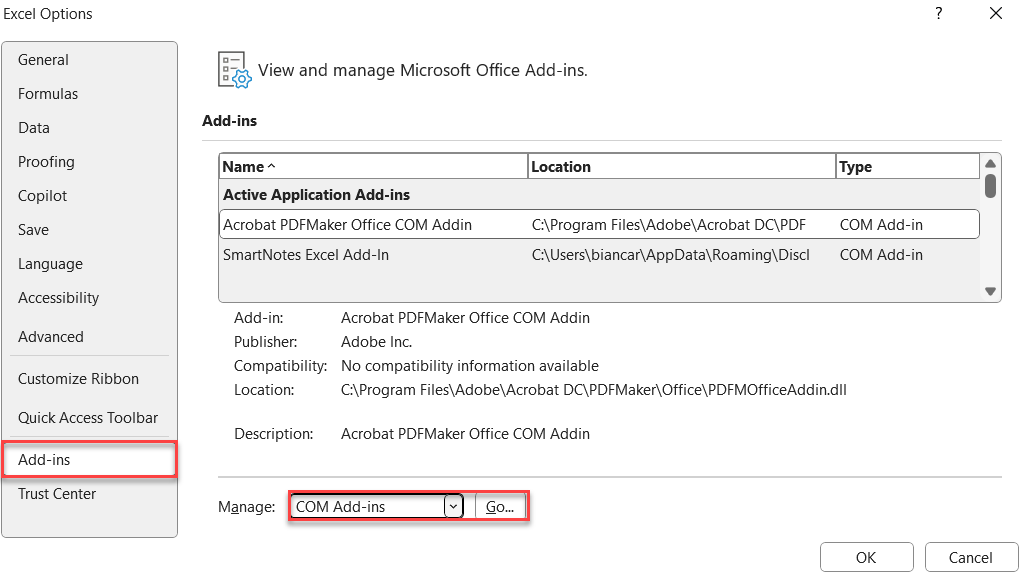
In the Excel Options dialog, navigate to Add-ins in the left sidebar.

3

From the Manage drop-down list, select COM Add-ins and click Go.

Shows the Excel Options dialog. Highlighted in red is the Add-in section on the left sidebar and the 'Manage' drop-down list.
Excel options
4

Deactivate the check box for Lucanet COM add-in.

5

Click OK.

6

Close and restart Excel.

After restart, Lucanet formulas will display correctly without the _ xldudf_ prefix. The COM add-in remains on your system and can be reactivated if needed.

Deactivating the COM add-in does not delete it from your system - it simply prevents it from loading when Excel starts. You can reactivate it later if needed by following the same steps and activating the check box again.

The CFP Add-in for Excel 365 will handle all Lucanet formula calculations going forward.

When multiple users edit the same Excel file simultaneously using the CFP Add-In for Excel 365, Excel recalculates the formulas very frequently. This slows down MS Excel and affects workflow.

This behavior depends heavily on the file size, the number of formulas, and the number of users editing the file.

This error typically occurs when:

  • Multiple users are working on the same workbook at the same time, and
  • MS Excel automatically recalculates the formulas (the default behavior for automatic calculation).
To fix the error, every user working on the file must disable automatic formula calculation in MS Excel.

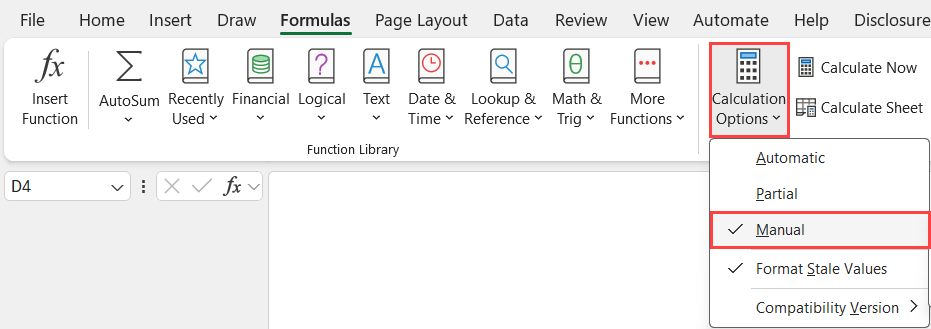
To do this, open the Formulas tab in the Excel ribbon and select the Manual option under Calculation Options:

Shows the Excel ribbon. The tab 'Formulas' is open, and the options 'Calculation Options' and 'Manual' are highlighted.
Deactivating automatic formula calculation

You can then manually calculate formulas using the Refresh button on the Lucanet CFP Add-in tab in the Excel ribbon.

After migrating from the Lucanet COM Add-In to the CFP Add-in for Excel 365, LN formulas in existing workbooks display a #NAME? error when the workbook is opened. The formulas do not return data on the first load.

Once a cell containing an LN formula is activated (for example, by pressing Enter) or the formula is re-entered manually, the data refreshes correctly.

The COM Add-In and the CFP Add-in for Excel 365 are built on fundamentally different technologies. When an LN formula is entered using the Lucanet COM Add-In, Excel stores a hidden reference in the cell pointing specifically to that add-in. When the workbook is subsequently opened with only the CFP Add-in for Excel 365 active, Excel cannot find the original add-in reference and displays #NAME?.

To register all LN formulas in the workbook to the CFP Add-in for Excel 365, use Excel's Find & Replace function to force Excel to re-evaluate the formulas:

1

Open the affected workbook with the CFP Add-in active.

2

Press Ctrl+H to open the Find & Replace dialog.

3

In the Find what field, enter =.

4

In the Replace with field, enter =.

5

Click Replace All.

Excel re-evaluates all formulas in the workbook and registers them under the CFP Add-in for Excel 365. After this step, LN formulas will work correctly on subsequent opens.

This step is required once per workbook after migrating from the COM Add-In to the CFP Add-in for Excel 365.

You press a shortcut of the CFP Add-in for Excel 365, but the add-in does not execute the action. This can affect the following shortcuts of the CFP Add-in for Excel 365:

  • Ctrl+Q: refreshes all Lucanet formulas
  • Ctrl+B, Ctrl+W, or Ctrl+E: transfers the values from MS Excel to Lucanet. The shortcut depends on the language of MS Excel: Ctrl+B for German, Ctrl+W for Spanish, and Ctrl+E for English and all other languages. For more information, see Transferring Data from MS Excel to Lucanet.

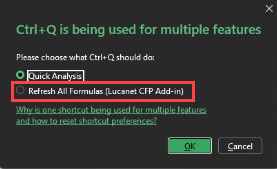
MS Excel uses some shortcuts of the CFP Add-in for Excel 365 for its own features, too. For example, Ctrl+Q opens Quick Analysis in MS Excel. When you press such a shortcut for the first time, MS Excel displays the dialog Ctrl+Q is being used for multiple features and asks which feature the shortcut should execute:

  • the MS Excel feature, for example Quick Analysis
  • the action of the CFP Add-in for Excel 365, for example Refresh All Formulas (Lucanet CFP Add-in)
MS Excel saves your choice for the user and the device. If you selected the MS Excel feature, the shortcut no longer executes the action of the CFP Add-in for Excel 365.

To fix the error, reset the shortcut preferences of the Office add-ins in MS Excel and then assign the shortcut to the CFP Add-in for Excel 365:

1

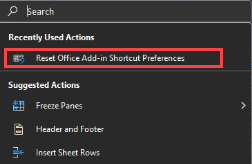
In MS Excel, click the Search box at the top of the window.

2

Enter Reset Office Add-in Shortcut Preferences and select the command of the same name.

Shows the MS Excel search box with the command 'Reset Office Add-in Shortcut Preferences' under 'Recently Used Actions'.
Resetting the shortcut preferences of the Office add-ins

MS Excel deletes all shortcut preferences of your Office add-ins.

3

Press the shortcut of the CFP Add-in for Excel 365 again, for example Ctrl+Q.

4

In the dialog Shortcut is being used for multiple features, select the action of the CFP Add-in for Excel 365, for example Refresh All Formulas (Lucanet CFP Add-in), and click OK.

Shows the MS Excel dialog 'Ctrl+Q is being used for multiple features' with the options 'Quick Analysis' and 'Refresh All Formulas (Lucanet CFP Add-in)'.
Assigning the shortcut to the CFP Add-in for Excel 365

The shortcut executes the action of the CFP Add-in for Excel 365 again.

If the command Reset Office Add-in Shortcut Preferences is not displayed in the search, add it to the Excel ribbon via File | Options | Customize Ribbon.

This content was generated using AI and reviewed by Lucanet subject matter experts before publication.