The goal of the app for Elimination of income from investments is to automate the elimination of investment income recorded by the parent company against the subsidiary's dividend distributions or profit transfers in the same period.
Elimination can be executed per period or accumulated across several periods.
Non-controlling interests can be considered. They are considered based on the ownership interests stored in the master data or based on individual specifications made on the app interface.
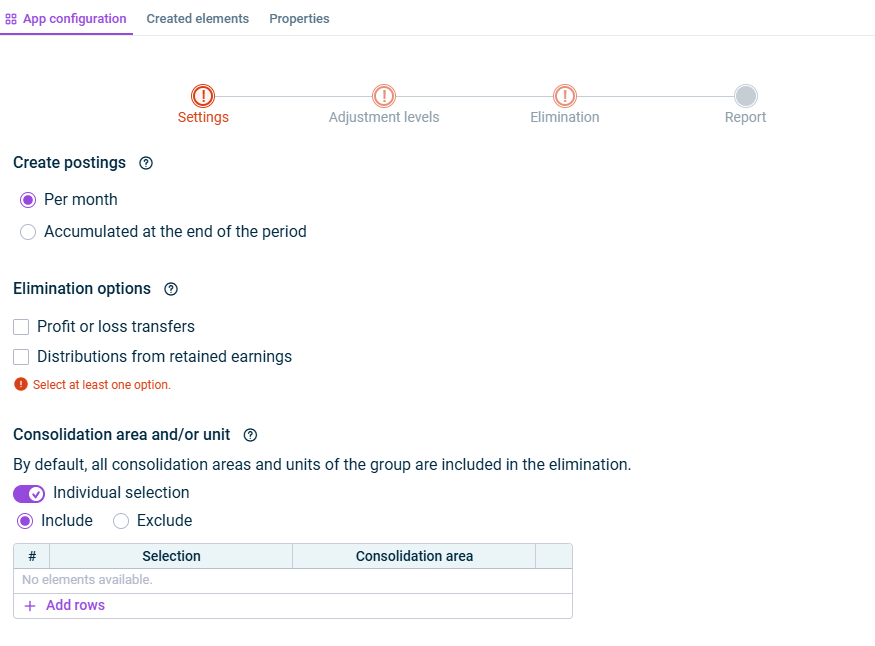
In the Settings step, specify the general settings for the configuration:
'Settings' step
The following options are available on the Settings step:
Option
Description
Create postings
Time of consolidation: - Per month: The app eliminates intercompany transactions in each month of the consolidation period and creates monthly elimination postings. - Accumulated at the end of the period: The app cumulatively eliminates intercompany transactions in the last month of the consolidation period and creates an accumulated elimination posting only in the last month of the consolidation period.
Note: For any consolidation unit deconsolidated in the consolidation period, an accumulated elimination will be performed in the last month of the consolidation unit's inclusion in the consolidation area.
Elimination options
- Profit or loss transfers: To eliminate profit or loss transfers between investment and investor in the same period. - Distributions from retained earnings: To eliminate distributions from retained earnings in income and equity.
Consolidation area and/or unit
The consolidation areas and/or units that the elimination is to be performed for. By default all consolidation areas and units of the group are included. If you only want to include certain consolidation areas and/or units, activate the Individual selection check box and select one of the following options: - Include: In the table, select individual consolidation areas and/or units to be considered. - Exclude: In the table, select the consolidation areas and/or units that are to be excluded.
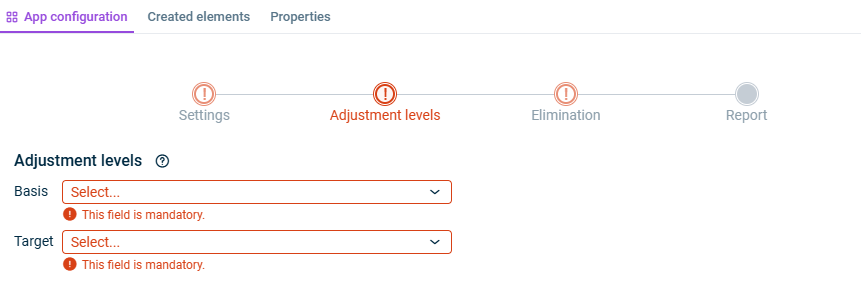
In the Adjustment levels step, specify the adjustment levels that should be taken into account for the elimination.
The app also carries out postings at adjustment levels that are locked for other postings.
'Adjustment levels' step
The following options are available on the Adjustment levels step:
Option
Description
Basis
Adjustment level group including all non-consolidation adjustment levels for data imports and postings you want to include in the elimination. Please ensure that the adjustment level for proportioning is included in the adjustment level group.
Target
Adjustment level for consolidation postings to be used for the postings.
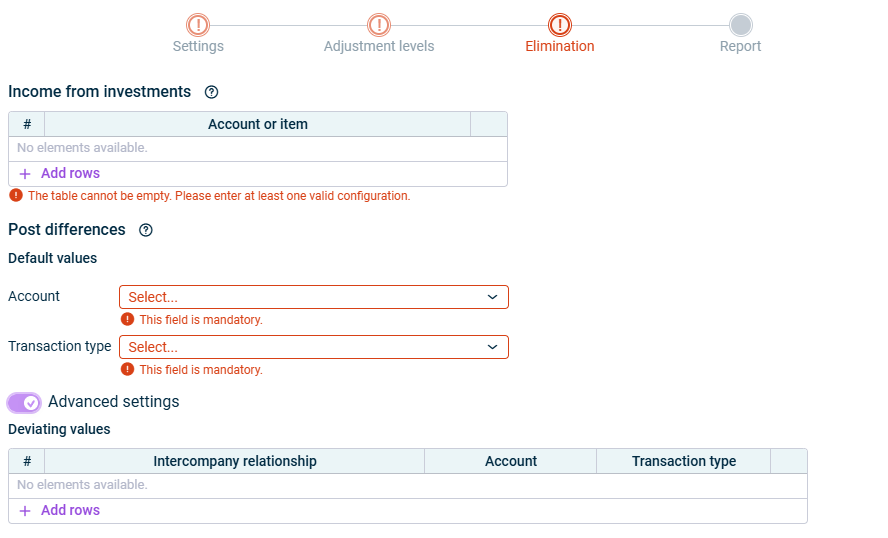
In the Elimination step, specify how to deal with income from investments.
'Elimination' step
The following options are available on the Elimination step:
Option
Description
Income from investments
The investor's accounts and/or items for eliminating income from distributions or profit/loss transfers received
Post differences
Account and transaction type for posting elimination differences.
Note: The account itself may not contain intercompany transactions to be eliminated.
Advanced settings
If you want to define different accounts or transaction types for certain intercompany relationships, activate the option Advanced settings. After that, in the Intercompany relationship column, select the two related companies for which you want to define different values and configure a deviating account and/or a deviating transaction type.
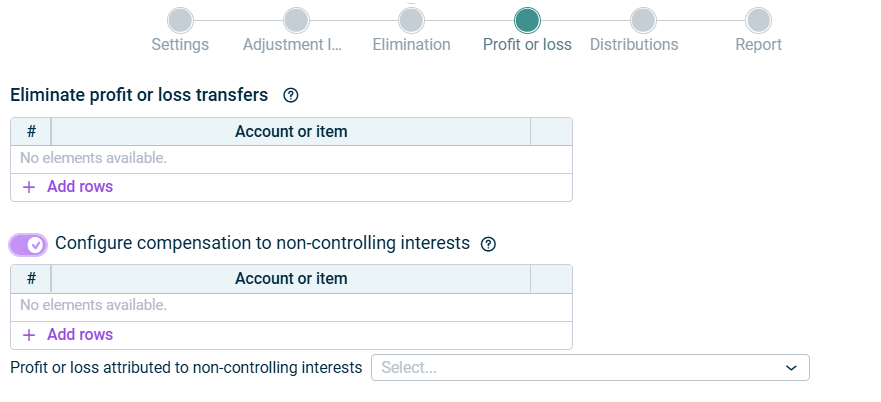
The Profit or loss step is only displayed if you chose Profit or loss transfers as elimination option in the Settings step:
'Profit or loss' step
The following options are available on the Profit or loss step:
Option
Description
Eliminate profit or loss transfers
Accounts and/or items of the investment that contain the amounts of the profit or loss transferred to be eliminated
Configure compensation to non-controlling interests
Activate this option if you want to recognize compensation payments to non-controlling interest and choose the accounts and/or items that contain the compensation to other investors.
Note: Compensation payments recognized on the chosen accounts and/or items will be reclassified to profit or loss attributable to non-controlling interests in the statement of profit or loss.
Profit or loss attributable to non-controlling interests
Account that the profit or loss from non-controlling interests is to be posted to
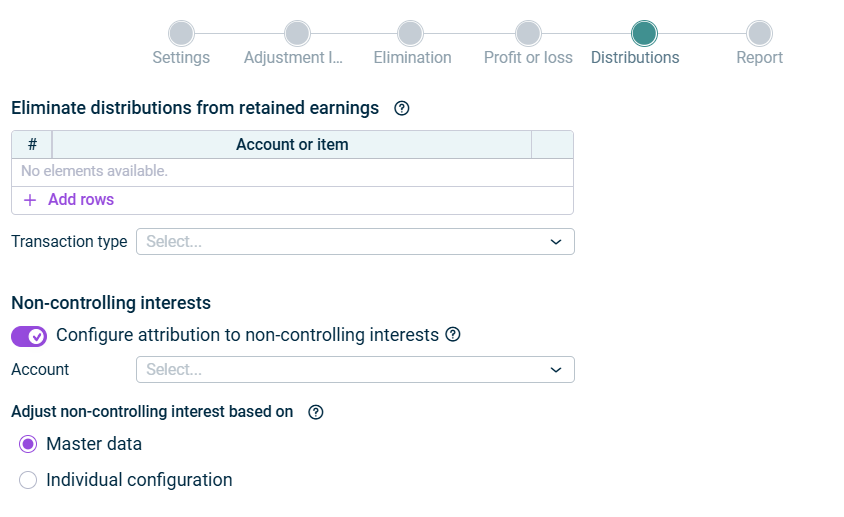
The Distributions step is only displayed if you chose Distributions from retained earnings as elimination option in the Settings step:
'Distributions from retained earnings' step
The following options are available on the Distributions from retained earnings step:
Option
Description
Eliminate distributions from retained earnings
The investment's accounts and/or items in equity and the transaction type on which distributions are posted. Only distributions posted on this transaction type will be eliminated.
Non-controlling interests
Activate this option if you want to configure the attribution to non-controlling interests and choose the account for adjusting the non-controlling interests in equity.
Adjust non-controlling interest based on
- Master data: The ownership interests defined in the master data administration will be used to calculate the adjustment of non-controlling interests. - Individual configuration: An individually configured percentage value or an absolute amount will be used for the adjustment of non-controlling interests. Use the displayed table to specify the share of distribution that will be attributed to non-controlling interests per investment. For all other investments that are not configured in this table, the ownership interests defined in the master data administration will be used.
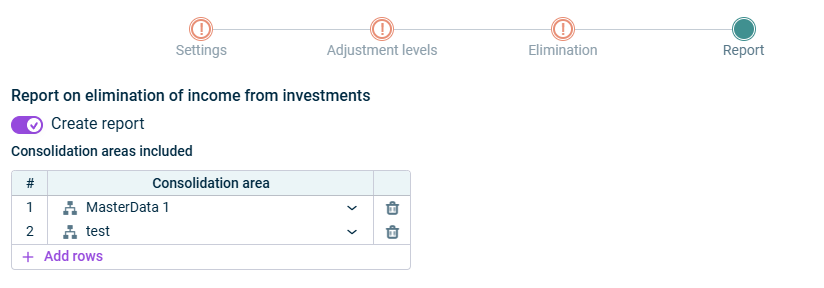
In the Report step, enter the consolidation area(s) that a report on the elimination of income from investments is to be created for, if necessary. The report shows the created elimination postings with any differences and the reclassifications to non-controlling interests.
'Report' step
The following options are available on the Report step:
Option
Description
Create report
Activate the option to create a report on the difference amounts when executing the app.
Consolidation areas included
Consolidation areas for which the report should be generated.
Note: The report can only be created for consolidation areas that were included in the Settings step for the app execution.
As long as a step has not been fully configured and/or configuration errors exist, it is displayed with a red exclamation mark .
Once a step is configured completely and without any errors, it is displayed with a green check mark .
You can close the configuration dialog by clicking the arrow icon at the top left.
To change the name of the app, select the app in the tree view and choose Properties from the context menu.
You can execute the app for the Elimination of income from investments either separately, together with other apps in an executable folder or as part of consolidated financial statements.
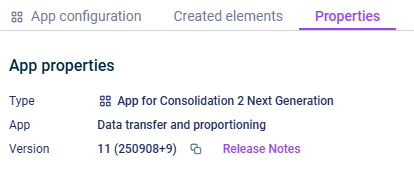
The App properties are displayed on the tab of the same name:
'Properties' tab
The following App properties are displayed:
Type of the element
Function of the App
Version of the element.
New available version
As soon as a new version of the app is available that contains changes to the app configuration and/or the calculation logic of the app, the Refresh command is displayed, allowing you to update the app to the latest version.
Information about the changes to each version can be found in the Release Notes, which can be accessed via the link of the same name.
We strongly recommend to update all apps to the new version as soon as possible because it cannot be guaranteed how long an app with an obsolete version can be executed.
This content was generated using AI and reviewed by Lucanet subject matter experts before publication.