Postings made manually in one consolidation area do not automatically apply to other consolidation areas.
Use the app Copy postings into other consolidation areas to avoid copying these postings manually from one consolidation area to another, which is tedious and error-prone. The app takes over that work: configure it once, and use the app to copy manual postings and translations with historical exchange rates into other consolidation areas with a single execution, as often as you need.
You can create the app as a subordinate element of a Consolidated financial statements element. Multiple instances of the app can coexist for the same Consolidated financial statements element, for example to copy postings between several pairs of consolidation areas.
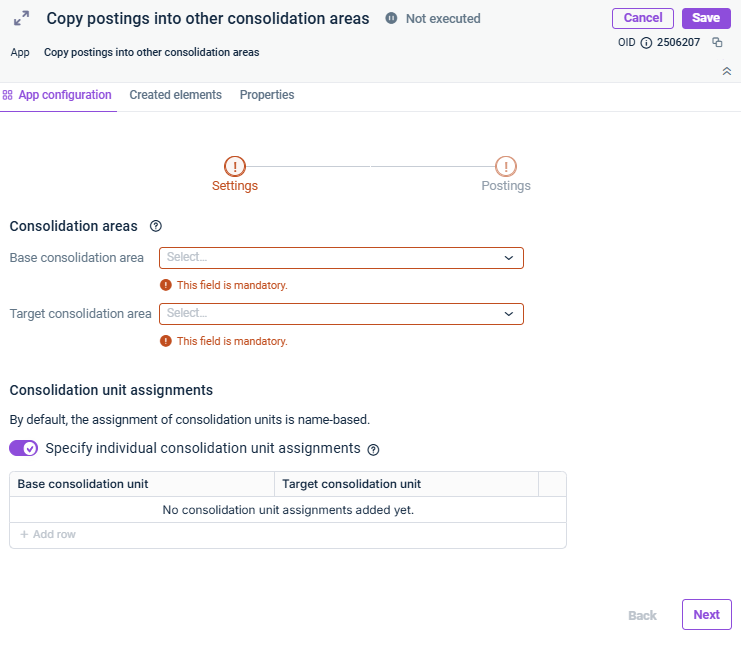
In the Settings step, specify the base and target consolidation areas and the consolidation-unit assignment between them:
Step 'Settings'
The following options are available in the Settings step:
Option
Description
Base consolidation area
Consolidation area from which the postings are copied.
Target consolidation area
Consolidation area into which the postings are copied. The target consolidation area must differ from the base consolidation area.
Consolidation unit assignments
By default, consolidation units are assigned by matching name between the base and target consolidation areas. If no consolidation unit with a matching name exists in the target consolidation area, the corresponding postings are skipped.
If necessary, activate the Specify individual consolidation unit assignments check box to explicitly assign each base consolidation unit to a target consolidation unit in the displayed table.
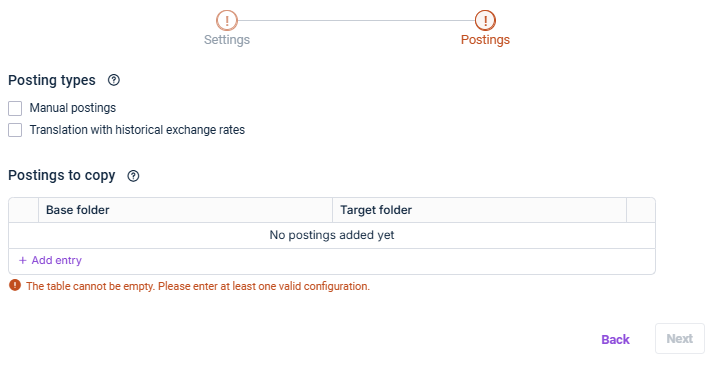
In the Postings step, specify which types of postings are copied and the folders involved:
Step 'Posting types'
The following options are available in the Postings step:
Option
Description
Manual postings
Activate to copy manual postings from the base consolidation area to the target consolidation area.
Translations with historical exchange rates
Activate to copy postings from the translation with historical exchange rates. Requires an exchange rate table to be configured on the target consolidation area.
Source folder(s)
Folder(s) in the base consolidation area that contain the postings to be copied. You can choose one or more source folders.
Target folder
Folder in the target consolidation area in which the copied postings are created. Only one target folder can be chosen.
As long as a step has not been fully configured and/or configuration errors exist, it is displayed with a red exclamation mark .
Once a step is configured completely and without any errors, it is displayed with a green check mark .
You can close the configuration dialog by clicking the arrow icon at the top left.
To change the name of the app, select the app in the tree view and choose Properties from the context menu.
You can execute the app Copy postings into other consolidation areas either separately, together with other apps in an executable folder or as part of consolidated financial statements.
On execution, the app copies the selected postings from the base consolidation area to the target consolidation area for the period range of the Consolidated financial statements element. Each execution first deletes the postings that the app created during a previous run and then creates them again based on the current configuration and current data. This makes it safe to execute the app repeatedly.
The execution completes successfully even if no postings match the current configuration for the selected period.
If name-based assignment is used and no target consolidation unit with a matching name is found for a base consolidation unit, the corresponding postings are skipped and a note is displayed.
The execution fails with an error if:
The Specify individual consolidation unit assignments check box is activated and a base consolidation unit has no corresponding entry in the assignment table.
The adjustment level for consolidation postings on the target consolidation area is locked for postings.
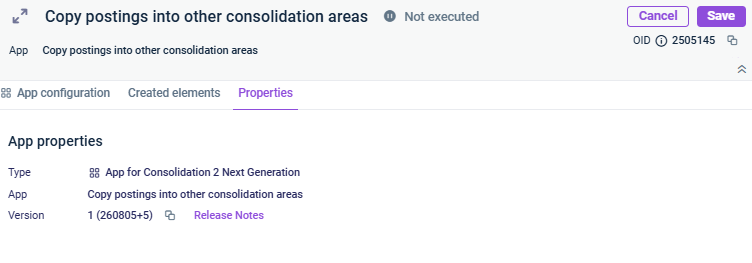
The App properties are displayed on the tab of the same name.
'Properties' tab
The following App properties are displayed:
Type of the element
Function of the App
Version of the element.
New available version
As soon as a new version of the app is available that contains changes to the app configuration and/or the calculation logic of the app, the Refresh command is displayed, allowing you to update the app to the latest version.
Information about the changes to each version can be found in the Release Notes, which can be accessed via the link of the same name.
We strongly recommend to update all apps to the new version as soon as possible because it cannot be guaranteed how long an app with an obsolete version can be executed.
This content was generated using AI and reviewed by Lucanet subject matter experts before publication.