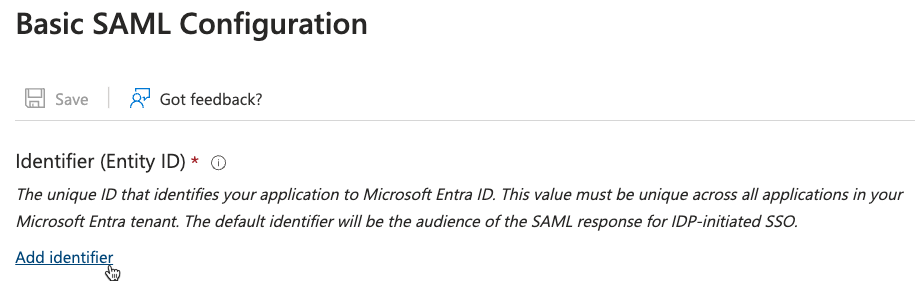
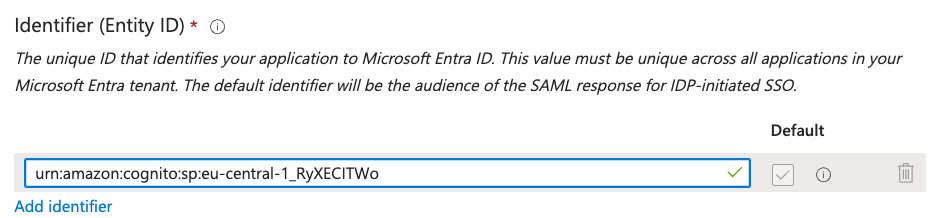
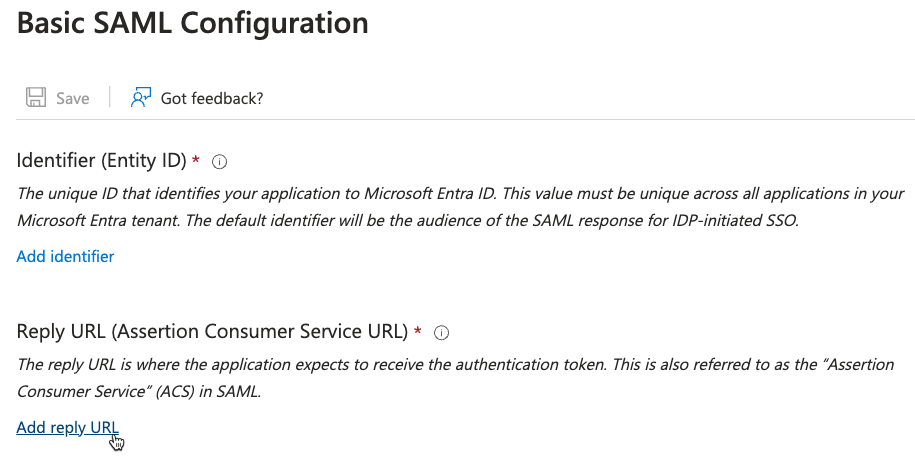
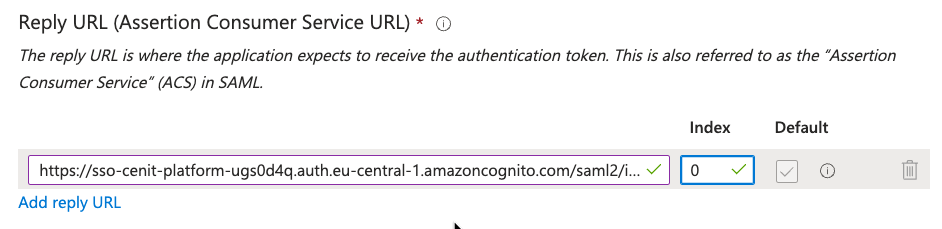
If you use Azure/Microsoft Entra ID as your identity provider and choose the SAML method for external authentication of the Lucanet CFO Solution Platform, you must first register Lucanet as an enterprise application in the Azure Portal/Microsoft Entra ID Admin Center.
After completing the registration and configuration in Azure Portal/Microsoft Entra ID, you can copy the authentication parameters from Azure/Microsoft Entra ID and paste them into the Lucanet CFO Solution Platform to complete the configuration of external authentication.
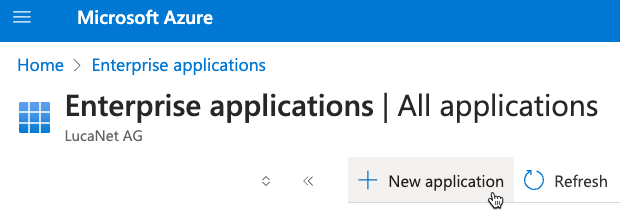
Navigate to Enterprise applications. Click + New application.
'Enterprise applications' Workspace in Microsoft Azure
3
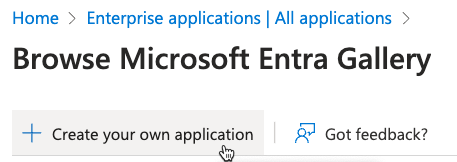
On the displayed page Browse Microsoft Entra Gallery, click Create your own application.
'Create your own application' button
4
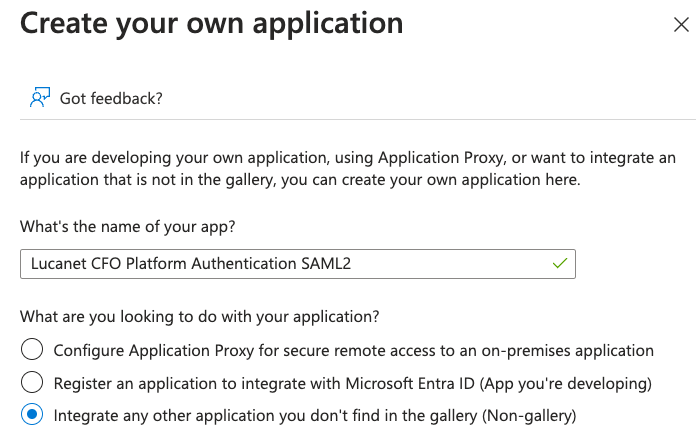
Enter a name for the application (e.g., Lucanet CFO Platform Authentication SAML 2) and choose Integrate any other application you don't find in the gallery (Non-gallery).
We recommend setting Assignment required to No in the Properties to simplify the configuration and reduce administrative effort. This allows all users in your Microsoft Entra ID organization to access the application automatically, without the need to manually assign individual users or groups.
However, if your organization requires stricter access control for security or compliance reasons, you can keep the setting at Yes.
To configure user assignment:
1
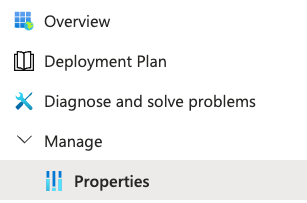
In the created enterprise application, navigate to Manage | Properties.
'Properties' section
2
Set the Assignment required toggle based on your requirements:
After configuring the enterprise application and Single Sign-On in Azure/Microsoft Entra ID, you need to retrieve specific authentication parameters and add them to the Lucanet CFO Solution Platform to complete the external authentication setup.
To configure authentication parameters for the Lucanet CFO Solution Platform:
1
Get the App Federation Metadata Url from Azure Portal/Microsoft Entra ID:
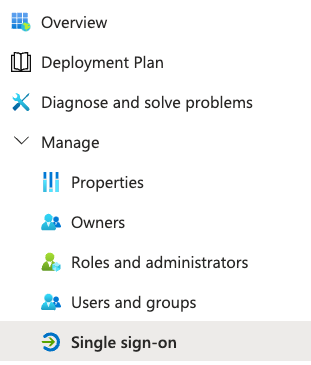
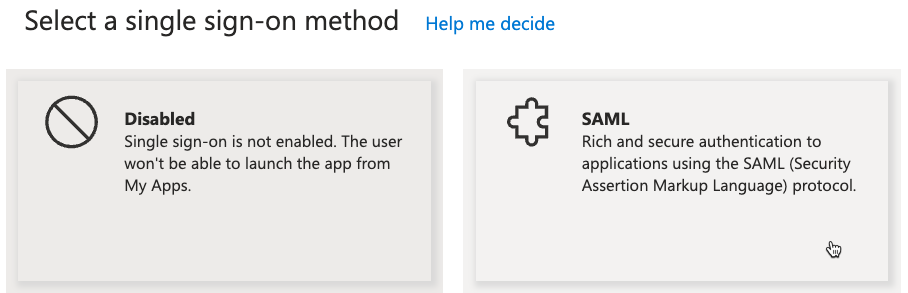
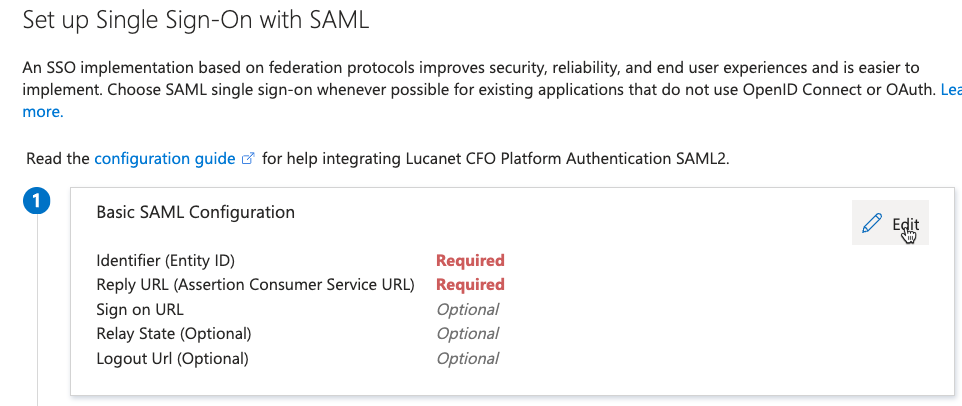
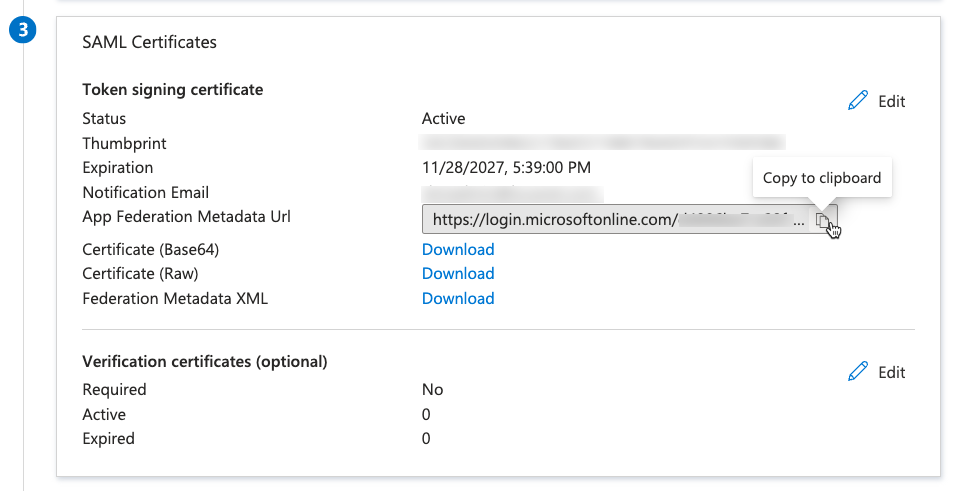
In the Enterprise application for Lucanet, navigate to Manage | Single sign-on | Set up Single Sign-on with SAM L. In the SAML Certificates area, copy the App Federation Metadata Url.
Copying App Federation Metadata URL
2
Add the App Federation Metadata Url to the Lucanet CFO Solution Platform:
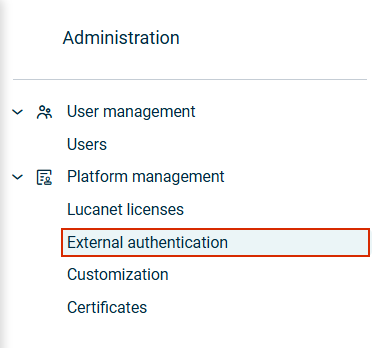
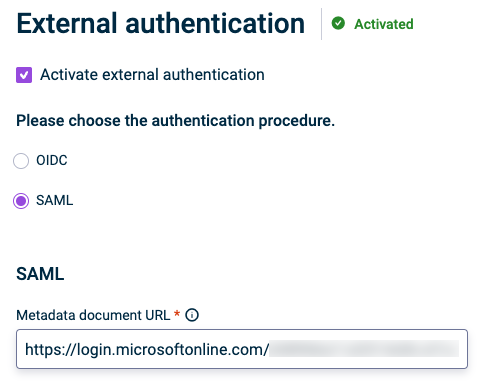
In the Lucanet CFO Solution Platform, navigate to the External authentication workspace.
'External authentication' workspace in Lucanet
Paste the App Federation Metadata Url into the Metadata document URL field.
'Metadata document URL' field in Lucanet
3
Get the Attribute value from Azure Portal/Entra ID Admin Center:
In the Enterprise application for Lucanet, navigate to Manage | Single sign-on | Set up Single Sign-on with SAML.
'Single sign-on' workspace in Azure Portal
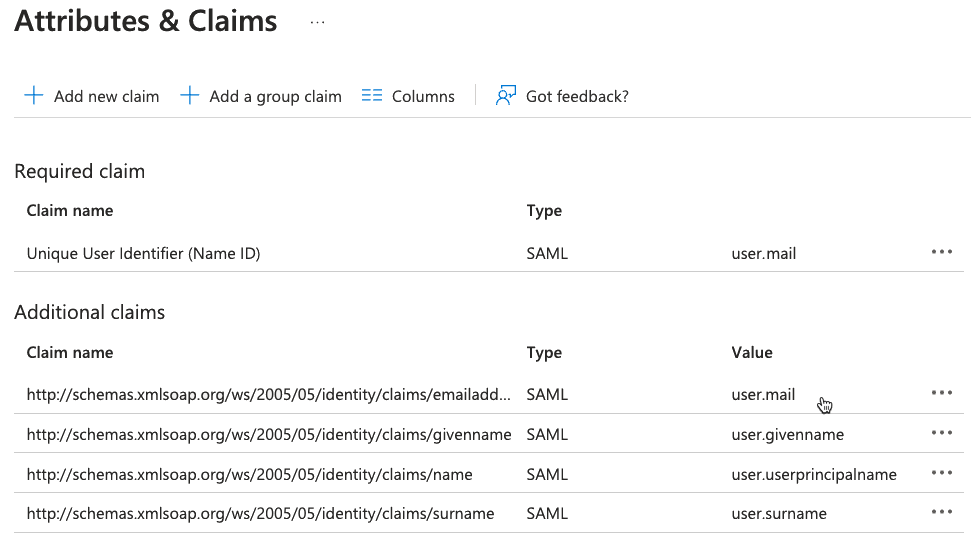
In the Attributes & Claims area, click Edit. The Attributes & Claims page will be displayed as follows, for example:
'Attributes & Claims' page in the Azure Portal
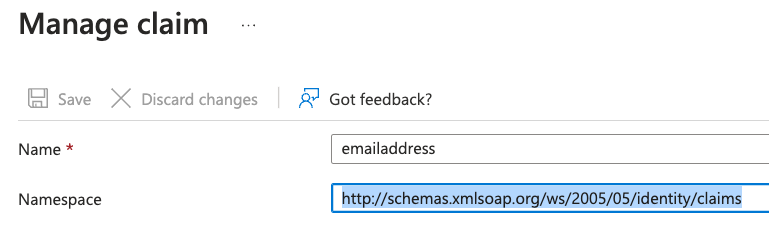
In the Additional claims area, click the row with the value user.mail. The Manage claim page will be displayed as follows, for example:
'Manage claim' page with the claim 'Name' and the 'Namespace'
Copy the Namespace field value and the Name field value. Combine them to create the Attribute value using the following structure:
Add the Attribute value to the Lucanet CFO Solution Platform:
In the Lucanet CFO Solution Platform, navigate to the External authentication workspace.
'External authentication' workspace in Lucanet
Paste the Attribute value into the Attribute field.
'Attribute' field in Lucanet
Attention: The e-mail address of a user on the Lucanet CFO Solution Platform must be identical to the e-mail address in Azure/MS Entra ID. The upper and lower case of e-mail addresses must match exactly.
You can find additional information on how to use the parameters when configuring the external authentication for the Lucanet CFO Solution Platform with the SAML method in the section Configuring SAML in Configuring External Authentication.
This content was generated using AI and reviewed by Lucanet subject matter experts before publication.