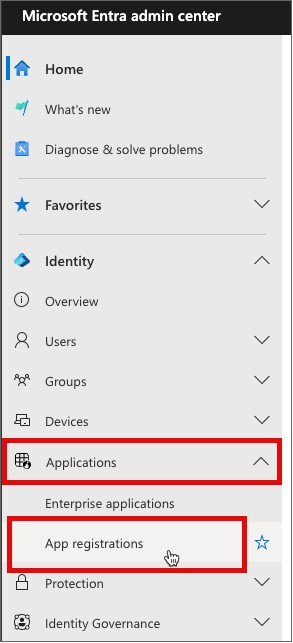
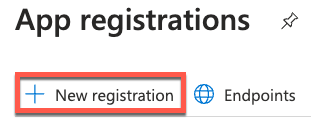
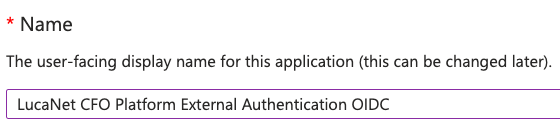
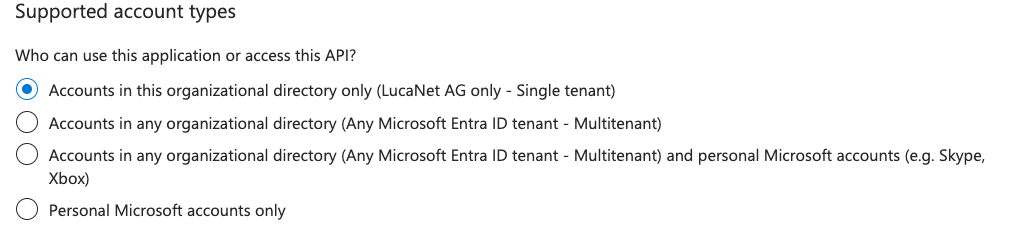
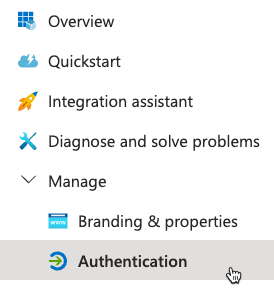
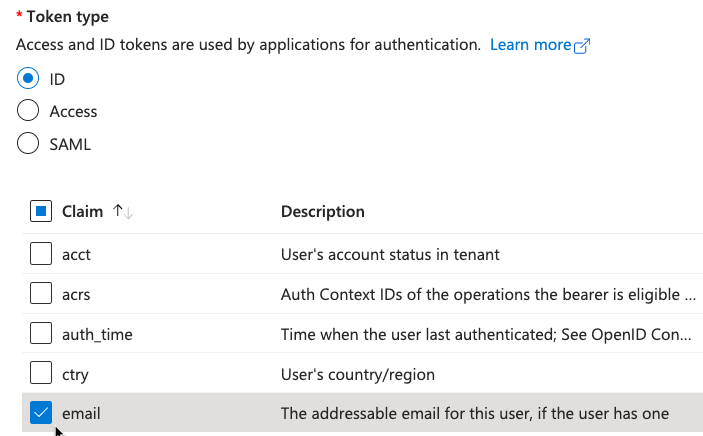
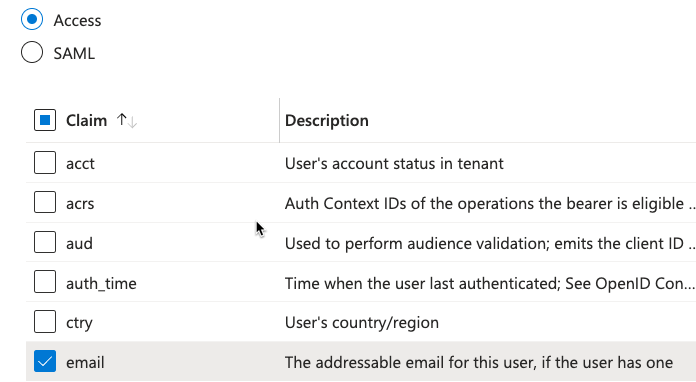
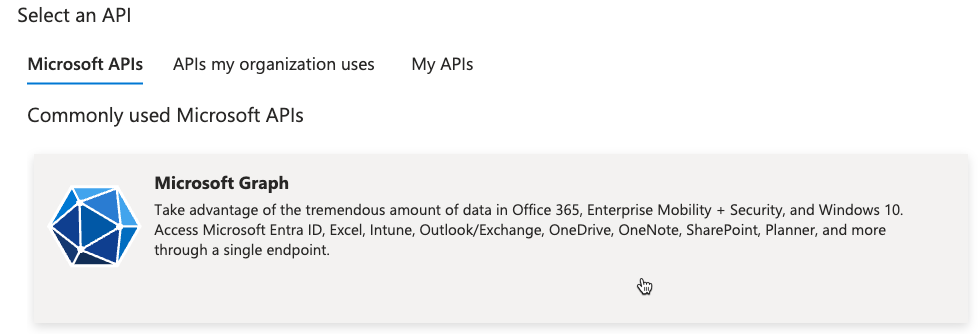
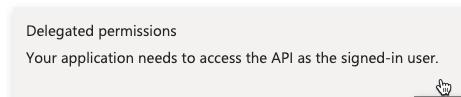
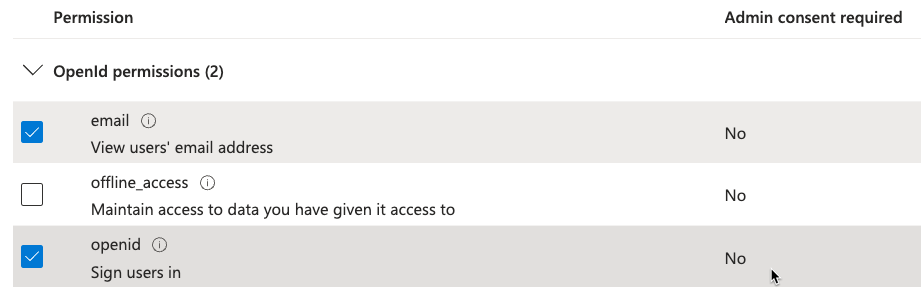
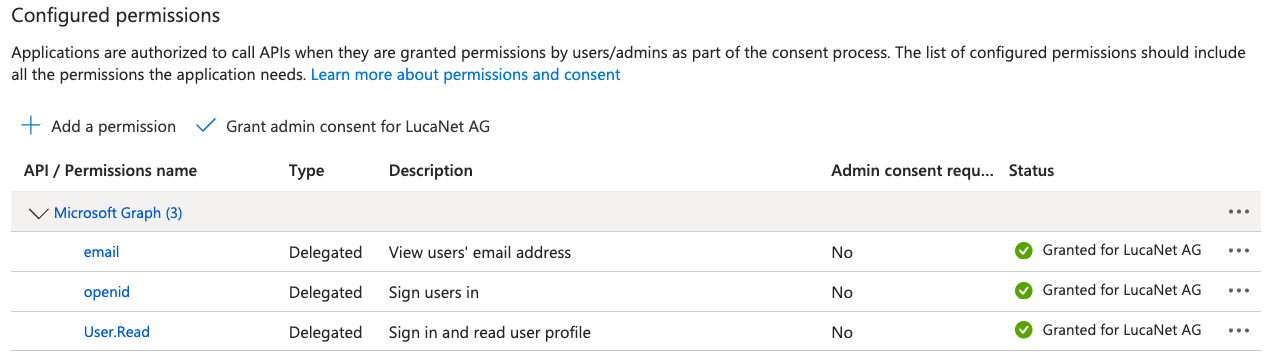
If you use Microsoft Entra ID as your identity provider and choose the OIDC method for external authentication of the Lucanet CFO Solution Platform, you must first register Lucanet as an app in Microsoft Entra ID.
After successful registration and configuration, you can copy the authentication parameters in Microsoft Entra ID and paste them into the Lucanet CFO Solution Platform to complete the configuration of the external authentication.
Create a client secret for Lucanet. Proceed as follows:
1
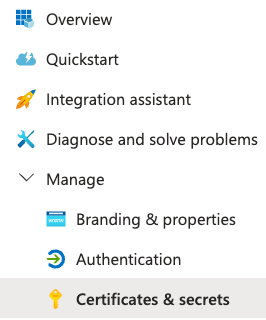
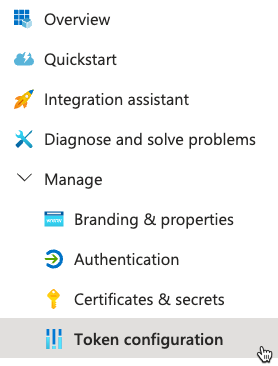
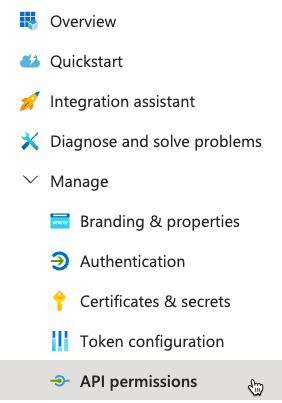
Navigate to Manage | Certificates & secrets.
'Certificates & secrets' workspace on the navigation bar
2
Click the button on the Client secrets tab:
3
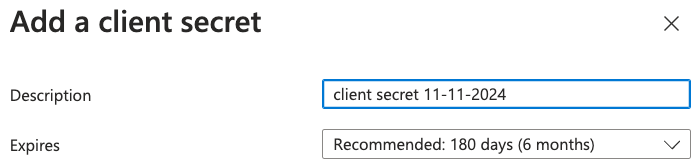
Enter a name or description for the secret in the Description field in the Add a client secret area and, if necessary, choose a validity period for the secret from the Expires drop-down list:
Settings in the 'Add a client secret' area
4
Click Add. A client secret is generated, which is displayed in the Value column on the Client secrets tab:
Copying a client secret from MS Entra ID
5
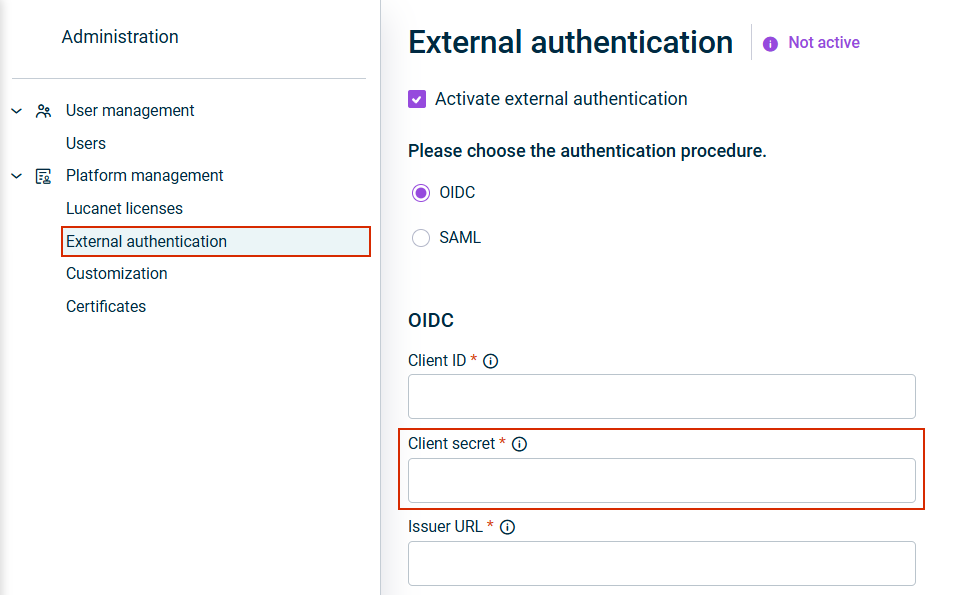
Paste the value in the Client secret field in Lucanet CFO Solution Platform.
After configuring the enterprise application and Single Sign-On in Azure/Microsoft Entra ID, you need to retrieve specific authentication parameters and add them to the Lucanet CFO Solution Platform to complete the external authentication setup.
To configure authentication parameters for the Lucanet CFO Solution Platform:
1
Get the Client ID from Azure Portal/Microsoft Entra ID:
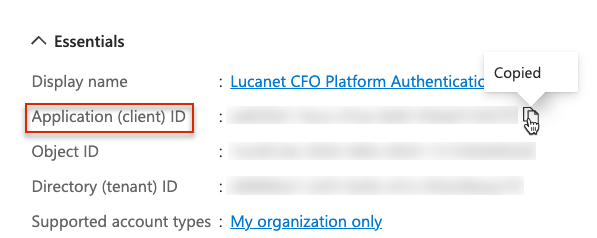
You can find the Client ID behind Application (client) ID in the Essentials area on the Overview page:
'Overview' section in Azure Copying the client ID from MS Entra ID
2
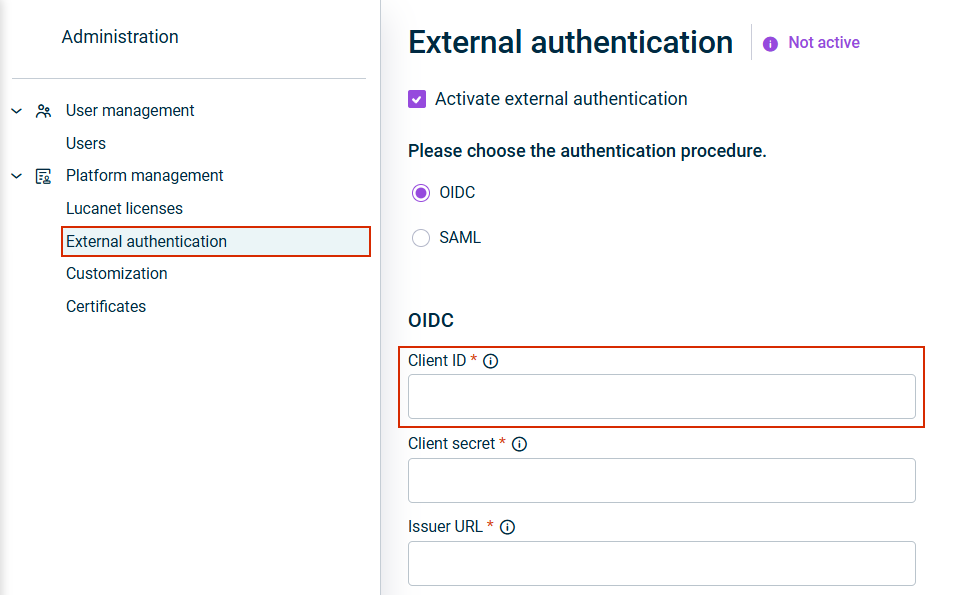
Paste the Client ID in the Client ID field in the Lucanet CFO Solution Platform.
'Client ID' field in Lucanet
3
Paste the Client secret value in the Client secret field in the Lucanet CFO Solution Platform, if not already configured in previous steps (see Creating a Client Secret).
4
Get the Issuer URL from Azure Portal/Entra ID Admin Center:
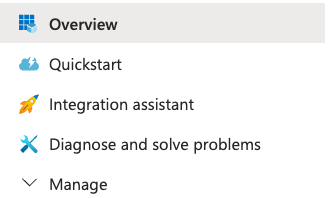
In the App registrations, select your application. On the Overview page, click Endpoints.
'Overview' section in Azure 'Endpoints' button on the 'Overview' page
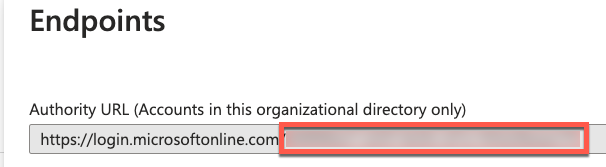
In the Endpoints panel, copy the tenant ID from the Authority URL (Accounts in this organizational directory only) field. Use the part highlighted in the red box in the screenshot example below (the tenant ID after https://login.microsoftonline.com/).
The Issuer URL has the following notation:
https://sts.windows.net/< Your tenant ID in MS Entra ID >
Example:
If your tenant ID is 123bfsd-as34-sd34-34fg-f35gh67h8, the issuer URL will be https://sts.windows.net/123bfsd-as34-sd34-34fg-f35gh67h8.
'Endpoints' area on the 'Overview' page in MS Entra ID
5
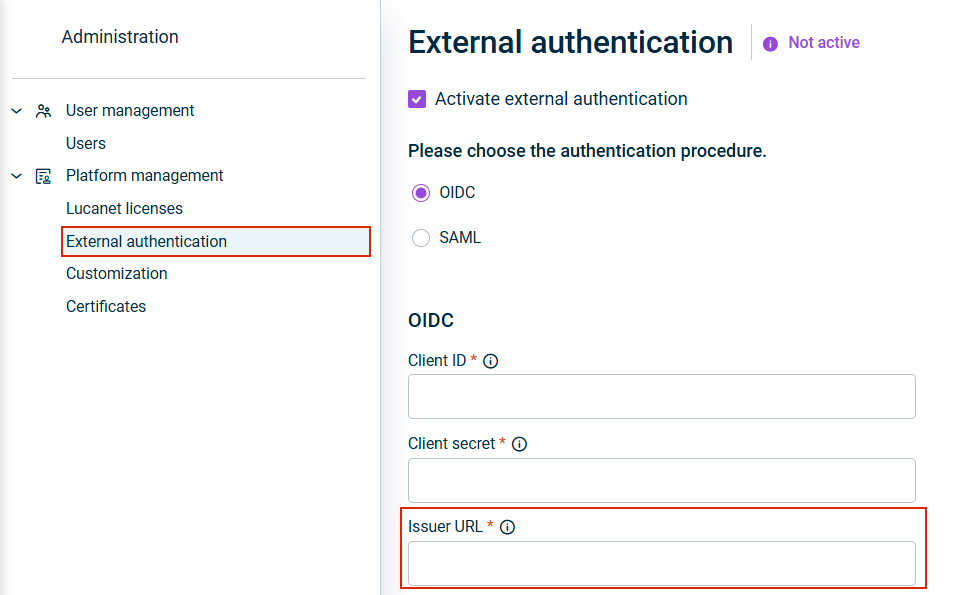
Add the Issuer URL in the Issuer URL field in the Lucanet CFO Solution Platform.
'Issuer URL' field in Lucanet
Attention: The e-mail address of a user on the Lucanet CFO Solution Platform must be identical to the e-mail address in Azure/MS Entra ID. The upper and lower case of e-mail addresses must match exactly.
You can find additional information on how to use the parameters when configuring the external authentication for the Lucanet CFO Solution Platform with the OIDC method in the section Configuring OIDC in Configuring External Authentication.
If your User principal name and your e-mail address in Azure/MS Entra ID are different, the OIDC configuration will not work as described on this page. Please choose SAML as the authentication method instead.
This content was generated using AI and reviewed by Lucanet subject matter experts before publication.