Come and explore the exciting new features of our solution Lease Accounting! We update our CFO Solution Platform on a regular basis to offer you the latest features and improvements.
The versions of all solutions that you are currently using and those of the CFO Solution Platform are displayed when you select About Lucanet from the Help section in the CFO Solution Platform.
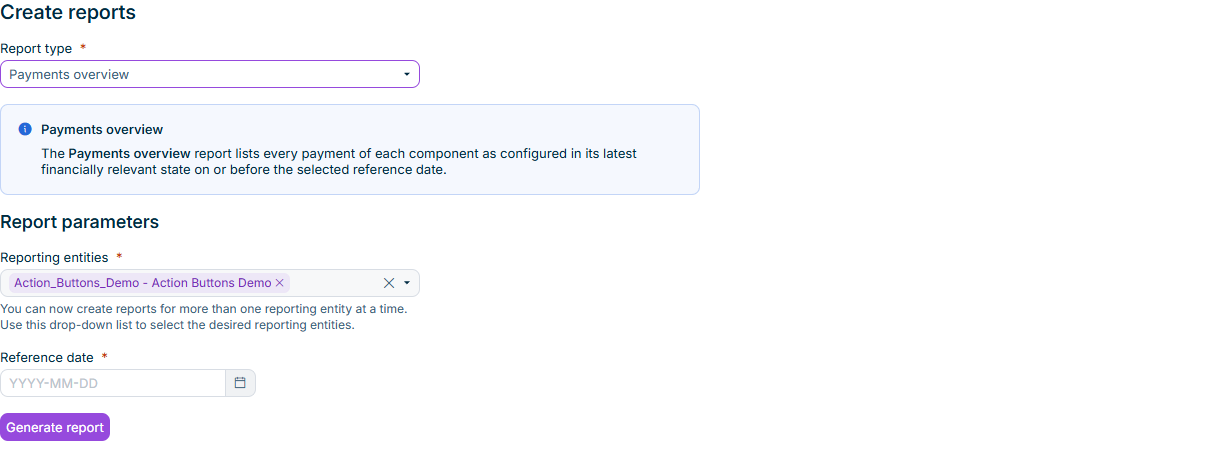
In Lucanet Lease Accounting, the Create reports workspace offers a new report of the type Payments overview. The report lists every payment of each contract component in a separate row: every single payment as well as every fixed and variable regular payment, including payments resulting from extension options. Each row contains the contract and component master data and the payment configuration as of the latest financially relevant state on or before the selected Reference date. You can create the report for one or several reporting entities. The amount columns of the XLSX file contain numeric values that you can filter and sum.
The 'Payments overview' report in the 'Create reports' workspace
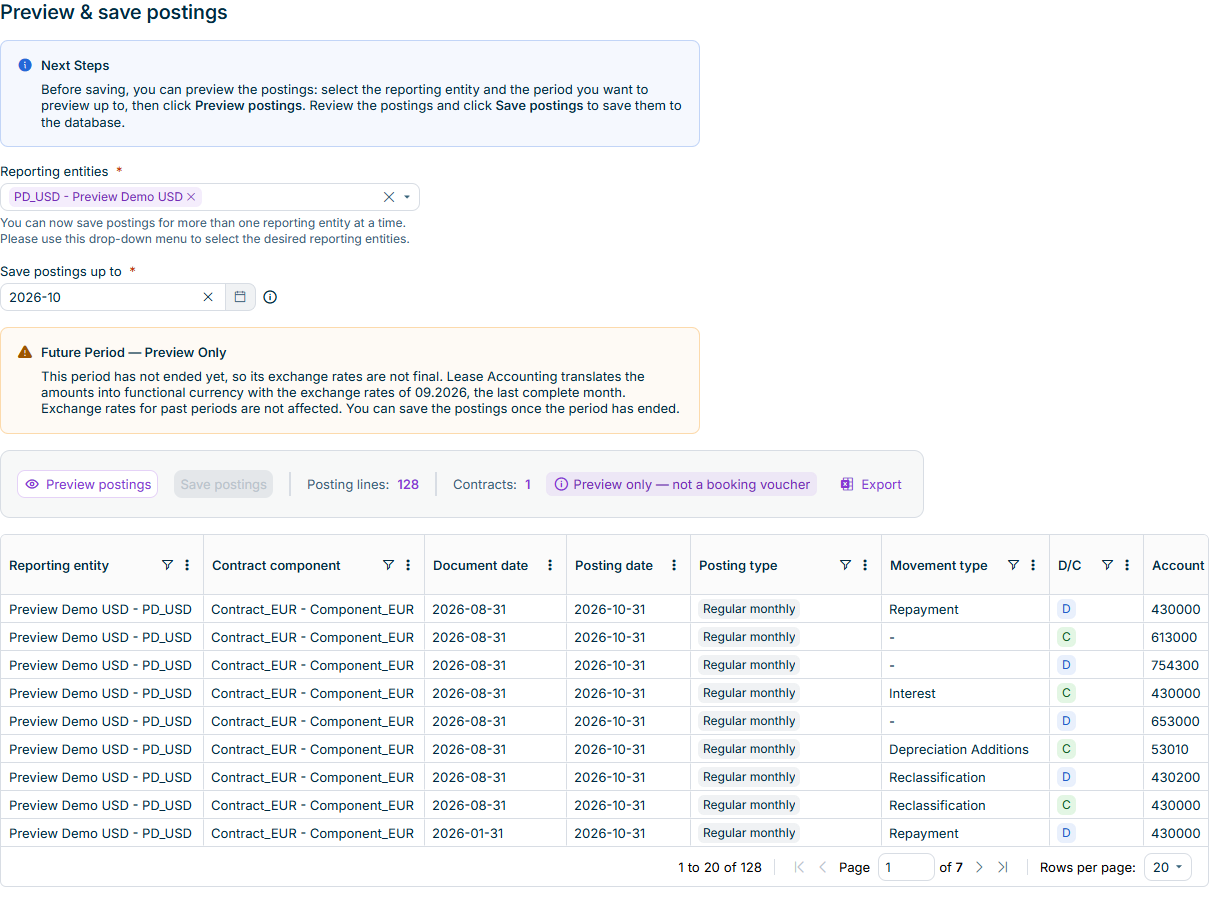
In the Preview and save postings workspace of Lucanet Lease Accounting, you can now also select the current month or a future month under Preview or save postings up to and preview the postings for this period. For a period that has not ended yet, Lease Accounting translates amounts into the functional currency with the exchange rates of the last completed month.
You can save postings for the current month if none of the selected components requires currency translation. Postings for future months, and current-month postings that require currency translation, are available for preview only: the Save postings button stays disabled until the month is completed.
Preview of postings for a period that has not ended
In the Reverse postings workspace of Lucanet Lease Accounting, you can now reverse the postings of several contract components of a contract at once. The Contract components drop-down list allows multiple selection and offers the All option, which selects all components of the selected contract. If the postings of a component cannot be reversed, Lease Accounting still reverses the postings of the other selected components and reports the failed component with the reason.
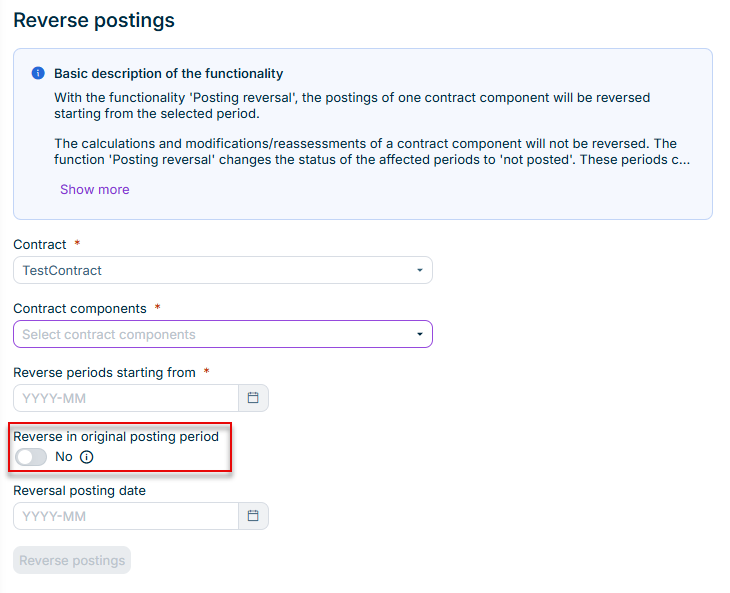
Activating the new Reverse in original posting period option makes each reversal posting use the posting period of the original posting. You then do not enter a Reversal posting date.
The 'Reverse in original posting period' option in the 'Reverse postings' workspace
The Account balance report of Lucanet Lease Accounting offers the new Aggregate by reporting entity option. When you activate the option, the report contains an additional Reporting entity column and displays the account balances separately for each selected reporting entity. The sum row at the end of the table contains the total across all selected reporting entities. You can combine the option with all other aggregation options and with the report currency.
In the Contract components workspace of Lucanet Lease Accounting, the Contract number drop-down list now allows multiple selection and offers the All option. The table then displays the components of all selected contracts of the current reporting entity.
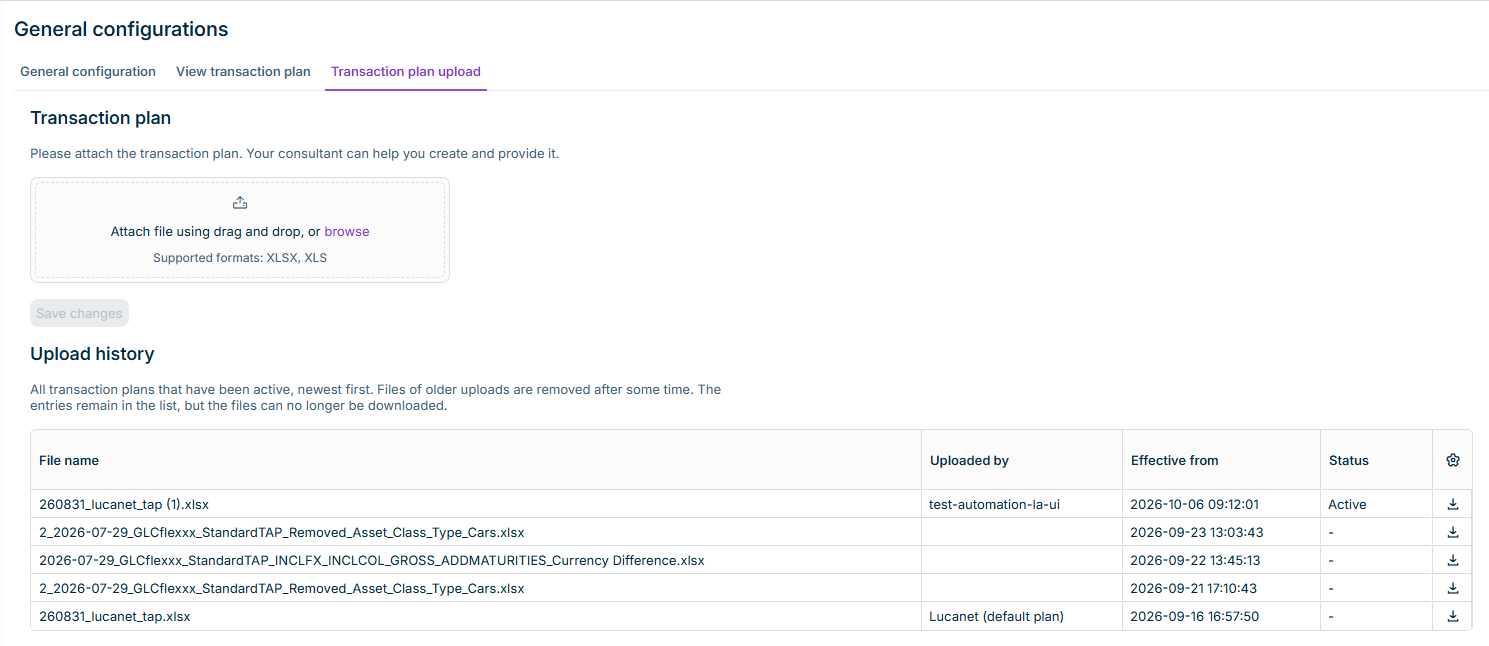
The new Upload transaction plan tab in the General configurations workspace of Lucanet Lease Accounting lets you upload your own transaction plan as an XLSX or XLS file. The transaction plan applies to all postings saved from then on. Reversal postings follow the transaction plan of the original posting. The Upload history lists all previously active transaction plans for download, including the Lucanet default plan.
Lease Accounting displays a warning if the transaction plan does not cover an asset class type: when you upload the transaction plan, when you create or edit an asset class, and when you preview postings in the Preview & save postings workspace.
The 'Upload transaction plan' tab
Only users with the Full access administrator or Settings administrator role can see and use the Upload transaction plan tab.
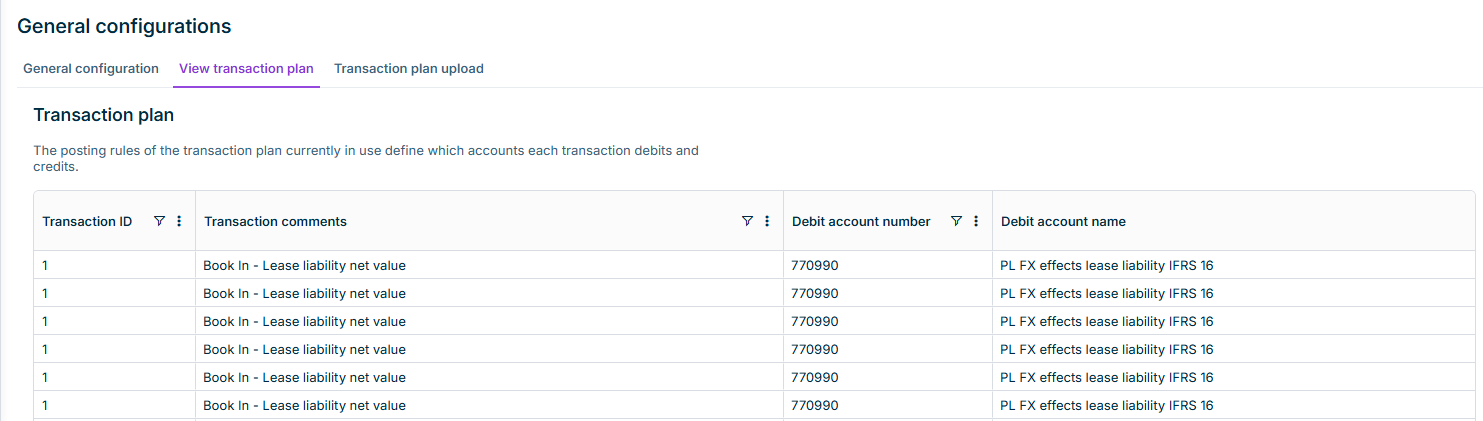
The new View transaction plan tab in the General configurations workspace of Lucanet Lease Accounting displays the posting rules of the transaction plan currently in use. For each transaction, the table displays the debit account and the credit account with account number, account name, transaction type, and account type, as well as the posting type and the asset class type. You can filter every column to find specific accounts or transaction types.
Lucanet Lease Accounting now applies user permissions at reporting entity level. If required, a user can access and perform their role-based tasks only for the reporting entities assigned to them. You assign reporting entities to a user in the Administration section of the Lucanet CFO Solution Platform by editing the respective user. A newly created user has access to all reporting entities. You can change the assignment when editing the user.
If you use Lucanet Lease Accounting integrated with Consolidation & Financial Planning, the Export postings workspace under Export is now available in addition to the import of postings from Consolidation & Financial Planning. The import remains unchanged. The export creates one file per selected reporting entity, so that the file name contains the reporting entity. You find the created files in the Created files workspace.
In addition to cost centers, profit centers, and accounting areas, you can now assign a business unit to a contract component. Under Settings, the new Business units workspace is available next to Accounting areas. You can create a business unit for a specific reporting entity or for all reporting entities. The General information tab of the component form offers the new Business unit drop-down list. The list contains the business units created for all reporting entities and the business units created for the reporting entity of the component.
The Business units workspace requires the Full access administrator or Settings administrator role.
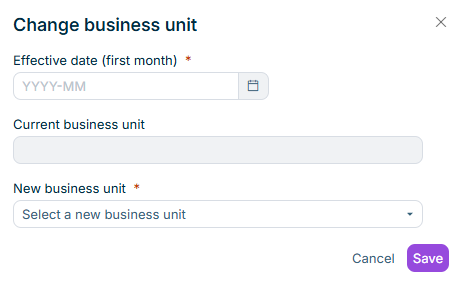
When you modify a calculated component, the Modify master data dimension option under General information now also offers Change business unit. In the Change business unit dialog, you select the New business unit and the Effective date (first month). Like the other master data dimension modifications, the change is statistical only: postings from the effective date use the new business unit, historical postings remain unchanged, and the change does not affect any calculation.
The 'Change business unit' dialog
The Account balance report offers the new options Aggregate by accounting area and Aggregate by business unit. When you activate one of the options, the report displays the account balances separately for each accounting area or business unit.
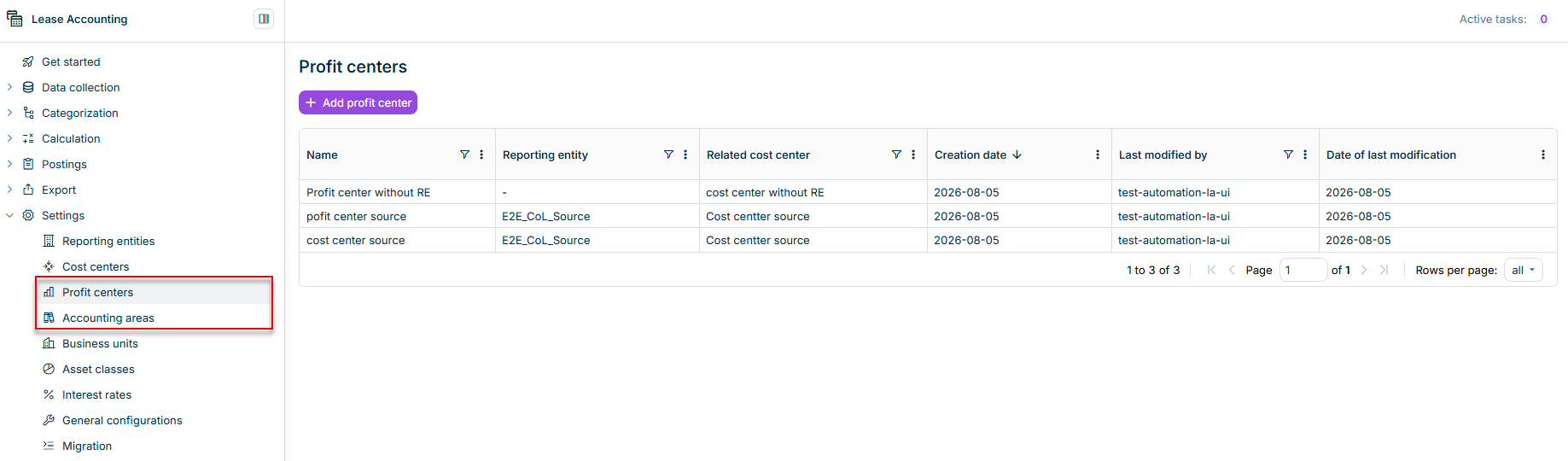
Under Settings, the new Profit centers and Accounting areas workspaces are available next to Cost centers. You can create a profit center or an accounting area for a specific reporting entity or for all reporting entities; a profit center can additionally be related to a cost center.
In the General information tab of the component form, you then assign a profit center and an accounting area to a contract component.
Profit centers are also available if you use Lucanet Lease Accounting integrated with Consolidation & Financial Planning, but are not transferred there because this dimension does not exist in Consolidation & Financial Planning.
The 'Profit centers' section
The Profit centers and Accounting areas workspaces require the Full access administrator or Settings administrator role.
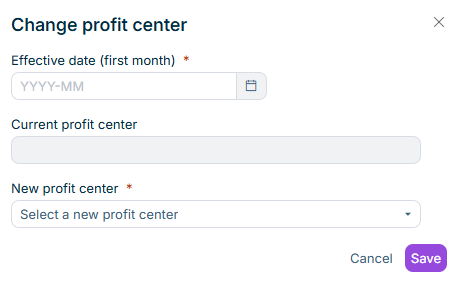
When modifying a calculated contract component, the General information section now groups the master data dimensions under Modify master data dimension with the options Change cost center, Change profit center, and Change accounting area. You can select the new value and an Effective date.
The change creates a new component event: postings from the effective date use the new value, and historical postings remain unchanged. Like the existing cost center modification, the profit center and accounting area modifications are statistical only — they do not affect any calculation, such as the interest rate, the right-of-use asset, or the lease liability.
The Account balance report offers the new Aggregate by profit center option. When you activate the option, the report displays the account balances separately for each profit center.
If the component currency differs from the functional currency of the reporting entity, Lucanet Lease Accounting now translates the lease liability and all related values, such as repayments and interest, into the functional currency when you save postings.
The difference arising from retranslating the lease liability at the closing rate as of the reporting date is posted separately as a currency difference and recognized in profit or loss. It is calculated individually for the short-term, mid-term, and long-term portions of the lease liability and is identifiable by its own posting type.
If no exchange rate is available for the posting period, the postings are not saved and a message refers you to the Exchange rate management functional area under Administration.
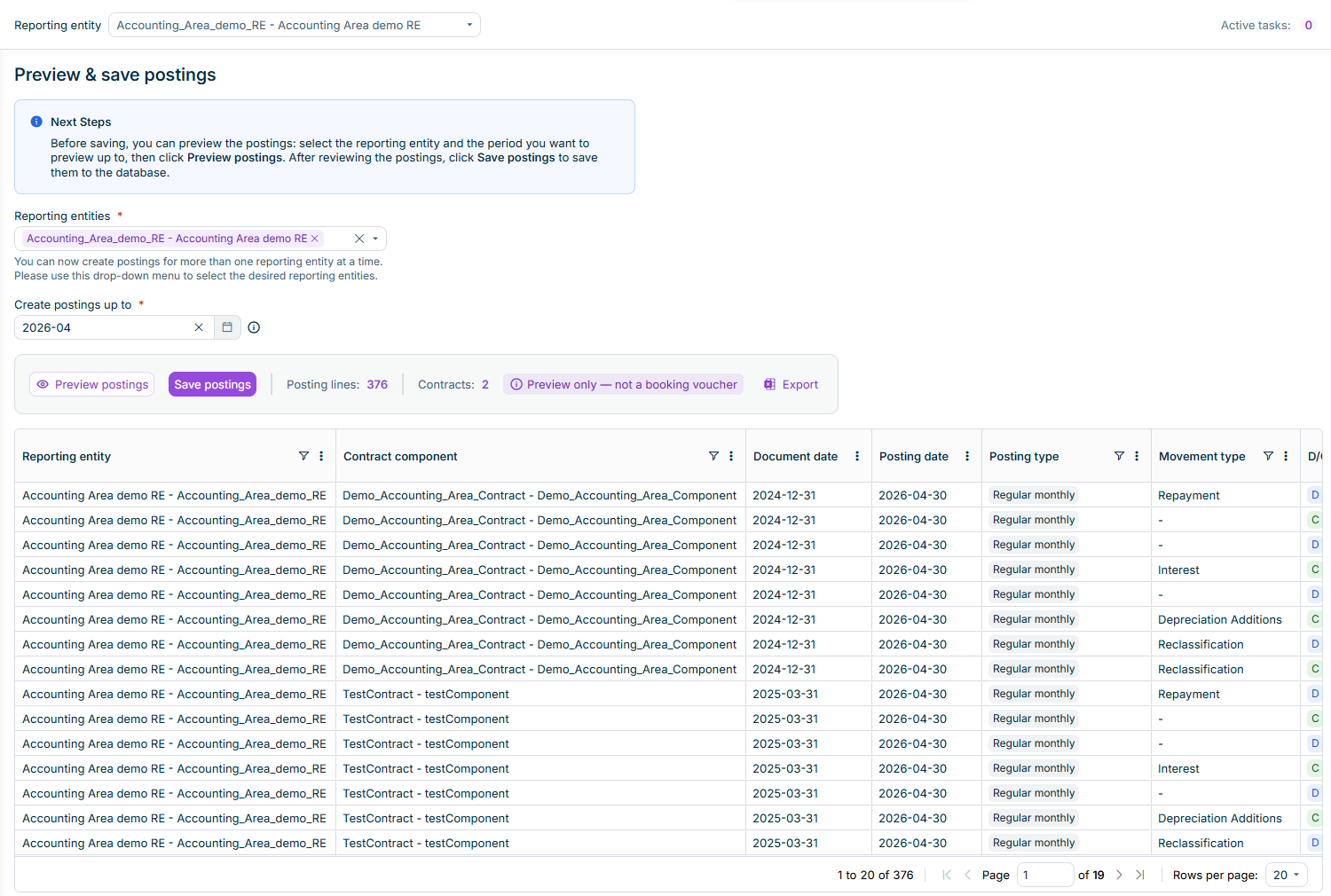
In the Preview & save postings workspace, you can now display the pending postings before you save them. You can select one or more reporting entities in the Reporting entities drop-down list, specify the period under Save postings up to, and click Preview postings. The number of Posting lines and Contracts in the preview is displayed next to the buttons.
The table lists every posting that has not yet been saved for the selection — including depreciation, interest, lease payments, and currency translation differences.
The 'Preview & save postings' workspace
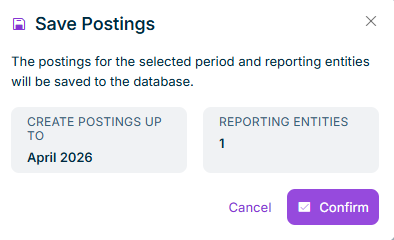
The preview does not change any data. Click Save postings to save the postings after confirming the period and reporting entities in the dialog.
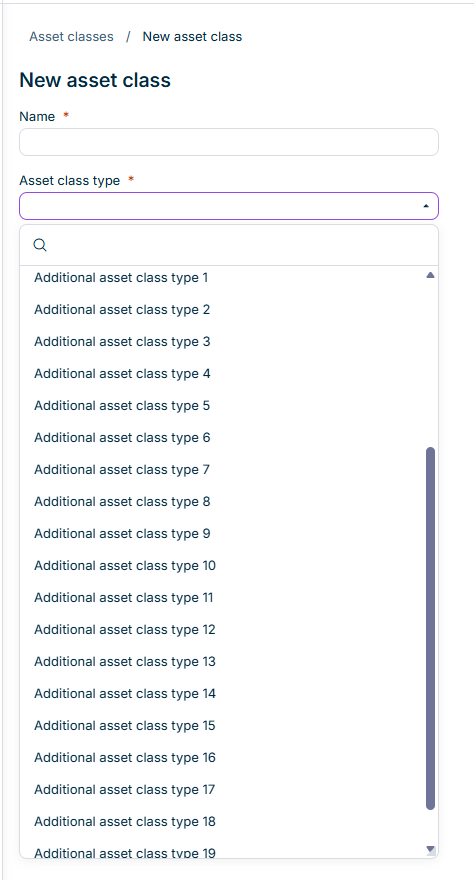
When you create or edit an asset class, the Asset class type drop-down list now additionally offers Additional asset class type 1 to Additional asset class type 20. Use these types to classify asset classes for which no standard type exists.
Like the standard types, the additional types are labels only; depreciation and all other measurement settings remain configured on the asset class.
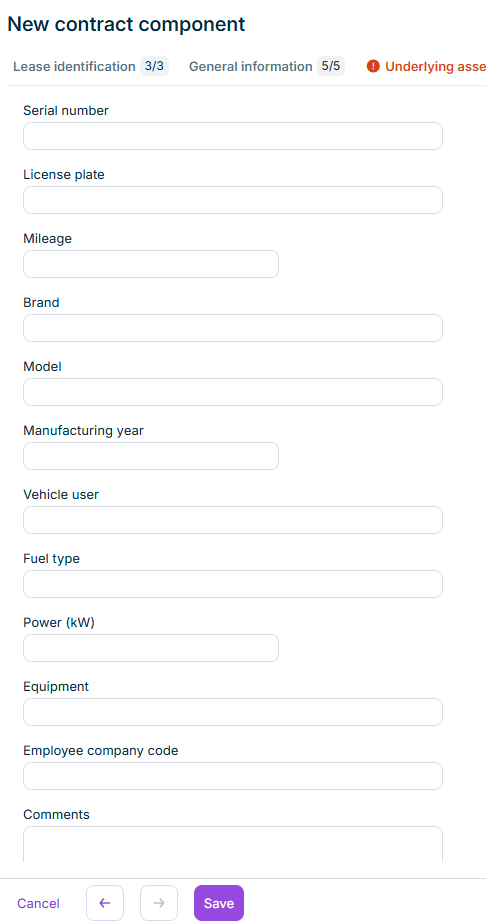
The component form now displays a Car fleet tab for components with a fleet-related asset class and a Real estate tab for components with a real-estate-related asset class. Record details such as license plate, mileage, brand, and model for vehicles, or object number, address, area sizes, and reference value for properties.
All fields are optional. Lucanet Lease Accounting saves the details with the component and copies them when you copy the component.
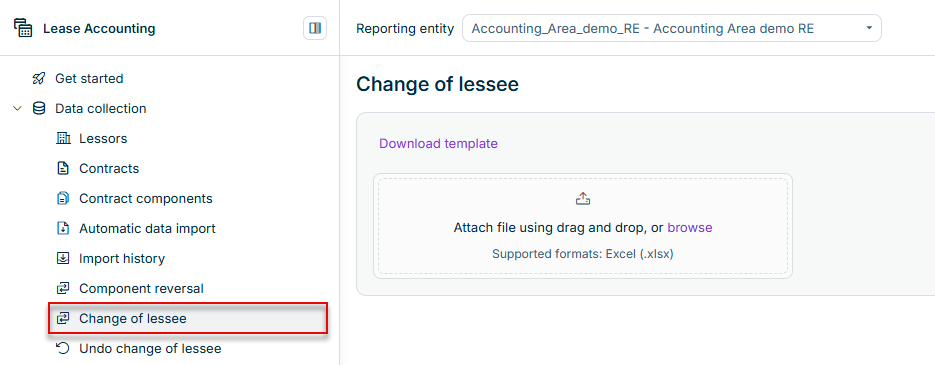
The new Change of lessee workspace lets you transfer active, calculated contract components from one reporting entity to another as of a transfer date. Download the template, enter one transfer per row, and upload the completed XLSX file.
Lucanet Lease Accounting terminates the source component on the transfer date and creates a new component in the target reporting entity with the opposite effect, so that the transfer nets to zero at group level.
Rows that fail validation are listed with the reason and do not change any data.
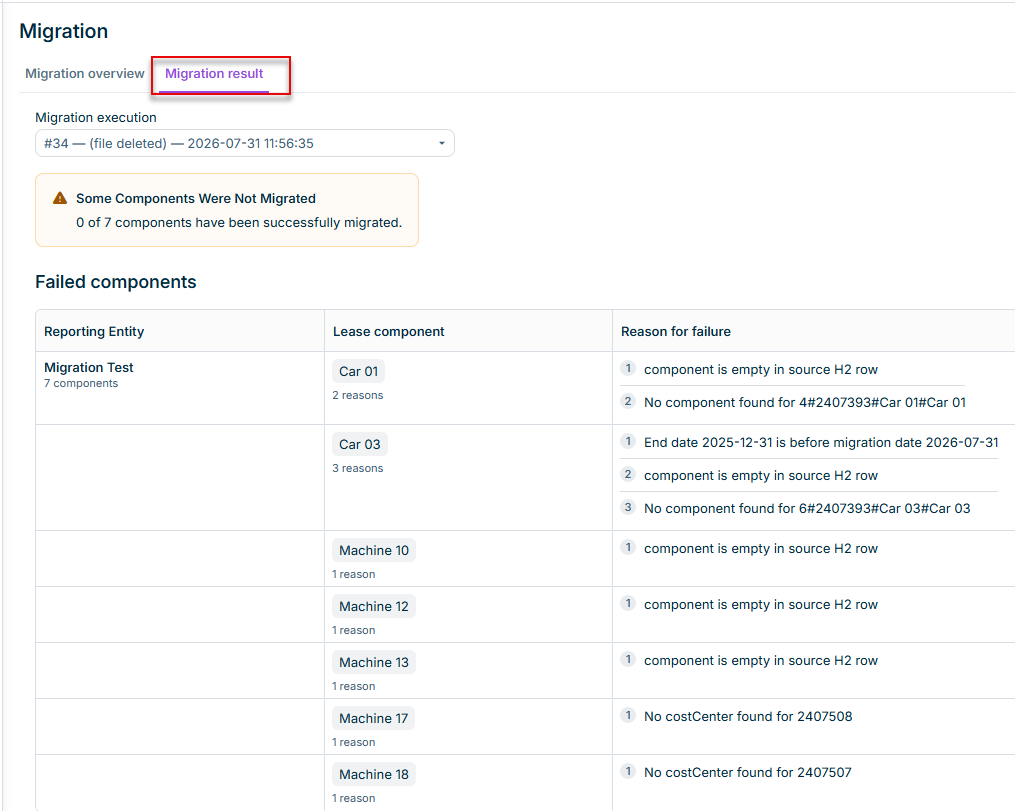
In the Migration workspace, the new Migration result tab summarizes how many components were migrated successfully and lists the components that were not migrated, grouped by reporting entity and with the reason for each component.
The tab displays the same findings as the Migration report, so you can assess the result without opening the Excel file.
The 'Migration result' tab
This content was generated using AI and reviewed by Lucanet subject matter experts before publication.