By cloning a model, you can create an identical copy of the model. A cloned model can be useful for the following cases, for example:

  • Template creation: A cloned model allows you to create templates that can be reused or shared with others.
  • Experimentation: You can use a cloned model to experiment with changes without affecting the original model.
  • Collaboration: Cloning a model facilitates collaboration by enabling others to work on a copy of the model without altering the original.

In order to clone a model you need full access to the model or the model needs to be shared with you with the option Allow cloning as a template.

To clone a model:

1

Navigate to the model on the start page.

2

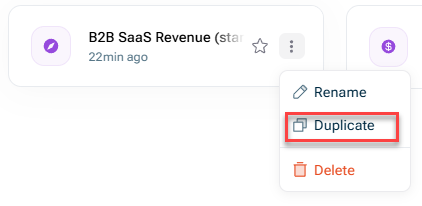
Click the three-dot menu and select Duplicate:

'Duplicate' option

If you have other models linked and/or dimensions assigned to the model you want to clone, the Cloning Model name dialog is displayed as follows, for example:

Dialog when cloning a model
3

Choose if you want to also Clone X linked models or if you want to Only clone this model.

4

Choose if you want to Duplicate X dimensions or if you want to Use existing dimensions.

Note: If you duplicate the assigned dimensions, you can adjust the duplicated dimensions for planning different scenarios without changing the exisiting dimensions.

5

Choose if you want to Duplicate data sources or if you want to Use existing data sources for the cloned model.

6

Click Clone X models.

The cloned model(s) will be displayed with the addition (cloned) in the model overview of the start page.

You can allow others (who don't have full access) to make a clone of your model. Proceed as follows:

1

Click the Share button in the toolbar.

2

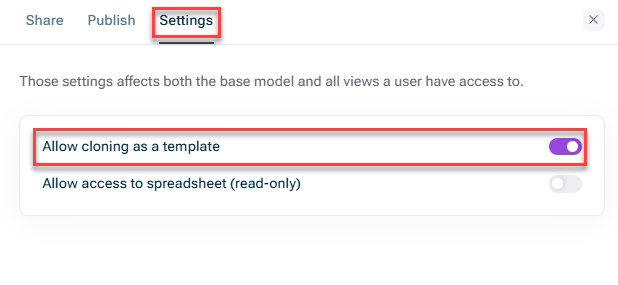
On the Settings tab, activate the option Allow cloning as a template:

Allowing to clone as a template
3

Share the model via public or private link (see Sharing a model).

All users with whom you shared the model then have the option to click Use this template in the top-right, when viewing the model's dashboard.