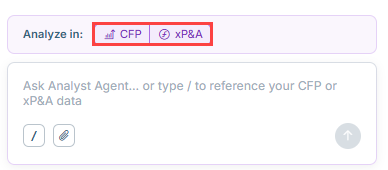
To interact with the Analyst Agent, simply type your question in the message field in natural language, for example "How did operating expenses change over the last 3 months? Break it down by category." If you are not sure where to start, select one of the example prompts on the start screen.
Use the Analyze in toggle above the message field to choose whether the Analyst Agent should look at CFP (Consolidation & Financial Planning), xP&A (Extended Planning & Analysis), or both. Both are selected by default.
The Analyze in toggle only appears if you have access to both CFP and xP&A. If you have access to only one of them, the Analyst Agent analyzes that solution automatically and does not show the toggle.
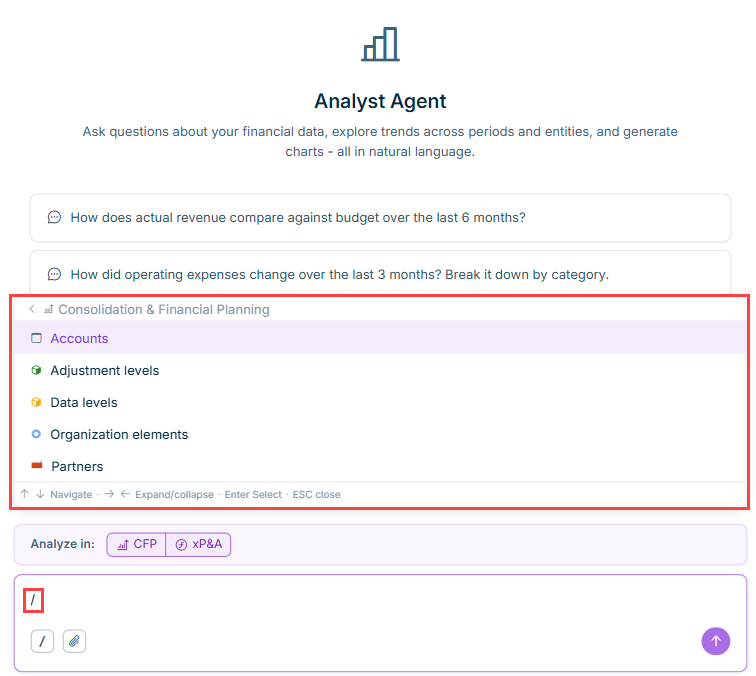
Type "/" in the Analyst Agent's message field to open a drop-down list of dimensions for the solution you are analyzing. For CFP, this includes dimensions such as accounts, adjustment levels, data levels, organization elements, or partners. For xP&A, this includes the model as well as its dimensions and dimension items.
Select a dimension to open a second drop-down list showing only the elements relevant to it, for example the individual companies, groups, or consolidation views under Organization elements in CFP. Selecting an element inserts a precise reference into your question, so the Analyst Agent asks fewer clarifying questions.
The following examples illustrate the types of questions you can ask the Analyst Agent. The agent's capabilities keep expanding, so if you want to know what it can currently do, simply ask it directly.
Type of question
Example
Variance and breakdowns
"Break down OPEX by child account for July 2026, Actual vs. FC 6+6 2026."
Comparisons
"What are the drivers behind the variance between Actual and Budget on Total Revenues for Q2 2026?"
Charts
"Create a waterfall chart showing revenue to EBITDA for the last quarter."
Opening balances, transactions, and closing balances
"Show the opening balance, transactions, and closing balance of fixed assets for 2026."
Planning and xP&A models
"What would ARR look like if churn rate increased to 5% in the Revenue SaaS Model?"
Simulations
"Create a simulation to model how EBITDA develops with different Order Intake levels."
Artifact generation (PowerPoint, MS Excel, HTML)
"Turn this analysis into a PowerPoint slide." / "Export this breakdown as an Excel file." / "Create an HTML report of this analysis."
The Analyst Agent's message field includes an attachment icon. Click it to attach an Excel or CSV file to your question and enrich your analysis with data from external systems, for example a list of production quantities or vendor information. The Analyst Agent combines the file with your CFP or xP&A data for the analysis.
You can also attach a PowerPoint or Excel file as a styling template, for example "Use this PowerPoint as the template for the slide deck." The Analyst Agent then uses that file's layout for any file it generates in the conversation.
Refer to Evaluating Analyst Agent Responses to learn how the Analyst Agent explains its steps, when it asks a clarifying question, and how to rate an answer.
This content was generated using AI and reviewed by Lucanet subject matter experts before publication.