Automatic data imports in Lucanet Lease Accounting allow you to import contracts, lessors and contract components automatically. This both simplifies the import process and saves you time.

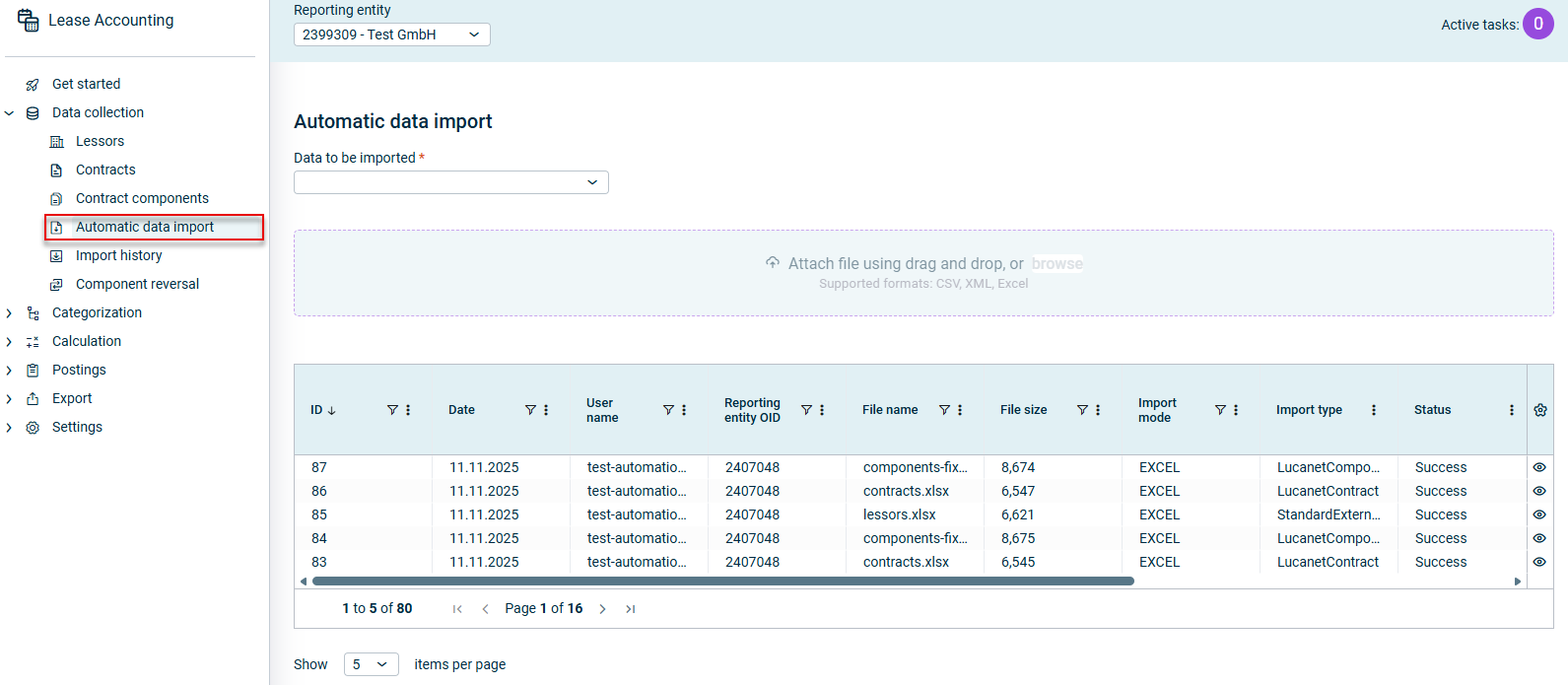
The Automatic data import workspace in Lease Accounting displays all the data import runs that have been executed to date, regardless of which reporting entity is selected:

Shows the 'Automatic data import' workspace in Lucanet Lease Accounting with the 'Data to be imported' drop-down list, the upload area with the text 'Attach file using drag and drop, or browse' and 'Supported formats: CSV, XML, Excel', and the overview table with the columns 'ID', 'Date', 'User name', 'Reporting entity OID', 'File name', 'File size', 'Import mode', 'Import type', and 'Status'. Highlighted in red is the 'Automatic data import' item in the 'Data collection' navigation.
The 'Automatic data import' workspace

To import data automatically in Lease Accounting:

1

Open the Automatic data import workspace:

Shows the 'Automatic data import' workspace in Lucanet Lease Accounting with the 'Data to be imported' drop-down list, the upload area with the text 'Attach file using drag and drop, or browse' and 'Supported formats: CSV, XML, Excel', and the overview table with the columns 'ID', 'Date', 'User name', 'Reporting entity OID', 'File name', 'File size', 'Import mode', 'Import type', and 'Status'. Highlighted in red is the 'Automatic data import' item in the 'Data collection' navigation.
Importing data automatically
2

Select the data to be imported. The following data types can be imported:

  • Lessors
  • Contracts
  • Contract components
3

Use drag and drop to attach the Excel or CSV file you want to import, or add it via the Browse function.

4

Click Start import.

Excel and CSV Import Templates

To make automatic imports easier for you, we provide templates for both Excel and CSV files. The structure of these templates matches that required for the import.

The templates include instructions on how to add the data.

Use the following links to download the templates for the automatic data import in Lease Accounting:

Excel Templates:

CSV Templates:

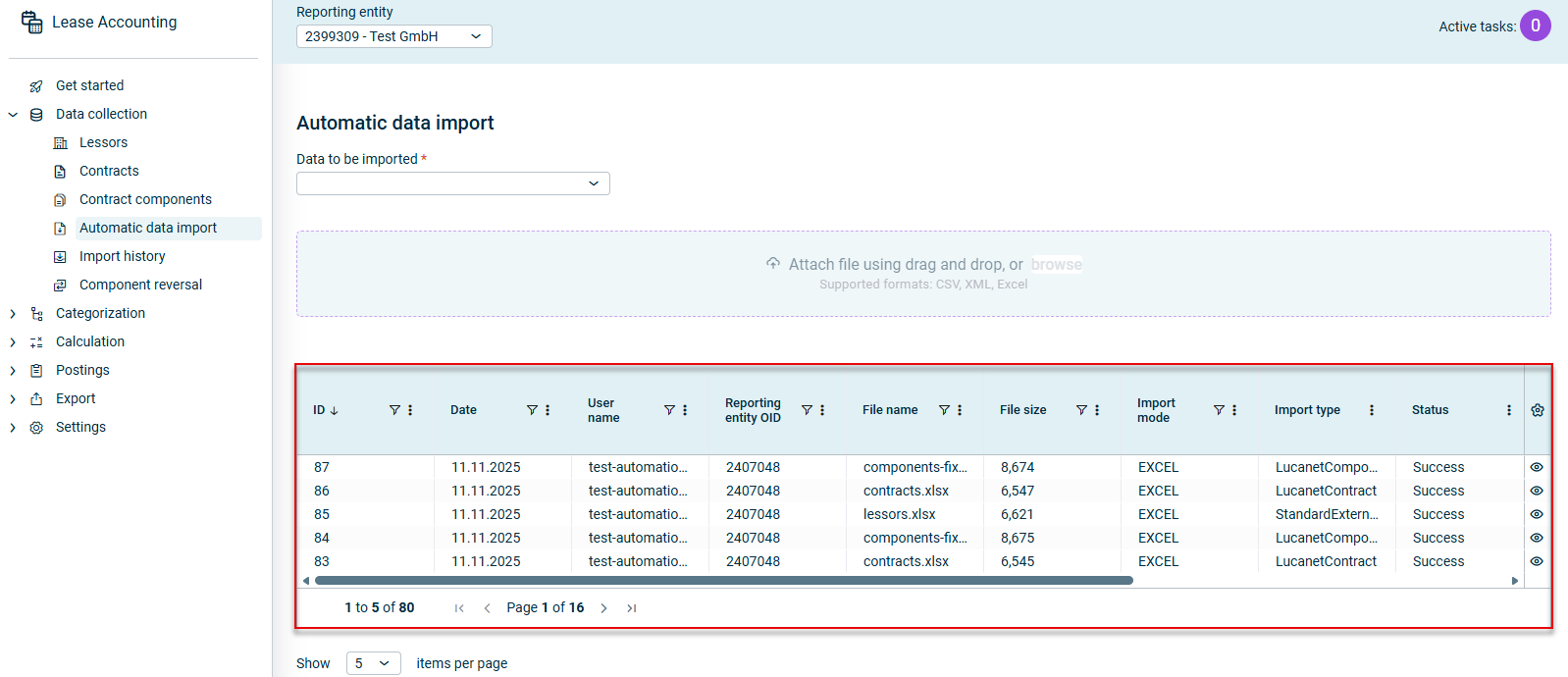
The following details are displayed in the overview table of the Automatic data import workspace in Lease Accounting for each data import:

Shows the 'Automatic data import' workspace in Lucanet Lease Accounting with the 'Data to be imported' drop-down list, the upload area, and the overview table with the columns 'ID', 'Date', 'User name', 'Reporting entity OID', 'File name', 'File size', 'Import mode', 'Import type', and 'Status', listing five imports with the import mode 'EXCEL' and the status 'Success'. Highlighted in red is the overview table.
Overview table in the 'Automatic Data Import' workspace

The overview table of the automatic data import in Lease Accounting provides the following information:

ColumnDescription
IDImport ID
DateDate of the import run
User nameName of the user who executed the import
Reporting entity OIDOID of the reporting entity (lessee) for whom the import run was executed
File nameName of the imported file
File sizeSize of the imported file in KB
Import modeThe imported file type, for example EXCEL or CSV.
Import typeThe data type that was imported. The following options are displayed:
• StandardExternalPartner for importing lessors
• LucanetContract for importing contracts
• LucanetComponent for importing contract components
StatusStatus of the import. The following options are displayed:
• Success if the import was completed successfully
• Error if an error occurred during the import run
• Warning if a warning was issued during the import run
• Info if the message only provides information on the import’s execution status
• TBD if the import run is still ongoing and it is not yet possible to display a status for it

Note:
• You can view the details of the individual messages in the Import History.
• To jump straight to the history of a specific import, click the Eye icon icon in the Configuration column icon column.
Number of imported lessorsNumber of lessors imported successfully during the import run
Number of imported contractsNumber of contracts imported successfully during the import run
Number of imported componentsNumber of contract components imported successfully during the import run
Number of issuesNumber of issues and warnings output during an import that was not executed successfully

Note:
• To view the notes for imports that were not executed successfully, visit the Import History.
• To jump straight to the history of a specific import, click the Eye icon icon in the Configuration column icon column.
Configuration column Configuration column iconTo jump straight to the history of a specific import, click the Eye icon icon.

This content was generated using AI and reviewed by Lucanet subject matter experts before publication.