A lessee is the party who receives the right to use an asset under the conditions of a lease contract. In Lucanet Lease Accounting, leases are recorded separately for each lessee.

In your role as lessee, you can select the companies you want to be configured as reporting entities in Consolidation & Financial Planning. To ensure that the reporting entities are available in Lease Accounting, the existing reporting entities in Lucanet Consolidation & Financial Planning first need to be imported into Lease Accounting.

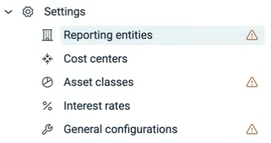
Importing and the management of reporting entities takes place in the Reporting entities workspace.

Users with a standalone license for Lucanet Lease Accounting can create reporting entities directly within Lease Accounting, rather than importing them. This process is described in the last section of this article.

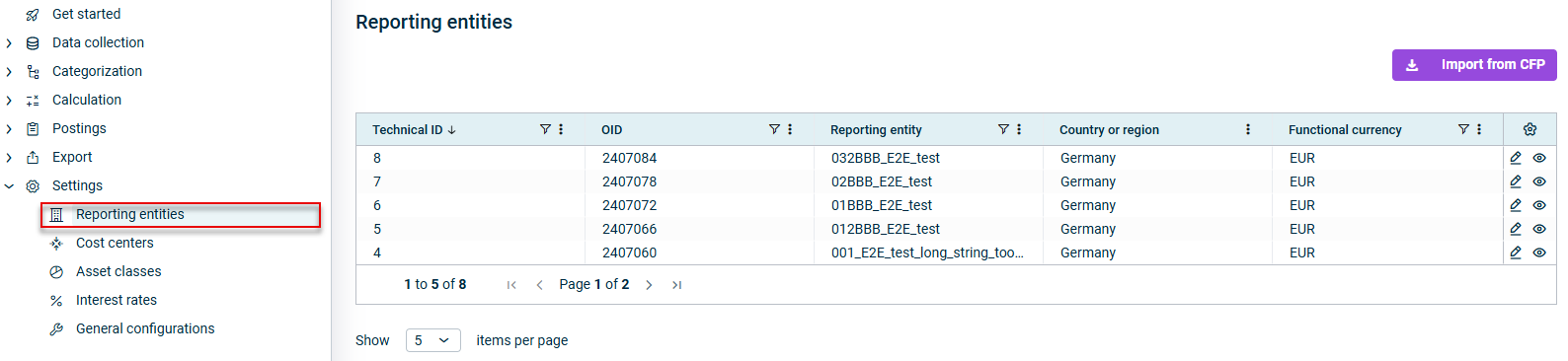
The Reporting entities workspace shows all the reporting entities that have already been imported from Consolidation & Financial Planning:

Displays the 'Reporting entities' workspace
The 'Reporting entities' workspace

To import reporting entities from Consolidation & Financial Planning:

1

Click Import reporting entities.

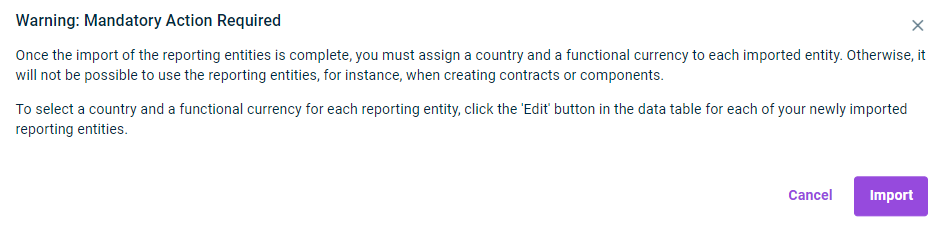
The following notice will appear:

Shows the warning that appears when reporting entities are imported.
Reporting entity import notice
2

Click Import to confirm the message and carry out the import.

Once they have been imported from Consolidation & Financial Planning, the reporting entities will be displayed in the overview table.

3

Assign a Country or region and a Functional currency for Lease Accounting to each of the new reporting entities you have imported. You can edit these fields directly in the overview table, or click the icon in the row, go to the General information tab, and select the required entry from the drop-down list.

  • Editing Country or region and Functional currency fields in the overview table supports bulk updates when many reporting entities are imported from Consolidation & Financial Planning and is especially useful for migrations (e.g. from the IFRS 16 app to the Lucanet CFO Solution Platform).
  • The functional currency can only be changed as long as no components have been calculated for the reporting entity.
4

If necessary, configure any additional details required to use the reporting entity in Lease Accounting (see Editing Reporting Entities).

5

Click Update.

To ensure that reporting entities created at a later date in Consolidation & Financial Planning can be used in Lease Accounting, carry out a new import and add the necessary details as described above.

When another import run is executed, only those reporting entities that have been created since the last import will be added. Any details that have already been edited in existing reporting entities will remain unchanged; they will not be overwritten when you perform a new import.

To edit the details of an imported reporting entity, go to the reporting entity in question in the overview table and click the symbol in the corresponding row.

When configuring a reporting entity,the following options are available:

  • Fields marked with a * are mandatory fields. The number of mandatory fields in each tab and how many have already been filled in is displayed next to the name of the tab:

  • Fields that have been grayed out cannot be edited. They are filled in automatically based on the information in Lucanet.Financial Client.
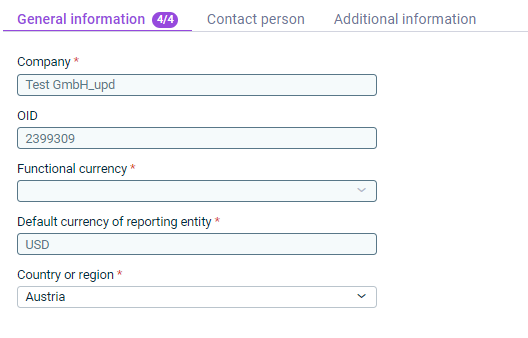
Shows the 'General Information' tab that is used to configure a reporting entity.
The 'General information' tab

Shows the technical ID assigned to the company in Lease Accounting

Shows the name of the reporting entity

Shows the OID of the reporting entity in Lucanet.Financial Client

Designated functional currency for the company in Lease Accounting. You can select the currency from the drop-down menu or search for it using the search box.

This field can be edited as long as no calculations have been performed for the reporting entity, regardless of whether active components exist. Once calculations are performed, the functional currency can no longer be changed.

Shows the default currency configured for the company in Lucanet.Financial Client

Country or region of the reporting entity. Select from the drop-down menu or use the search box to find the required country or region.

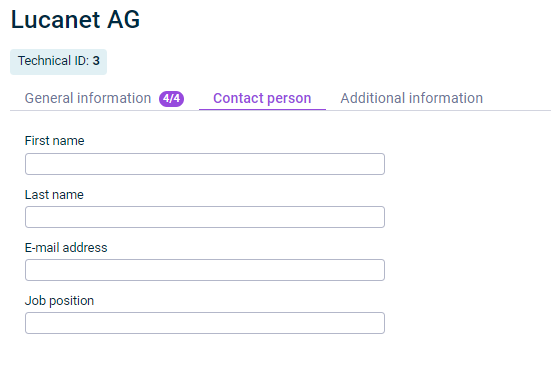
Shows the 'Contact person' tab that is displayed for configuring a reporting entity.
The 'Contact person' tab
OptionDescription
First nameFirst name of the company’s contact person
Last nameSurname of the company’s contact person
E-mail addressE-mail address for the company’s contact person
Job positionPosition of the company’s contact person
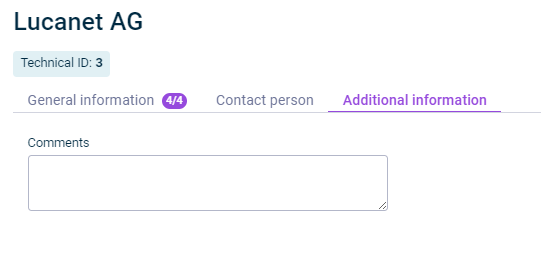
Shows the 'Additional Information' tab that is displayed when configuring a reporting entity.
The 'Additional information' tab

Use the Additional information tab to add comments on the reporting entity in a plain text box.

Users with a standalone license for Lucanet Lease Accounting can create reporting entities directly within Lease Accounting, rather than importing them.

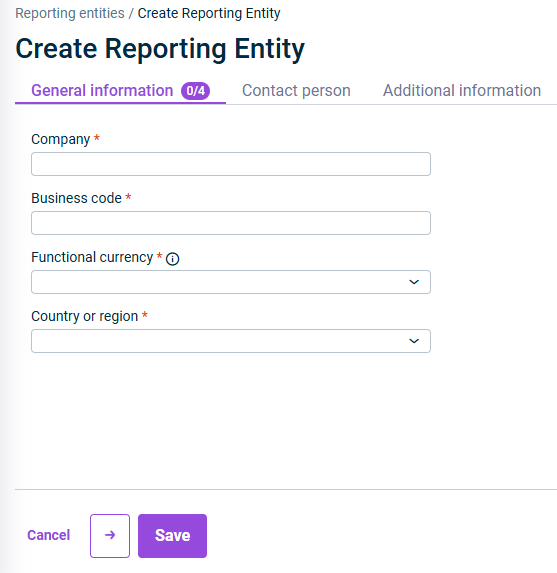
To create a reporting entity in Lease Accounting, navigate to the Reporting Entities workspace under Settings and click + Add reporting entity.

Fill out the following information:

The tab for entering general information for a reporting entity is displayed.
'General information' tab

The name of the reporting entity

Business code of the reporting entity

Designated functional currency for the company in Lease Accounting. You can select the currency from the drop-down menu or search for it using the search box.

This field can be edited as long as no calculations have been performed for the reporting entity, regardless of whether active components exist. Once calculations are performed, the functional currency can no longer be changed.

Country or region of the reporting entity. Select from the drop-down menu or use the search box to find the required country or region.

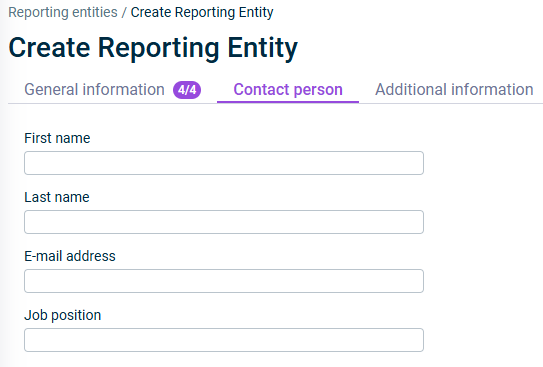
The tab for entering contact person for a reporting entity is displayed.
'Contact person' tab
OptionDescription
First nameFirst name of the company’s contact person
Last nameLast name of the company’s contact person
E-mail addressE-mail address for the company’s contact person
Job positionJob position of the company’s contact person
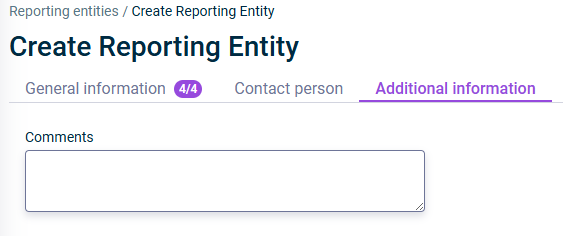
The tab for entering additional information for a reporting entity is displayed.
'Additional information' tab

Use the Additional information tab to add comments on the reporting entity in a plain text box.