Lucanet VAT (Value Added Tax) works on a period basis. In the Periods workspace, you create the periods on which all master data and transaction data in VAT are based. Create a period before you create VAT declarations for this time frame.

VAT distinguishes three kinds of period:

  • Preliminary return: Covers one calendar month. In preliminary return periods, you create the preliminary VAT returns and the European Sales Lists.
  • Annual return: Covers one calendar year. In annual return periods, VAT combines the values of all preliminary returns for the annual return.
  • Special prepayment: Exists only for Germany. In special prepayment periods, VAT calculates the special prepayment amount due.

Create periods step by step – each period only when you create the declaration for that time frame.

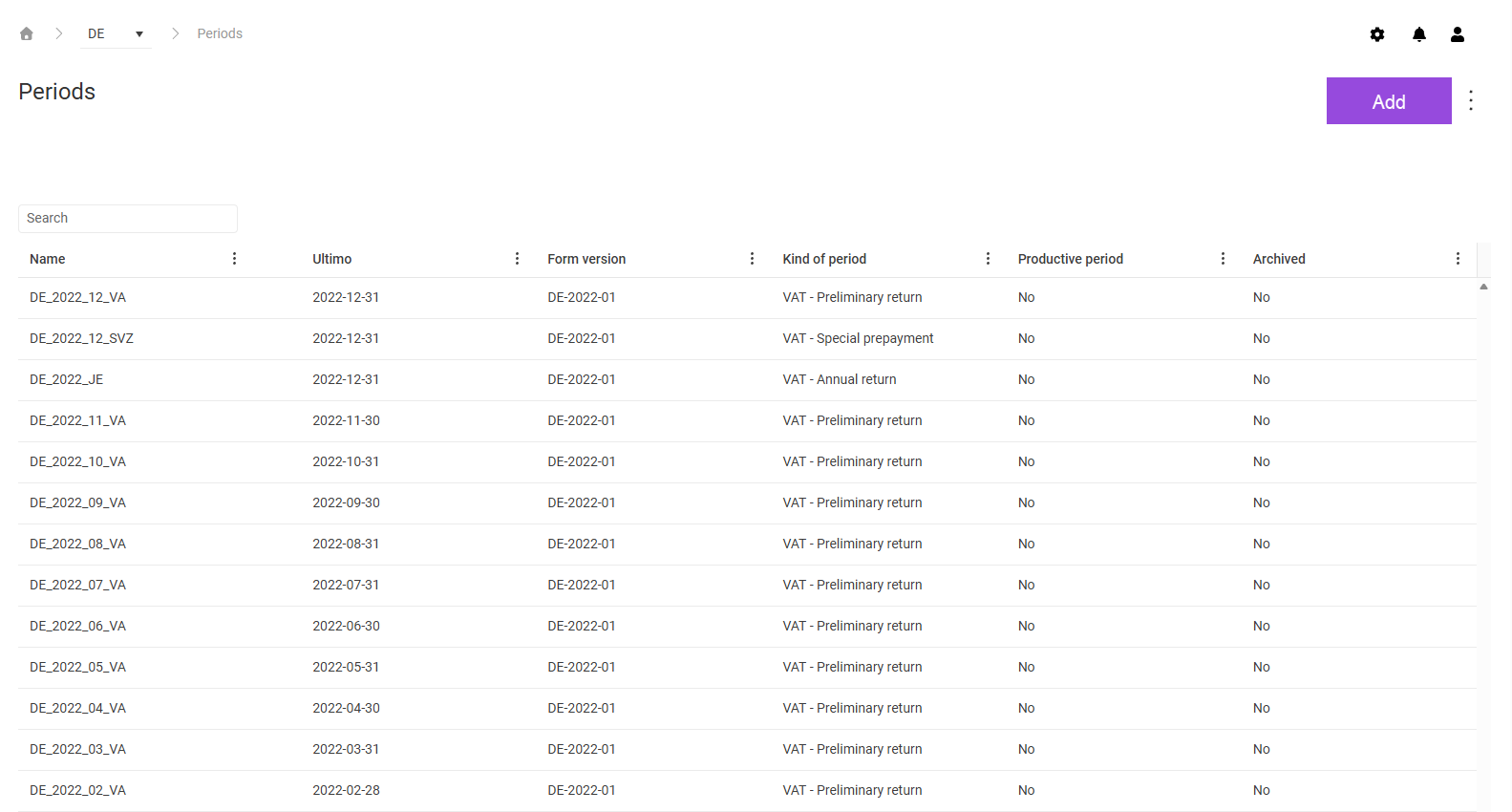
The Periods workspace can be found under VAT | Master data | Periods and is displayed as follows, for example:

Shows the 'Periods' workspace in VAT with the 'Search' field, the 'Add' button, the three-dot icon, and the columns 'Name', 'Ultimo', 'Form version', 'Kind of period', 'Productive period', and 'Archived'. The table shows, for example, the periods 'DE_2022_12_VA' with the kind of period 'VAT - Preliminary return', 'DE_2022_12_SVZ' with the kind of period 'VAT - Special prepayment', and 'DE_2022_JE' with the kind of period 'VAT - Annual return'.
'Periods' workspace

To create a period in VAT:

1

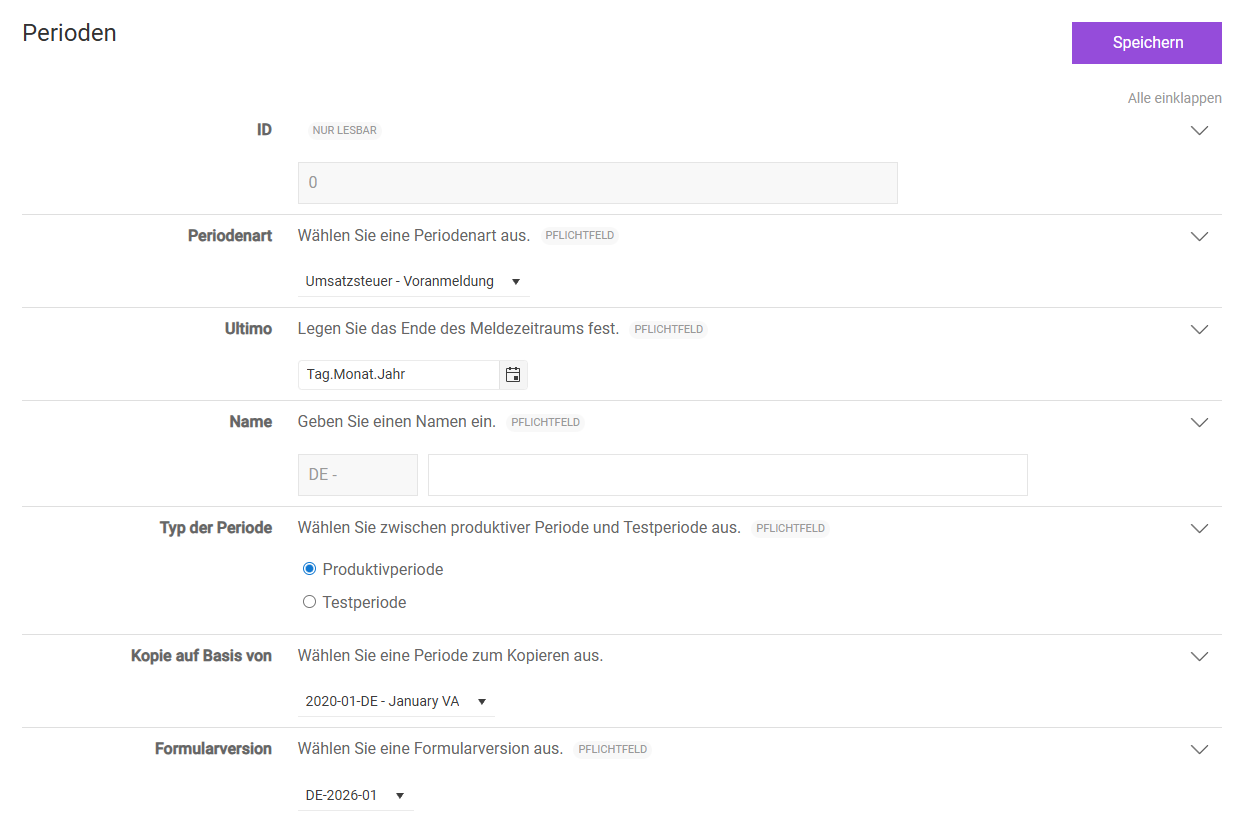
In the Periods workspace, click Add. The page for creating a period is displayed:

Shows the page for creating a period in VAT with the 'Save' button and the fields 'ID' with the value '0' and the marking 'Read only', 'Kind of period', 'Ultimo', 'Name' with the prefixed country code 'DE -', 'Type of period' with the option buttons 'Productive period' and 'Test period', 'Copy based on', and 'Form version'. The fields 'Kind of period', 'Ultimo', 'Name', 'Type of period', and 'Form version' are marked as mandatory fields.
Page for creating a period
2

Fill in the fields. For a description of the fields, see the following table.

3

Click Save.

The following fields are available when you create and edit a period:

FieldDescription
IDDisplays the unique identifier of the period. VAT assigns the ID automatically when you save; until then, the field displays the value 0. The field is read-only.
Kind of periodDetermines the type of VAT declaration for which you create the period, for example VAT - Preliminary return. The kind of period specifies which declaration form and which reporting period apply to the period. The field is mandatory.
UltimoSpecifies the end of the reporting period. Enter the date in the format day.month.year or choose the date via the calendar icon. The field is mandatory.
NameSpecifies the unique name of the period under which VAT displays the period in overviews and drop-down lists. VAT prefixes the name with the country code of the reporting country. The field is mandatory.
Type of periodSpecifies whether you create a productive period or a test period. A productive period contains real data subject to reporting. You use a test period for testing and simulation purposes; a test period has no effect on the actual tax declaration. The field is mandatory.
Copy based onTakes over the settings of an existing period as a template for the new period.
Form versionDetermines the version of the declaration form that applies to the period. The form version corresponds to the legal requirements for the reporting period. The field is mandatory.

To edit an existing period, click the period in the Periods workspace. Adjust the fields and click Save.

In addition to the general functions, the following functions are available in the Periods workspace in VAT via the three-dot menu (⋮) in the top right corner:

FunctionDescription
Show archivedDisplays only the archived periods in the table. To return to the active periods, select Show active.
ChangelogDownloads the change history of the periods as an Excel file.
ExportExports the data of the selected companies of a period to a file. In the Export dialog, select the period, the companies, and the type of export.

Note: This function is only available if you have the permission to import and export periods and the reporting country is licensed.

ImportImports a previously exported GPX file into a period. In the Import dialog, select the period and the file.

Note: This function is only available if you have the permission to import and export periods and the reporting country is licensed.

This content was generated using AI and reviewed by Lucanet subject matter experts before publication.