You can use the mass import to import accounts, grouping accounts, mappings, and adjustments for several companies and years simultaneously.

The mass import is performed by means of a CSV file. The import settings must be configured first on an interface, which is then used for the mass import.
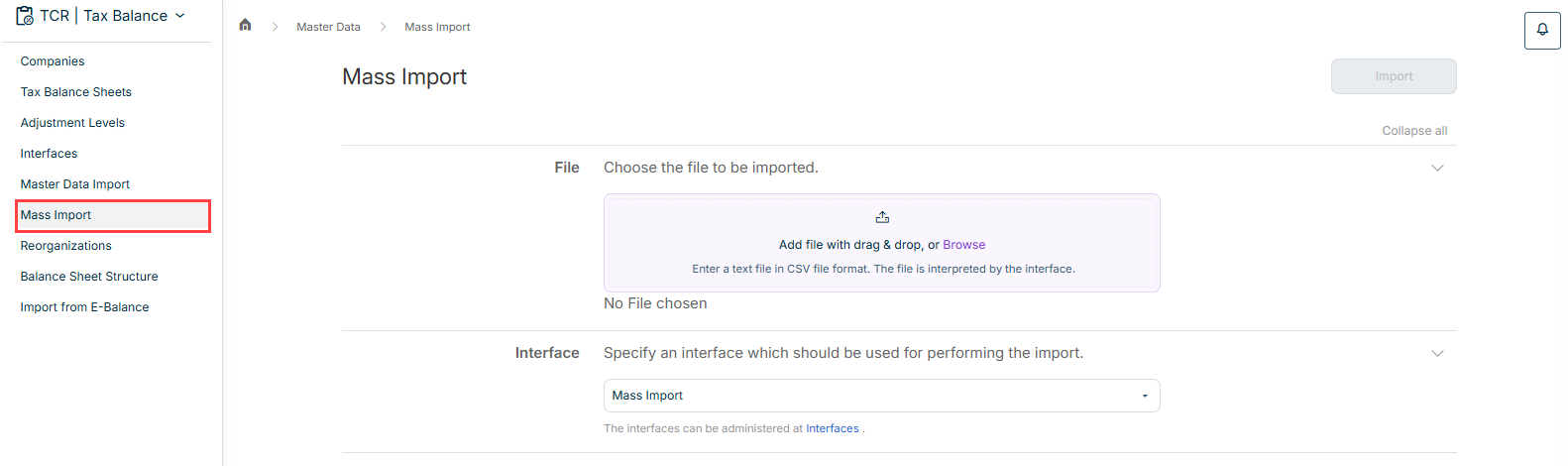
The Mass Import workspace is opened under Master Data | Mass Import.

The workspace is displayed as follows, for example:

'Mass import' workspace

To perform a mass import:

1

Add the file to be imported by means of drag and drop, or click Browse to add the file.

Note: Only files in CSV format are allowed.

2

Choose the interface that has been configured for the mass import.

3

Click Import.

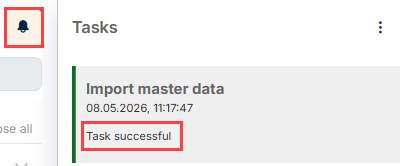
After you have executed the import, you can display the state and, in the case of a failed import, the details.

To do this, click the bell icon to open the job monitor. The status of the import task is then displayed below the task:

Job status in the job monitor

In the case of a failed execution, click the corresponding task to display the error details.