To start entering the data and configuring a tax balance sheet in Tax Balance, you must first open the desired combination of individual company and tax balance sheet.
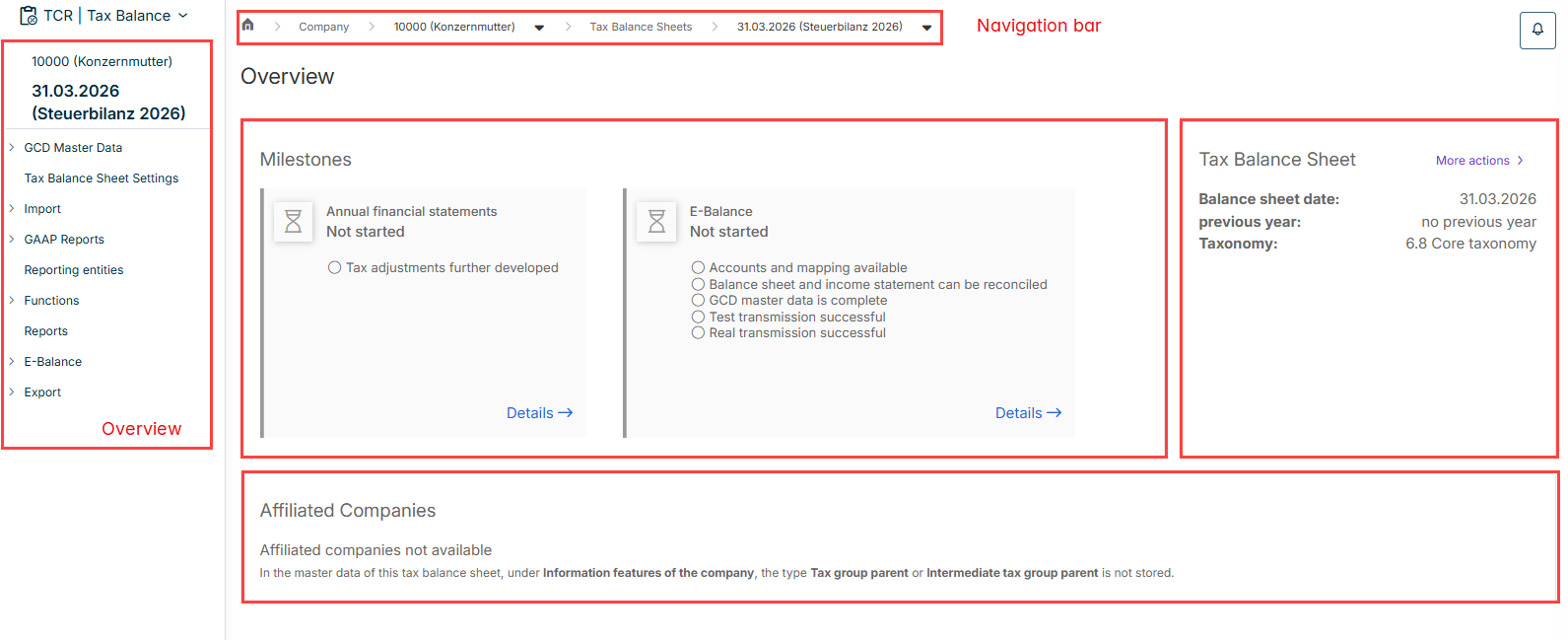
The overview of the chosen tax balance sheet is then displayed. From here, you can mark the individual process steps of the milestones as done or navigate to the individual workspaces to create the tax balance sheet.
After you have opened the tax balance sheet to be edited from the Company area in Tax Balance, the overview of the tax balance sheet is displayed as follows:
Predefined milestones for tracking the process status.
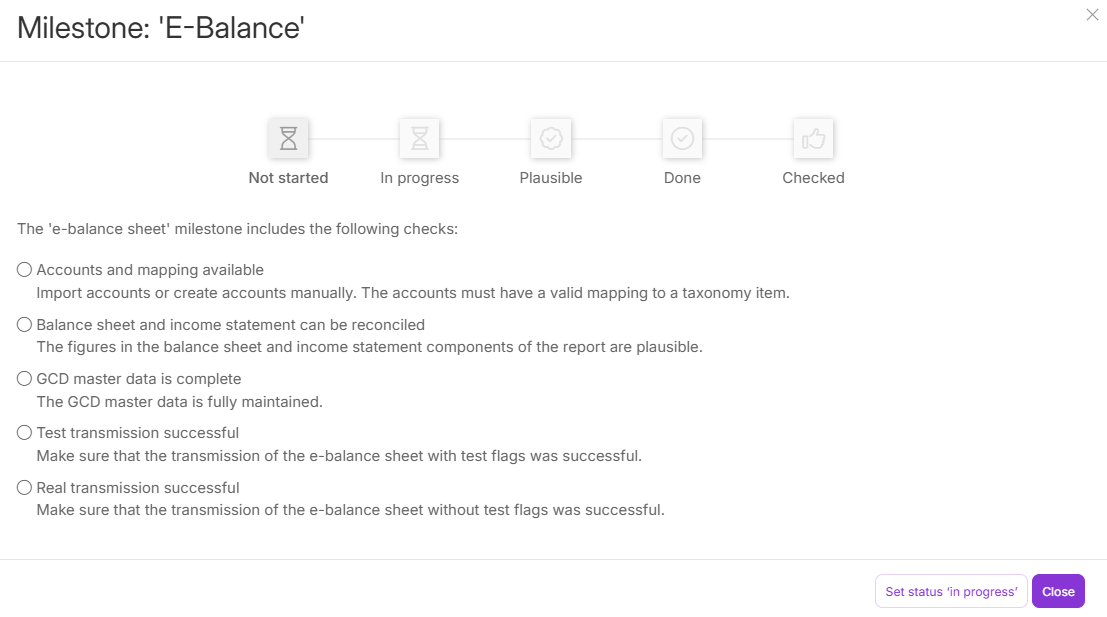
For each milestone, a dialog shows the current status and the checks the milestone includes. In Tax Balance, a milestone passes through the following statuses:
Not started
In progress
Plausible
Done
Checked
You set the next status using the corresponding button in the dialog, for example Set status 'in progress'.
In Tax Balance, the E-Balance milestone includes the following checks:
Check
Description
Accounts and mapping available
Import accounts or create accounts manually. The accounts must have a valid mapping to a taxonomy item.
Balance sheet and income statement can be reconciled
The figures in the balance sheet and income statement components of the report are plausible.
GCD master data is complete
The GCD master data is fully maintained.
Test transmission successful
Make sure that the transmission of the e-balance sheet with test flags was successful.
Real transmission successful
Make sure that the transmission of the e-balance sheet without test flags was successful.