In the workspace E-mail configuration, you can configure e-mail servers that are used to send e-mail templates.

The E-mail configuration workspace can be found under Tax Administration | E-mail configuration.

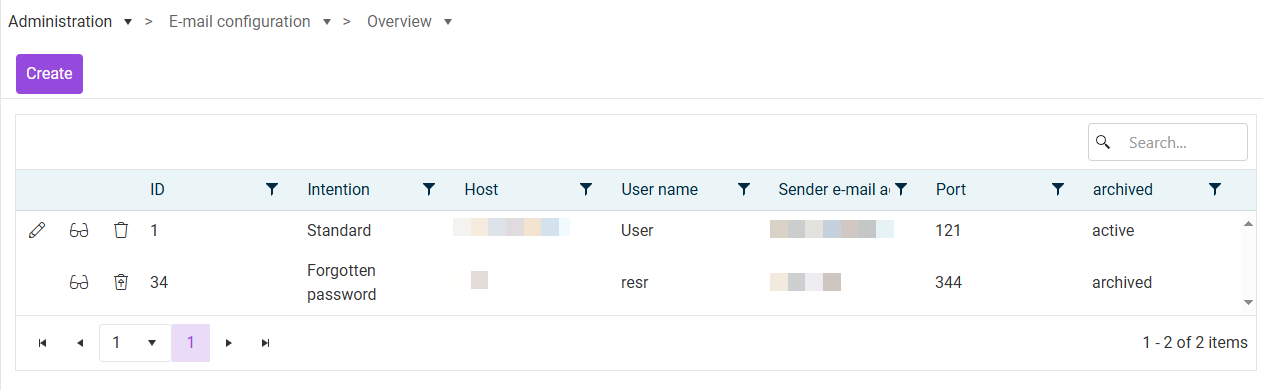
The E-mail configuration workspace is displayed as follows (for example):

'E-mail configuration' workspace

All configured e-mail servers are displayed in the table. The columns of the table contain the following information:

  • ID: Technical ID of the configuration
  • Intention: Intention for which the server configuration was created
  • Host: Host of the e-mail server
  • User name: User name for authorization and authentication on the e-mail server
  • Port: Port of the e-mail server
  • Archived: E-mail server configuration is active or archived

The table displays the e-mail templates that have already been created.

The following options are available:

OptionDescription
Opens the configuration in edit mode
Opens the configuration in read-only mode
Archives the configuration
Restores an archived configuration, provided that no other active configuration with the same intention exists

To create a new e-mail configuration:

1

Click Create to create a new e-mail server configuration.

Note: If the Create button is not displayed, you have created a configuration for all available intentions. In this case, you can archive or edit an active configuration.

2

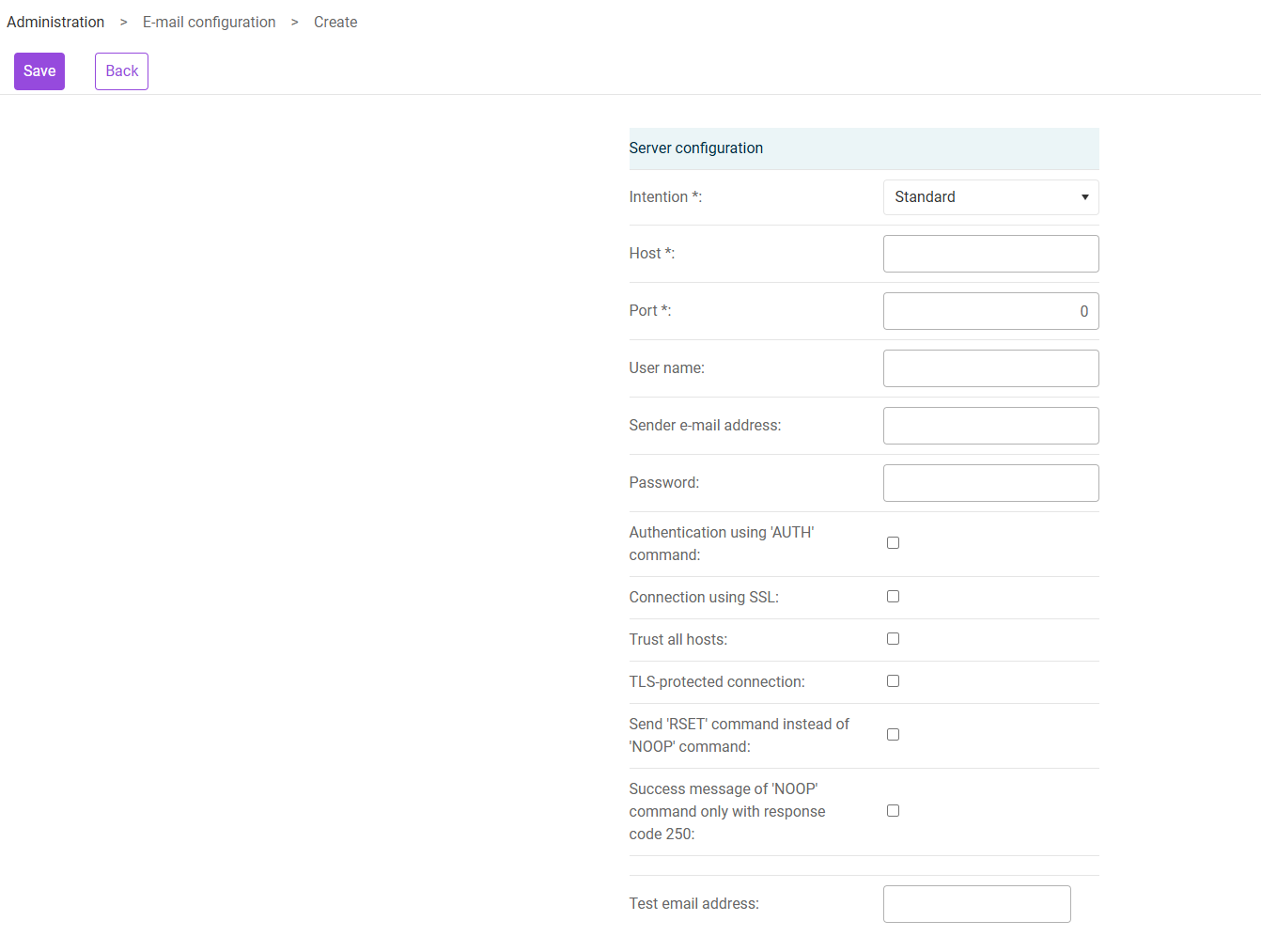
The configuration options are displayed as follows:

Options for an e-mail configuration
3

Choose the desired intention from the drop-down list.

4

Configure the additional fields (see following section).

The following options are available for e-mail configurations:

OptionDescription
HostHost name of the SMTP server
User nameUser name for the SMTP server. The user name is used as the sender e-mail address. If the user name is not a valid e-mail address, a sender e-mail address must be specified.
Sender's e-mail addressAs an alternative to the user name, a sender e-mail address can be specified in this field. If the user name is not a valid e-mail address, specifying the sender e-mail address is mandatory.
PasswordUser's password for the SMTP server
PortPort of the SMTP server
Authentication using 'AUTH' commandAuthenticate users with the AUTH command
Connection using SSLUse SSL for the connection
Trust all hostsIf an SSL connection is used, all hosts will be trusted.
TLS-protected connectionSTARTTLS command is used to switch the connection to a TLS-protected connection
Send 'RSET' command instead of 'NOOP' commandUse RSET command instead of NOOP command
Success message of 'NOOP' command only with response code 250Success message of NOOP command will only be recognized with response code 250

After the e-mail configuration has been successfully saved, you can test the connection to the e-mail server. To do this, click Test connection. If the connection is established successfully, a success message is displayed; otherwise, an error message is shown.

To test whether the system can actually send e-mails correctly, you can send a test e-mail. To do so, proceed as follows:

1

In the Test e-mail address field, enter an e-mail address that you can access.

2

Click Send test e-mail.

3

Then check the appropriate inbox. If an e-mail with the subject Portal Mail configuration test. Do not reply and Testmail from Lucanet Tax Administration in the body has been received, the test was successful.

4

Otherwise, check the e-mail server configuration and send another test e-mail.