In addition to standard emission factors from our database, you can use custom emission factors to include missing or organization-specific data, ensuring that your results better reflect your organization's activities or specific supplier data.

Custom emission factors must first be created in the Custom Emission Factors workspace by an ESG Administrator before they can be used.

To create a custom emission factor:

1

Navigate to the Custom Emission Factors workspace and click Add custom factor.

2

In the Create Custom Emission Factor dialog, enter the required data.

3

Click Create to save.

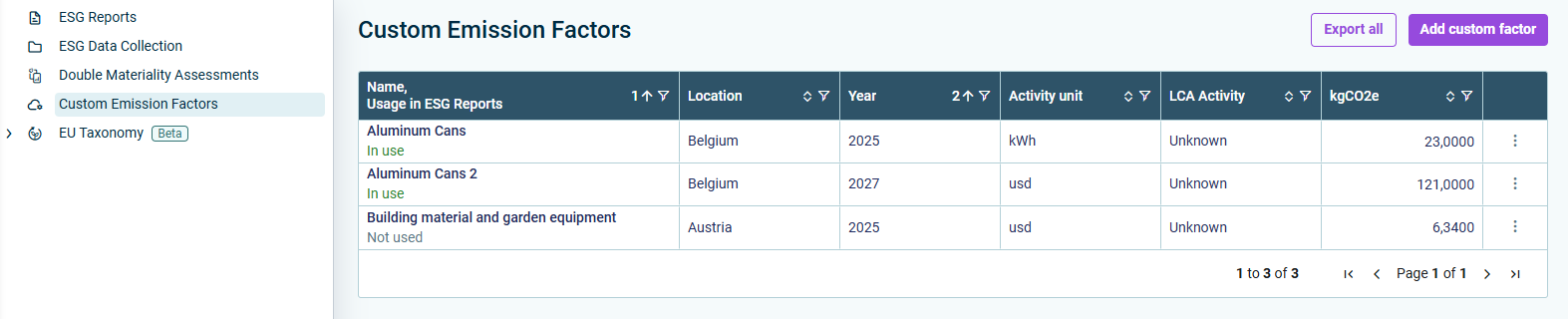
The new custom emission factor will be displayed in the table as follows, for example:

'Custom Emission Factors' workspace

Decimal Precision of the Emission Factor Value

You can enter the Total of kgCO2e value with up to 6 decimal places (e.g. 0.123456), so that you can maintain more precise data. Values with fewer decimals and existing custom emission factors remain valid and are displayed as before — no adjustment is required. The value is displayed with the same precision in the Custom Emission Factors overview table.

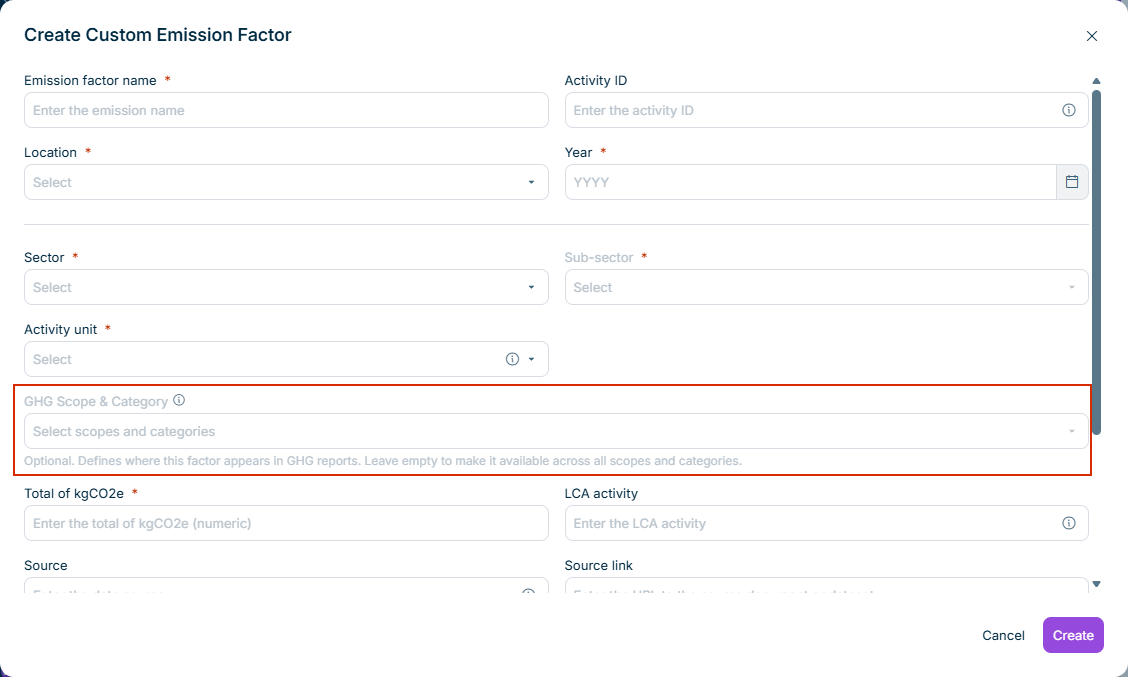
In the Create Custom Emission Factor and Edit Custom Emission Factor dialogs, you can use the optional GHG Scope & Category field to define where the custom emission factor is available when creating footprints in the Emissions Module.

The 'Create Custom Emission Factor' dialog showing the optional 'GHG Scope & Category' field with its helper text.
'GHG Scope & Category' field in the 'Create Custom Emission Factor' dialog

The dropdown list offers the following options:

  • Scope 1
  • Scope 2
  • Scope 3 – All categories
  • The individual Scope 3 categories 1 to 13.

A custom emission factor can carry several values (e.g. Scope 1 and Scope 3, Category 2). Scope 3 – All categories and the individual Scope 3 categories are mutually exclusive.

The field determines where the custom emission factor appears:

  • Left empty: The custom emission factor is available for every footprint, regardless of its scope or category. This is the default and the state of all existing custom emission factors.
  • Containing a value: The custom emission factor is available only for footprints whose scope — and, for Scope 3, category — matches one of the selected values.

Notes:

  • The GHG Scope & Category field is optional and never blocks creating or saving a custom emission factor.
  • You can configure the field when creating the custom emission factor and change it later — but only while the custom emission factor is Not used (see Status of Custom Emission Factors).
  • Existing custom emission factors are not changed. They remain available for every footprint until you edit them and define a scope and category.
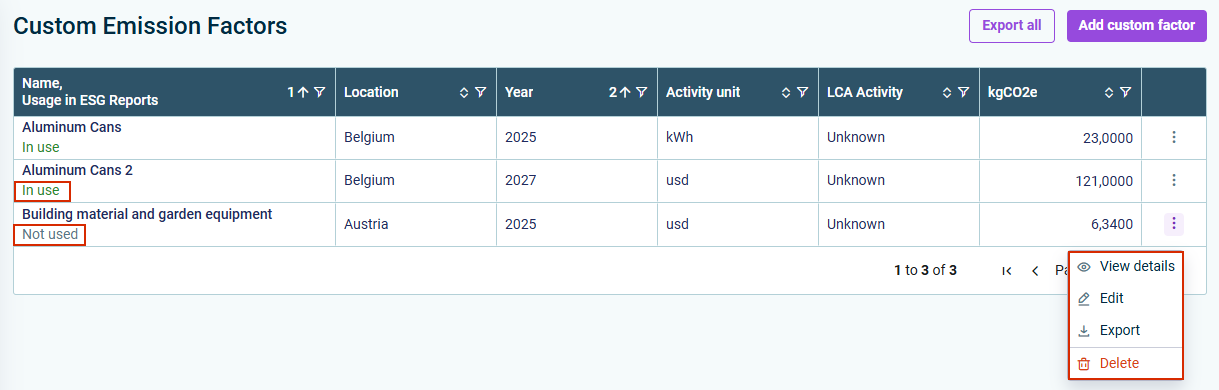
Custom emission factors can have two statuses: In use (actively used in the calculation of a footprint) and Not used (not currently referenced). The status is displayed in the custom emission factors overview as follows, for example:

Shows the overview of the custom emission factors. The statuses ‘In use’ and ‘Not used’ are outlined in red, as well as the context menu options accessed via the three-dot icon.
Status of custom emission factors

Custom emission factors with the status Not used can be edited or deleted as needed.

There are two options for exporting custom emission factors, including all their attributes, to a CSV file:

  • Use the context menu opened by the three-dot icon next to each factor to download a single emission factor.
  • Click Export all above the overview table to download all custom emission factors at once.