In Lucanet Consolidation & Financial Planning, you can create and download a Postings report to analyze, audit, and share posting data. You can set the following for the report:

  • Filter the data to be exported by data level, period, posting types, reporting entities and/or consolidation areas
  • Define the sort order of the exported data
  • Choose Excel or Text output format

A postings report can either be created from the overview of the Lucanet Consolidation & Financial Planning solution or from the Journals workspace:

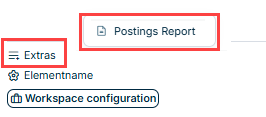
  • In the overview of the Lucanet Consolidation & Financial Planning solution, open the Extras menu at the bottom and select Postings Report:
Shows the lower section of the overview in CFP. The “Extras” menu and the “Postings Report” option are highlighted in red
Creating a postings report from the 'Extras' menu
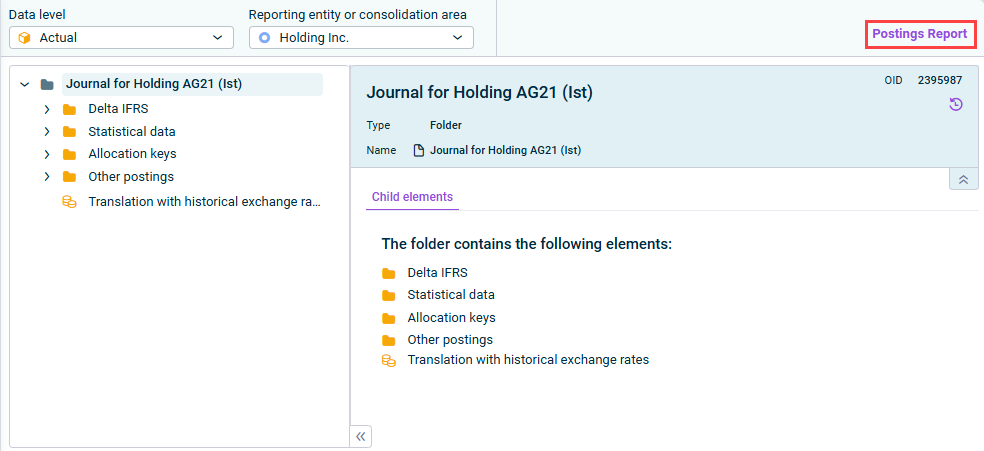
  • In the Journals workspace, select the data level and reporting entity or consolidation area for which you want to create the report and click Postings Report at the top right:
Shows a Journal. Highlighted in red is the command 'Postings Report'
Creating a postings report form a journal

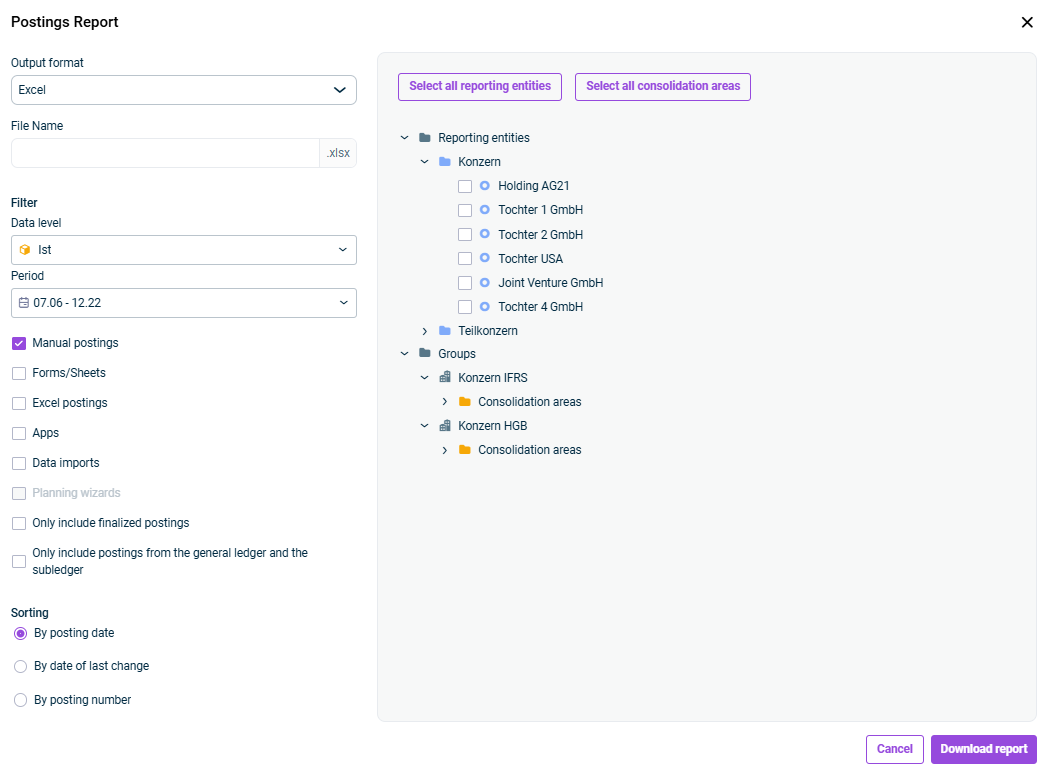
The Postings Report dialog is displayed as follows, for example. Configure the options for the report as described in the following section.
Shows the 'Postings Report' dialog
'Postings Report' dialog

Before you download the report, you can configure the following options for the report:

File type of the export ( Excel or Text)

File name of the export. The correct extension is appended automatically.

Data level for which the posting report is to be created

Period for which the posting report is to be created

Selection of the posting types to be included in the posting report:

  • Manual postings
  • Postings created by Forms/Sheets
  • Excel postings
  • Postings created by apps
  • Postings created by data imports
  • Postings created by planning wizards

In addition, you can only include finalized postings and/or only include postings from the general ledger and the subledger.

Options for sorting the postings in the report. You can sort:

  • By posting date
  • By date of last change
  • By posting number

Reporting entities for which the posting report is to be created.

You can also select all reporting entities at once.

Consolidation areas for which the posting report is to be created.

You can also select all consolidation areas at once.

Once all options are configured, click Download report and the report file will be saved to the Downloads folder in your file system.

The report is structured as follows, for example, depending on the options you selected:

Shows an Excel sheet with an example of a postings report
Example of a postings report