In Consolidation & Financial Planning (CFP), organization groups are used in structures to combine all of the organization elements of the entire structure or of substructures that belong together. For example, all of the organization elements of a group can be combined in one organization group and all of the organization elements from subgroups can be combined in separate organization groups.
Right-click the root folder Organization elements, a folder, or an Organization group.
2
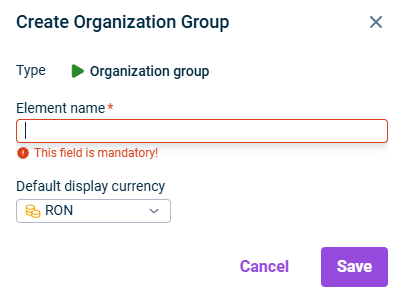
Choose Create | Organization group from the context menu. The Create Organization Group dialog is displayed:
Creating an organization group
3
Specify the name of the element.
4
Choose the currency to be used as the default display currency from the Default display currency drop-down list. A selection can be made from all of the display currencies that have been created in the Currency translation workspace (see Creating and Configuring Currencies in CFP).
If you create the organization group under a different organization group, then the currency settings of the higher-level organization group will be applied. The Default display currency drop-down list will not be displayed in this case.
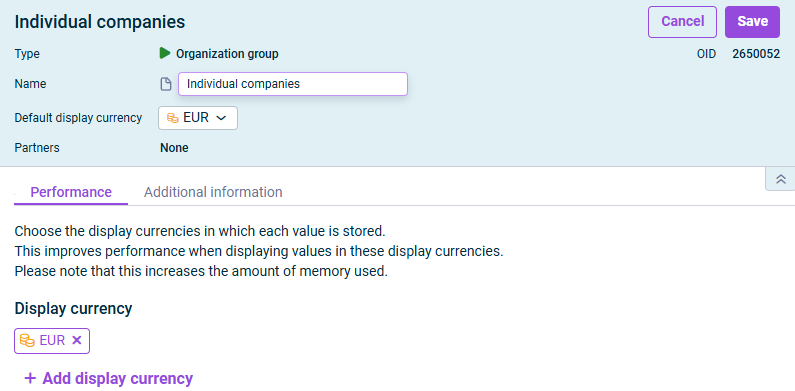
Click the name of the organization group in the tree view.
2
Click Edit at the top right to open the editing mode.
3
Optionally, change the name of the element and choose another currency from the Default display currency drop-down list.
4
On the Performance tab, choose the display currency or currencies in which values are to be stored to accelerate the display of these values in these currencies.
When generating references to consolidation areas in the Organization elements workspace in CFP, automatic organization groups are generated for the drill down Adjustment levels separated – default hierarchy of the consolidation area that contain all references to consolidation units with the adjustment level Consolidation postings. The element Organization group (automatic)cannot be deleted.
If the drill down is changed, the Organization group (automatic) element is changed into an organization group.
An automatic organization group can be configured like a regular organization group using the Edit button.
This content was generated using AI and reviewed by Lucanet subject matter experts before publication.