If you want to clear the balances of all general ledger accounts in one step, you can use the balance clearance wizard instead of entering every account manually. In a new manual posting, the wizard creates one row for each general ledger account that has a non-zero balance, and enters the value that clears this balance. When you save the posting, the balances of these accounts are zero at the end of the selected month.

A typical use case for the balance clearance wizard is deconsolidation, for example when a subsidiary leaves the consolidation group. Because the wizard assigns each row the transaction type for disposals from the consolidation group, schedules and the cash flow statement display the disposal correctly.

The balance clearance wizard is available for postings in reporting entities and consolidation areas, wherever you create a manual posting: in the Journals workspace, from a ledger or schedule, and from the Show postings dialog.

The balance clearance wizard replaces the Deconsolidation wizard of Lucanet.Financial Client.

To clear account balances with the balance clearance wizard:

1

Create a manual posting as described in Creating a Posting, and click Continue.

2

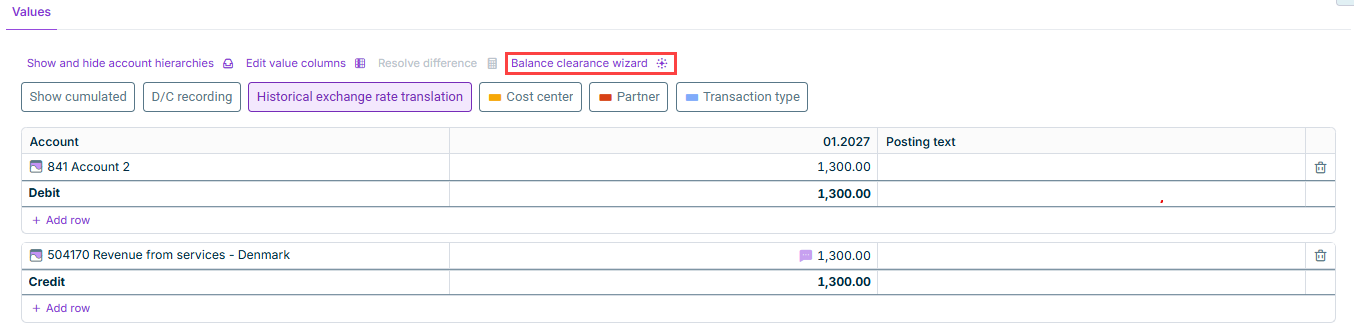
In the toolbar of the Values tab, click Balance clearance wizard.

Shows the 'Values' tab of a manual posting in Lucanet Consolidation & Financial Planning with accounts and posting values for '01.2027'. Highlighted in red is the 'Balance clearance wizard' button in the toolbar.
'Balance clearance wizard' button on the 'Values' tab
3

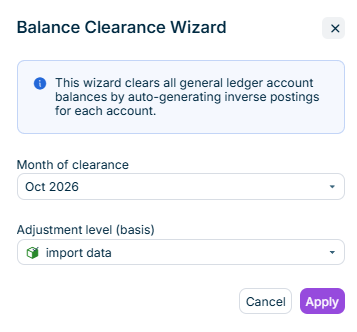
The Balance Clearance Wizard dialog is displayed.

Shows the 'Balance Clearance Wizard' dialog with the info message 'This wizard clears all general ledger account balances by auto-generating inverse postings for each account.', the 'Month of clearance' drop-down list with 'Oct 2026' selected, the 'Adjustment level (basis)' drop-down list with 'import data' selected, and the 'Cancel' and 'Apply' buttons.
'Balance Clearance Wizard' dialog
4

In the Month of clearance drop-down list, select the month at whose end the balances are to be cleared.

The list contains the months of the time range of the data level. By default, the current month is selected. If the current month is not part of the time range, the first month of the time range is selected.

5

In the Adjustment level (basis) drop-down list, select the adjustment level or adjustment level group whose balances are to be cleared.

The list only contains the adjustment levels and adjustment level groups for which you have read permission.

6

Click Apply.

The wizard enters the clearing values in the posting table and overwrites any accounts and values that were already in the posting table.

7

Check the data and values entered by the wizard, and click Save.

When you apply the balance clearance wizard, the wizard creates the posting table as follows:

  • The table contains one row for each general ledger account that has a non-zero balance at the end of the selected month in the selected adjustment level or adjustment level group. Each row contains the value that clears the balance of the account.
  • If the balance of an account is distributed across several partners, the table contains a separate row for each partner.
  • The wizard does not split the balances by cost center.
  • The wizard assigns each row the transaction type for disposals from the consolidation group that is specified in the transaction type category of the account. For details, see Initial consolidation and deconsolidation tab.
  • The wizard replaces the value columns of the posting with one value column for the selected month.
  • If no general ledger account has a non-zero balance, the posting table remains empty.
  • When you apply the balance clearance wizard, the wizard overwrites all accounts and values that you have already entered in the posting table. The wizard does not create an additional posting block.

  • The adjustment level that you selected in the wizard only determines which balances are cleared. The posting itself is saved in the adjustment level that you specified when creating the posting.

This content was generated using AI and reviewed by Lucanet subject matter experts before publication.