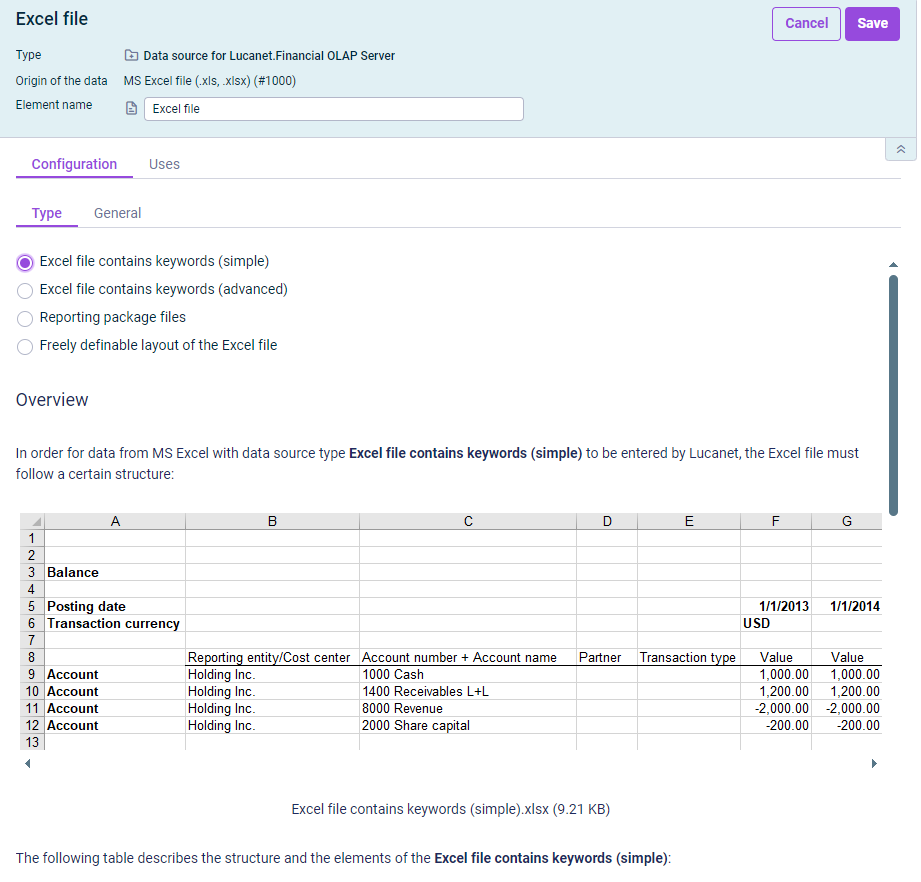
After creating an MS Excel File (.xls, .xlsx) (#1000) data source, the settings for importing data from Excel files are configured in the detail view of the data source.
Specify the type of Excel files you wish to import on the Configuration tab. A description with the structure and the keywords to be used is displayed for each type of Excel file.
Selection of the type of Excel file to be imported
The Excel file to be imported must be structured according to the description displayed.
The following types of Excel files are available:
Element
Description
Excel file contains keywords (simple)
For this type, the structure of the Excel file must follow a specific pattern so that the Lucanet Excel parser can process the data. All format details are fixed and cannot be changed.
As soon as you choose this type: - A detailed description of the structure of the Excel file is displayed. - You can download an example file from the description.
Excel file contains keywords (advanced)
For this type, the structure of the Excel file must follow a specific pattern so that the Lucanet Excel parser can process the data. More keywords can be used than for the simple form.
As soon as you choose this type: - A detailed description of the structure of the Excel file is displayed. - You can download an example file from the description.
Reporting package files
This type is used to read in Excel reporting packages. Reporting packages are complex Excel files. An example file for the reporting package can be provided upon request by Lucanet.Consulting.
As soon as you choose this type, a detailed description of the structure of the Excel file is displayed.
Freely-definable layout of the Excel file
This type is used to read in data from Excel files with any layout.
As soon as you choose this type, a detailed description of the structure of the Excel file is displayed.
Depending on the selected type, further tabs are displayed for configuration specifications. You can find the descriptions of the options on the additional tabs also in the description of the respective Excel type.