This article gives an overview of the functions that are available in Consolidation & Financial Planning to change the display of elements and to show additional information.
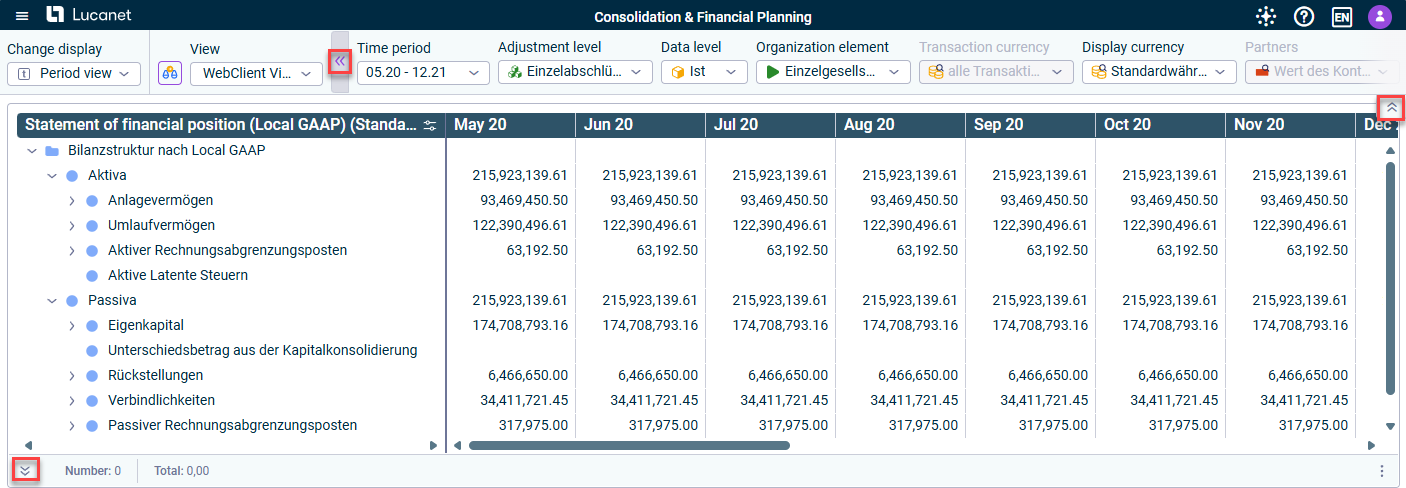
In the Consolidation & Financial Planning solution, you can show or hide certain areas using to make it easier to view elements or items and accounts, e.g. in the balance sheet. The areas you can show or hide include the Status bar, the Dimension bar, the treeview and the detail view.
Options for showing and hiding certain areas
To change the order of views in the tree view, mark the desired view, hold the mouse button, and move the view to the desired position.
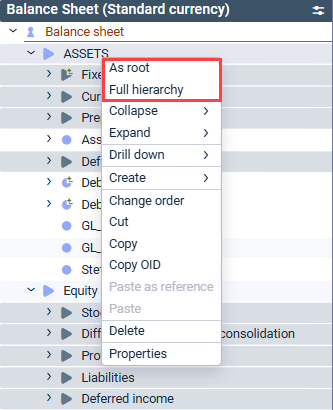
In the tree view of ledgers and schedules, you can define an element as the root and hide all other elements on the same level in the hierarchy at the same time. To do so, open the context menu of the desired element and select the As root command.
To show all elements in the hierarchy again, select the Full hierarchy command from the context menu.
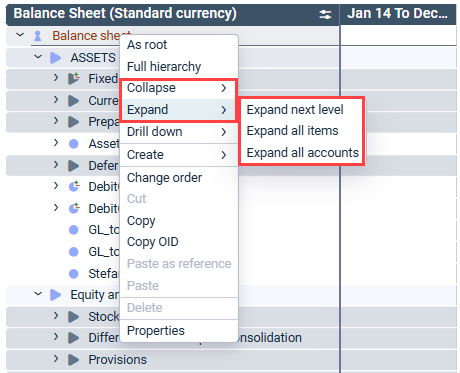
Subordinate levels of elements can be expanded in the tree view to show more details or collapsed to have a better overview. In the tree view, navigate to a folder and open the context menu.
Context menu for expanding an account hierarchy
In the tree view of the Reporting and Analyzing functional area, you can also use the context menu for items and accounts to define whether you want to expand all levels, all items, or all accounts in each case.
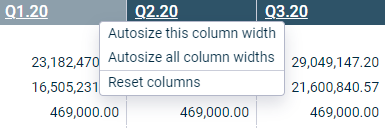
For a better overview, certain or all column widths in tables can be automatically adjusted or the adjustment of the columns reset. To do this, navigate to the header of the desired column and open the context menu to adjust the desired setting.
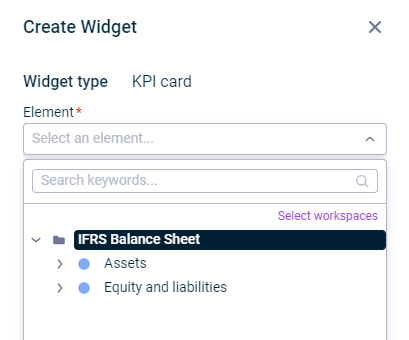
The available workspaces can be limited or extended when selecting elements. To do so, click Select workspaces, for example, to create a KPI card in the Dashboard workspace:
Select workspace when creating or editing a widget
Choose additional workspaces by activating the check boxes or limiting the selection.
A comment iconindicates that additional information is stored in the software for a particular entry, e.g. the exact posting date for the display of values of a posting in the Journals workspace:
Comment icon with display of a date in the tooltip
This content was generated using AI and reviewed by Lucanet subject matter experts before publication.