The app Adjust and reclassify values in consolidation areas allows you to selectively adjust and reclassify account values for each consolidation area. The app supports the following use cases, among others:
Correcting errors in values at the partner, cost center, and transaction type levels
Reclassifying account values from the general ledger or subledger to a statistical ledger
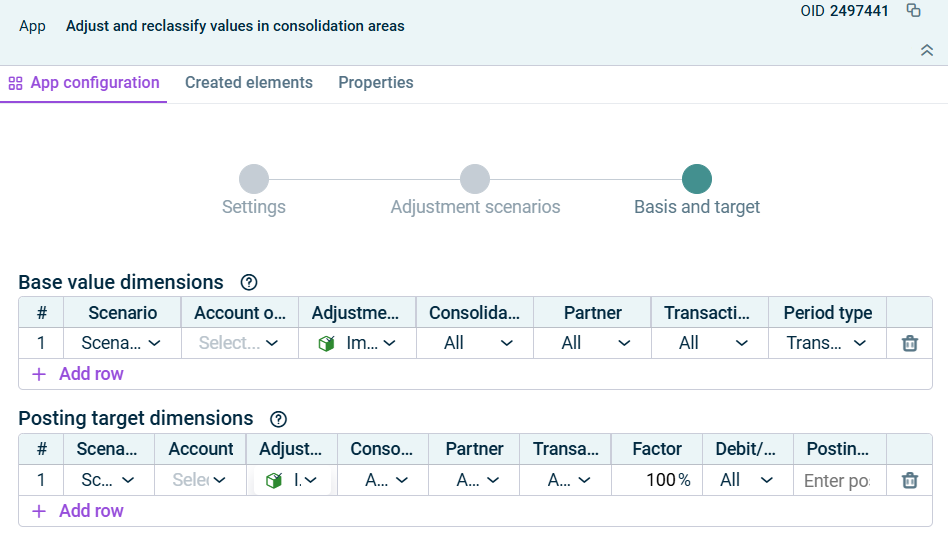
In the Basis and target step, specify the base value dimensions to be adjusted or reclassified as well as the postingtarget dimensions for each scenario.
Step 'Basis and target'
The following options are available in the Base value dimensions table:
Option
Description
Scenario
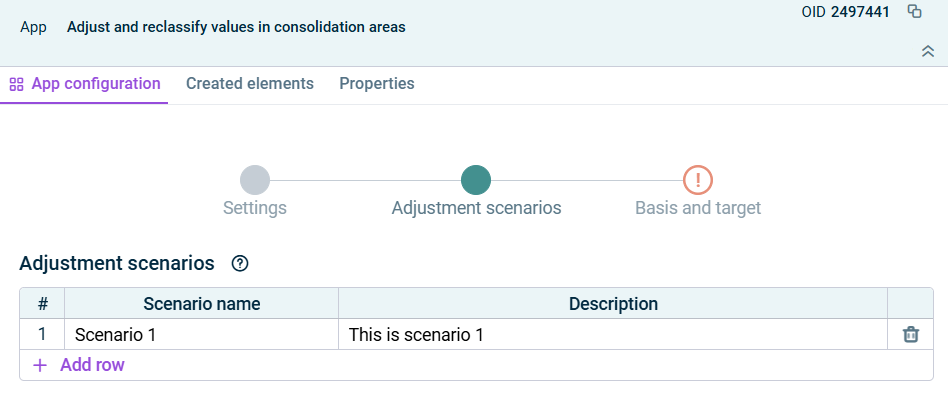
Adjustment scenario for which the dimensions of the base values are to be defined. All scenarios that were defined in the Adjustment scenarios step can be selected.
Account or item
Account or item whose values are used as the basis for the adjustment or reclassification. If an item is selected, the values of the underlying accounts are used.
Adjustment level
Adjustment level(s) or adjustment level group whose values are used as the basis
Consolidation unit
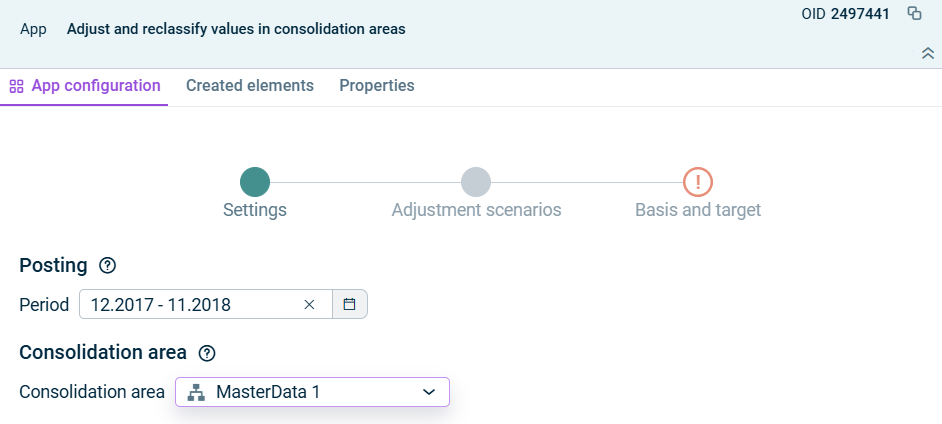
Consolidation unit(s) that contain the base values. The default setting All includes all consolidation units that are contained in the consolidation area selected in the Settings step. Alternatively, you can select individual consolidation units whose values are to be used as the basis.
Partner
Partner company or companies whose values are considered as the basis. The default setting All includes all partner companies that are assigned to the consolidation area selected in the Settings step. Alternatively, you can select individual partner companies or partner groups whose values are to be used as the basis. If a partner group is selected, all partner companies contained in the respective group are considered.
Transaction type
Transaction type(s) in which the base values were posted. The default setting All includes all transaction types that are assigned to the consolidation area selected in the Settings step. Alternatively, you can select individual transaction types or transaction type groups as the basis. If a transaction type group is selected, the calculation considers the values of all transaction types contained in the respective group.
Period type
Selection of the period type of the base values: Transaction figure, Start balance of the period, End balance of the period
+ Add row
Adds a new row for an additional base data record
The following options are available in the Posting target dimensions table:
Option
Description
Scenario
Adjustment scenario for which the dimensions of the target values are to be defined. All scenarios that were defined in the Adjustment scenarios step can be selected.
Account
Target account to which the adjusted and/or reclassified values are posted
Adjustment level
Adjustment level on which the target posting is made
Consolidation unit
Consolidation unit for the target posting. The default setting According to basis applies the selection from the base table. Alternatively, you can select a different consolidation unit to which the values are to be reclassified.
Partner
Partner company for the target posting. The default setting According to basis applies the selection from the base table. Alternatively, you can select a different partner company to which the values are to be posted.
Transaction type
Transaction type for the target posting. The default setting According to basis applies the selection from the base table. Alternatively, you can select a different transaction type for the target posting.
Factor
Percentage factor for the adjustment (default value: 100%). Allows the values to be adjusted to a higher or lower percentage.
Debit/credit
Specifies whether debit values, credit values, or all values are considered (default value: All)
Posting text
Optional posting text for the generated posting
+ Add row
Adds a new row for an additional target posting
As long as a step has not been fully configured and/or configuration errors exist, it is displayed with a red exclamation mark .
Once a step is configured completely and without any errors, it is displayed with a green check mark .
You can close the configuration dialog by clicking the arrow icon at the top left.
To change the name of the app, select the app in the tree view and choose Properties from the context menu.
You can execute the app Adjust and reclassify values in consolidation areas either separately, together with other apps in an executable folder or as part of consolidated financial statements.
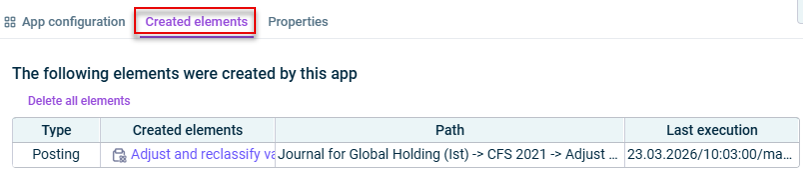
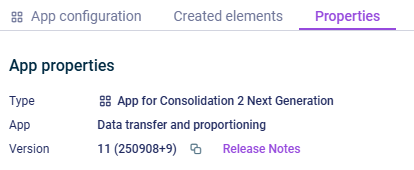
The App properties are displayed on the tab of the same name:
'Properties' tab
The following App properties are displayed:
Type of the element
Function of the App
Version of the element.
New available version
As soon as a new version of the app is available that contains changes to the app configuration and/or the calculation logic of the app, the Refresh command is displayed, allowing you to update the app to the latest version.
Information about the changes to each version can be found in the Release Notes, which can be accessed via the link of the same name.
We strongly recommend to update all apps to the new version as soon as possible because it cannot be guaranteed how long an app with an obsolete version can be executed.
This content was generated using AI and reviewed by Lucanet subject matter experts before publication.