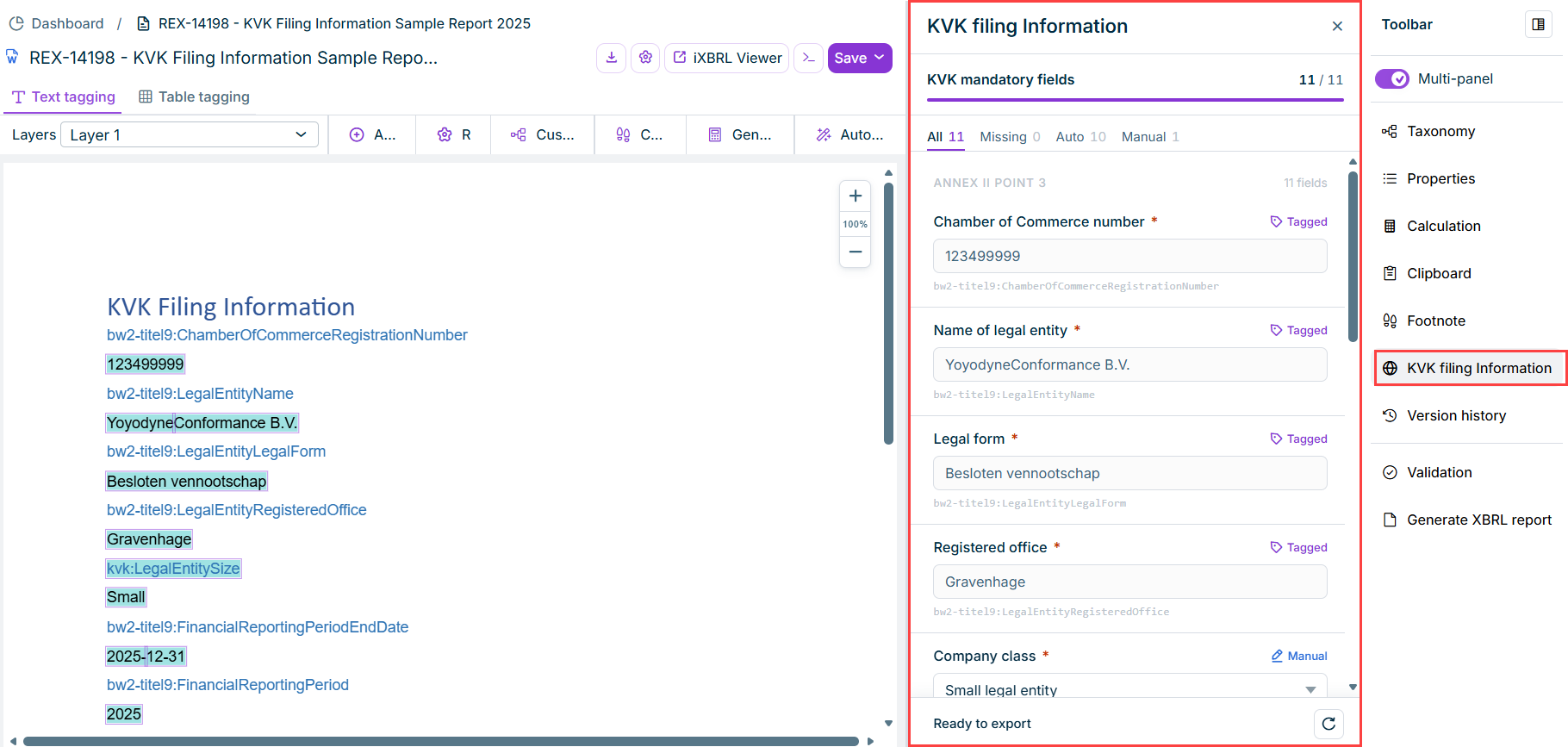
The KVK Filing Information panel in the XBRL Tagger lets you review and complete the mandatory filing information required for a KVK (Kamer van Koophandel) submission to the Dutch authorities. The panel displays all mandatory fields defined in RTS Annex II, point 3, and shows how many of them are complete.
The panel is only visible when a document using a KVK taxonomy is open.
To open the KVK Filing Information panel, open a document using the KVK taxonomy and click the KVK Filing Information button in the toolbar on the right.
The KVK Mandatory Fields section displays all 11 required fields from RTS Annex II, point 3. A progress bar at the top shows how many fields are complete (for example, 11 / 11).
Use the tabs above the fields to filter by status:
All — all 11 fields
Missing — fields that have not yet been filled in
Auto — fields automatically extracted from tagged values in the document
Manual — fields entered manually
The following fields are available:
Field
Description
Chamber of Commerce Registration Number
Registration number of the legal entity. Automatically extracted from the bw2-titel9:ChamberOfCommerceRegistrationNumber tag.
Note: The number must consist of 8 consecutive digits, and the first two digits must not be 00. If the format is invalid, an error message is displayed directly in the field.
Legal Entity Name
Legal name of the entity. Automatically extracted from the bw2-titel9:LegalEntityName tag.
Legal Entity Legal Form
Legal form of the entity (for example, Besloten vennootschap). Automatically extracted from the bw2-titel9:LegalEntityLegalForm tag.
Registered Office
Registered office of the entity. Automatically extracted from the bw2-titel9:LegalEntityRegisteredOffice tag.
Legal Entity Size
Size classification of the entity. Select one of the following: Micro legal entity, Small legal entity, Medium-sized legal entity, or Large legal entity. Maps to the kvk:LegalEntitySize tag.
Financial Reporting Period End Date
End date of the financial reporting period. Automatically extracted from the bw2-titel9:FinancialReportingPeriodEndDate tag.
Financial Reporting Period
Reporting year. Automatically extracted from the bw2-titel9:FinancialReportingPeriod tag.
Financial Statements Consolidated
Indicates whether the financial statements are consolidated. Automatically extracted from the rj:FinancialStatementsConsolidated tag.
Auditor's Report Present
Indicates whether an auditor's report on the financial statements is present. Automatically extracted from the kvk:AuditorsReportFinancialStatementsPresent tag.
Document Adoption Status
Indicates whether the annual financial statements have been formally adopted. Automatically extracted from the bw2-titel9:DocumentAdoptionStatus tag.
Document Adoption Date
Date on which the financial statements were adopted. Only displayed when Document Adoption Status is true. Automatically extracted from the bw2-titel9:DocumentAdoptionDate tag.
Re-extract from tags (refresh icon, bottom-right of the panel)
Re-reads the tagged values in the document and updates the automatically extracted fields. If an auto-extracted value differs from a previously entered manual value, a conflict notification is shown — click the update button in the notification to apply the extracted value.
Export readiness
The status line at the bottom of the panel shows Ready for export when all mandatory fields are complete. The XBRL package export is possible at any time, however the package is not valid without all mandatory fields being complete.
Save the document before using the re-extract function. The extraction reads from the last saved version of the document.
This content was generated using AI and reviewed by Lucanet subject matter experts before publication.