You can use the export function to export a CSV file with the following data:

  • Balance sheet and account data from the tax balance sheet
  • Four calculated special items for tax groups:
    • Surplus transfers prior to the tax group (key: tax-balance-special-position-pre-tax-group-remittance-surplus)
    • Deficit transfers prior to the tax group (key: tax-balance-special-position-pre-tax-group-remittance-shortfall)
    • Surplus transfers within the tax group (key: tax-balance-special-position-tax-group-remittance-surplus)
    • Deficit transfers within the tax group (key: tax-balance-special-position-tax-group-remittance-shortfall)
This file can then be imported into the Income Taxes module.

You can also initiate the import of Tax Balance data directly in the Income Taxes module of the Tax Compliance & Reporting solution. For detailed instructions, see Import Suite.

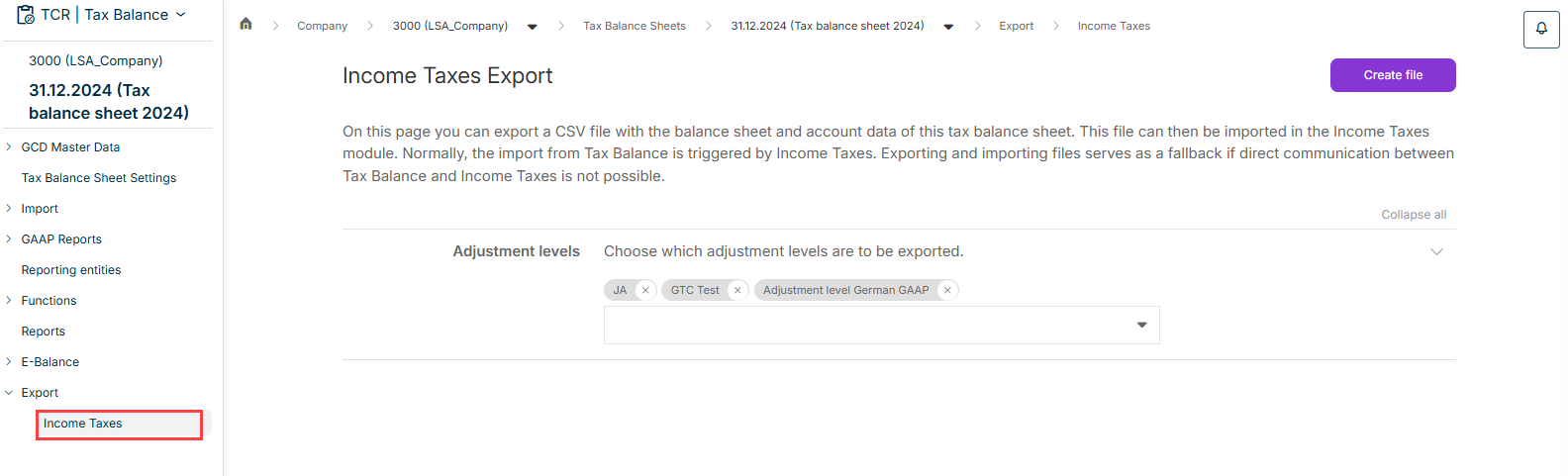
The Export workspace is displayed in the tree view as soon as you open a tax balance sheet under Company:

'Export' workspace
'Export' workspace

To Create a CSV Export:

1

Navigate to the Export | Income Taxes workspace.

2

Choose how the exported values are to be broken down. The following options are available for selection:

  • By balance sheet item
  • By target item no.
3

Choose the adjustment levels you want to export from the drop-down list or remove the adjustment levels that are not to be transferred by clicking the x.

4

Click Export to generate the export file.

After you have created the export, you can download the generated file.

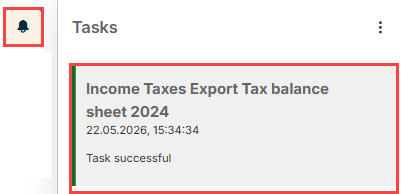
To do this, click the bell icon to open the job monitor. The status of the export task is then displayed below the task:

Job monitor
Job monitor

The export file is downloaded and saved in your download directory by clicking the corresponding task.

Last updated on May 28, 2026