
The Reorganization function helps you make the necessary balance sheet adjustments for the entities involved in the reorganization. In this process, the assets and liabilities of the transmitting entity are automatically reflected in the balance sheet of the receiving entity.
After you have created the individual reorganization issues in the master data, you can now configure the details of the reorganizations here.
Configuring a reorganization comprises the following steps, which are described in this chapter:
The following technical requirements must be observed when creating and configuring reorganizations:
Taxonomy type
For successful execution, both entities must use the same taxonomy type (e.g. core taxonomy) and the same taxonomy version (e.g. version 6.7). If the taxonomies are different, the reorganization is aborted by the program before the tax adjustments are created at the receiving entity. The user then has the option to adjust the taxonomy of the receiving entity and subsequently continue the reorganization.
Required permissions
The permission concept for the reorganization function is designed in such a way that the reorganization can be carried out by different users for the transmitting and receiving entities.
Each user must have the required permissions to <54>edit tax adjustments</54> for the respective entity as well as the <57>Execute reorganizations</57> permission.
The following permissions are also required for managing the reorganization: <60>Read reorganizations</60>, <63>Edit reorganizations </63>and <66>Reset reorganization status.</66>
The current editing state of a reorganization is displayed both in the overview of all reorganizations created and in the detail view of the respective configuration process (referred to as reorganization dialog).
The state of the reorganization changes automatically each time a step is completed. The following states are passed through during the configuration:
1
Not Started
2
Transmitting entity in progress
3
Transmitting Entity finished
4
Receiving entity in progress
5
Receiving entity finished
The reorganization is considered complete only when the state is Transmitting Entity finished.
The editing status can be reset at any time to make changes to the reorganization. How to proceed is described in Correcting Information.
Editing the reorganization begins at the transmitting entity. Define the items and values to be transferred in this step. Proceed as follows:
1
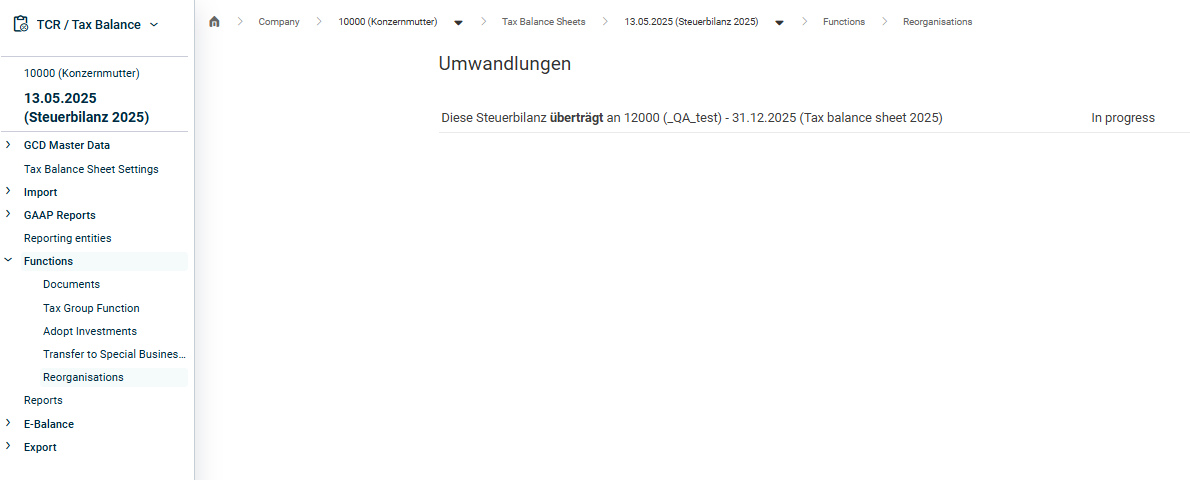
Open the desired reorganization under Company | Functions | Reorganizations and click Start reorganization.
Starting reorganization
2
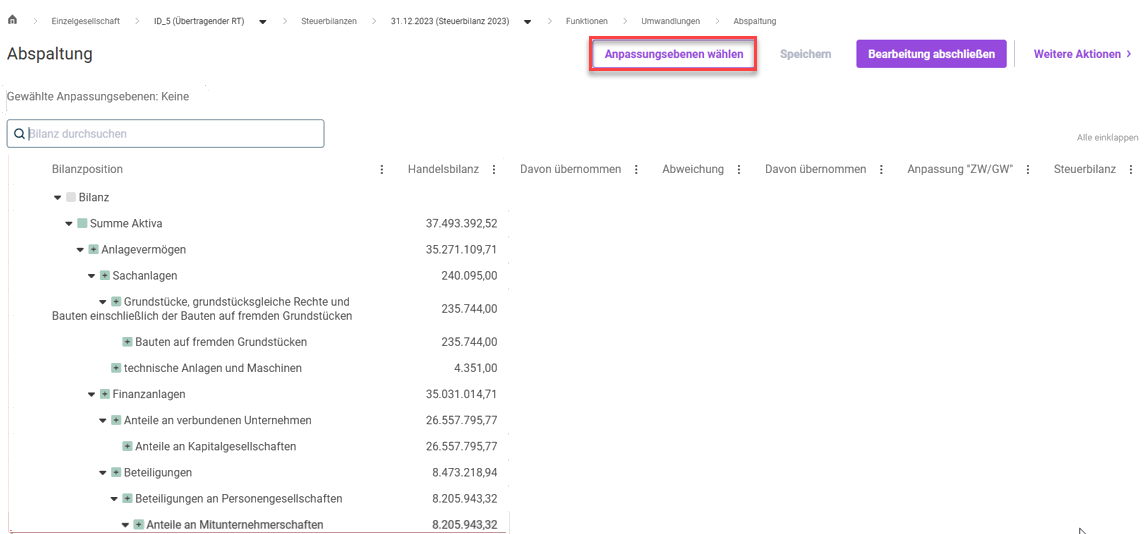
The state of the reorganization is set to Transmitting entity in progress and the balance sheet tree is displayed only with commercial balance sheet values.
The structure of the balance sheet tree is based on the taxonomy schema of the current tax balance sheet.
3
Click Select adjustment levels. The balance sheet tree is recalculated in consideration of the tax adjustment issues.
Selecting adjustment levels
4
Choose the balance sheet item whose values and deviations are to be transmitted during the reorganization. Choose one of the following options:
Activate the check box in front of each balance sheet item separately.
Click More actions | Transfer calculated values to select all balance sheet items at the lowest level including equity and tax adjustment issues for transfer at once.
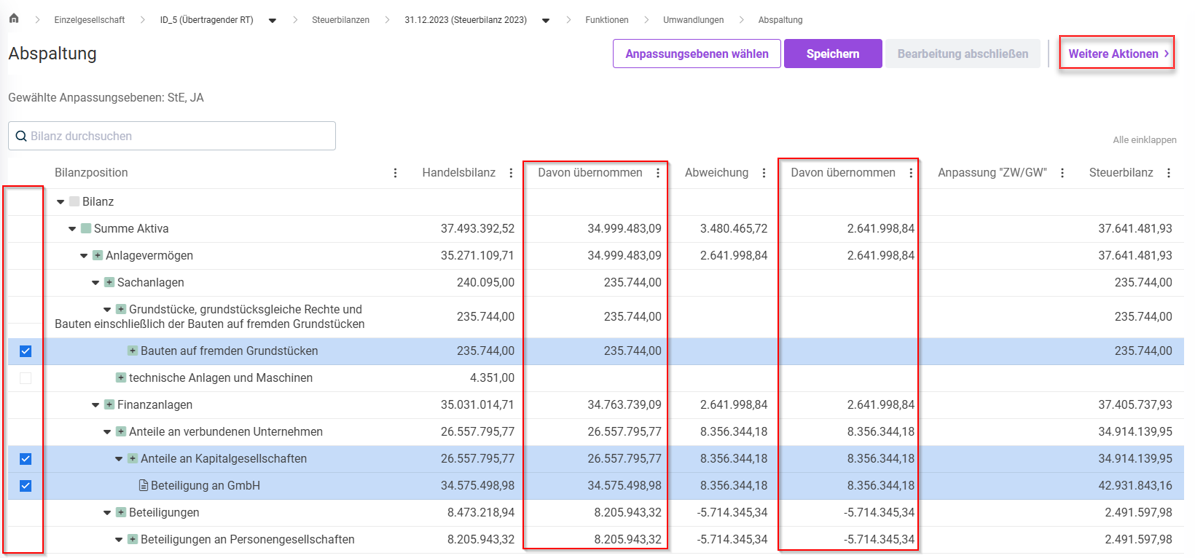
The commercial balance sheet values and deviations are then transferred to the respective Thereof transferred column.
Selected items and their transferred values and deviations
You can find notes on the columns of the balance sheet tree and the transfer logic of the values under Columns of the Balance Sheet Tree.
5
Click Save to save the current editing status.
6
Click Finish reorganization to complete the editing of the transmitting entity and allow you to start editing the receiving entity.
The status of the reorganization is set to Transmitting Entity finished.
The composition and values of the transferring assets and liabilities are fixed and can no longer be influenced by subsequent changes in the Balance Sheet report element.
The editing status of the transmitting entity can be saved at any time to continue editing at a later time.
If changes are made to the balance sheet of the transmitting entity in the mean time, e. g. by re-importing commercial balance sheet values or correcting tax adjustments, the Local Gaap and Deviation columns are automatically updated in the reorganization dialog. Values already saved in the Thereof transferred and Intermediate value / fair market value columns are retained and must be adjusted manually if necessary.
If individual balance sheet items or tax adjustment issues are no longer in the balance sheet tree due to changes to the Balance Sheet report element, they will also be removed from the reorganization dialog provided the reorganization has not yet been completed at the transmitting entity.
When editing is re-opened, deleted items are listed in an info box.
This column displays the items that correspond to the items in the Balance sheet of the transmitting entity report element under GAAP Reports | Balance Sheet.
Tax adjustment issues are also displayed.
Each item at the lowest balance sheet level and each tax adjustment issue is provided with a check box. As soon as you activate a check box, the commercial balance sheet values or deviations are transferred to the Thereof transferred column.
Please check whether and, if necessary, which equity items are to be chosen for transfer.
Contains commercial balance sheet values of the transferring assets and liabilities.
The value from the Local Gaap column is initially transferred to this column as soon as the item's check box is activated.
This value can be changed manually, for example, if not all assets and liabilities of the item are transferred to the receiving entity.
If the selection of the item is cleared, the entered values will be lost.
The values in this column follow the calculation logic of the balance sheet tree: The total items are automatically calculated based on the chosen items at the lowest level.
Displays the final values of the transferring assets and liabilities.
The values result from the sum of the two columns Thereof transferred (Local Gaap and Deviations) and Intermediate value / fair market value.
These values form the basis for the tax adjustment issues in the balance sheet of the receiving entity.
Currently, no tax adjustments are automatically created at the transmitting entity. Any top-up amounts for the assets and liabilities must therefore be entered manually in its closing balance sheet.
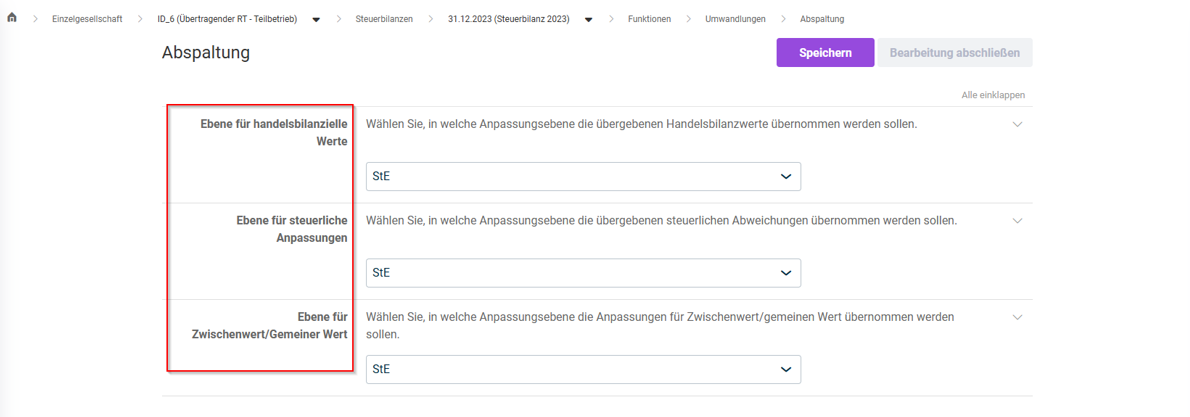
In this step, choose the target adjustment levels to which the tax balance sheet values of the transferring assets and liabilities are to be transferred.
For the transferred commercial balance sheet values, top-up amounts to the intermediate or fair market value and tax adjustment issues, you can choose either a common target level or a separate target level in each case.
1
Open the desired reorganization under Company | Functions | Reorganizations and click Start reorganization.
2
The state of the reorganization is set to receiving entity in progress.
3
Choose the adjustment levels to which the values are to be transferred at the receiving entity:
Selecting the target adjustment levels
For better traceability of the results, it is recommended to create at least one separate, company-specific adjustment level at the receiving entity level to reflect the reorganization process.
4
Click Save to save the current editing status.
5
Click Finish reorganization to complete the editing of the receiving entity.
The state of the reorganization is set to Transmitting Entity finished.
At the same time, corresponding tax adjustment issues are automatically created at the receiving entity level.
A separate tax adjustment issue is created for each transferred commercial balance sheet value, tax deviation value, and top-up amount for the intermediate or fair market value.
To correct information in configuration steps that have already been completed for a reorganization:
1
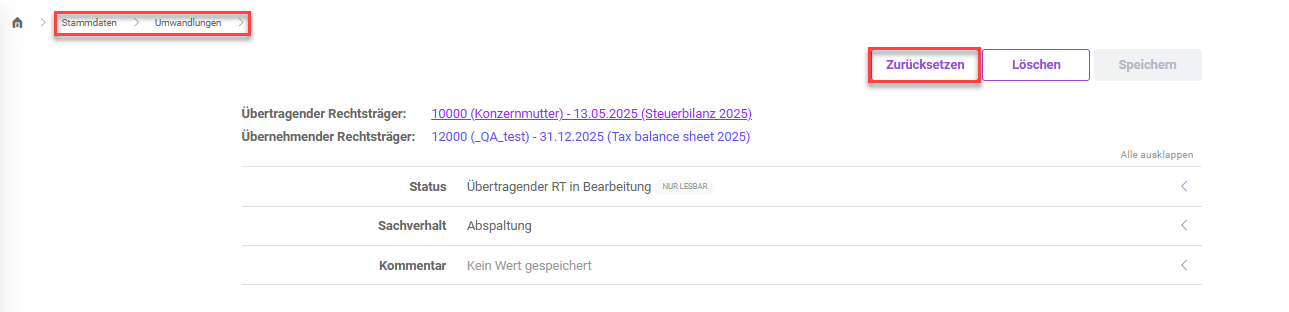
First, reset the state of the reorganization by opening the reorganization under Master Data | Reorganizations and clicking Reset.
Reset status
2
The status of the reorganization is reset to Not started.
3
Navigate to the Company | Functions | Reorganizations area and open the desired reorganization.
4
Make the necessary changes as described in the individual configuration steps above.
Note before you automatically generate the adjustments again
The tax adjustments that have already been generated automatically at the receiving entity remain unchanged when the state is reset.
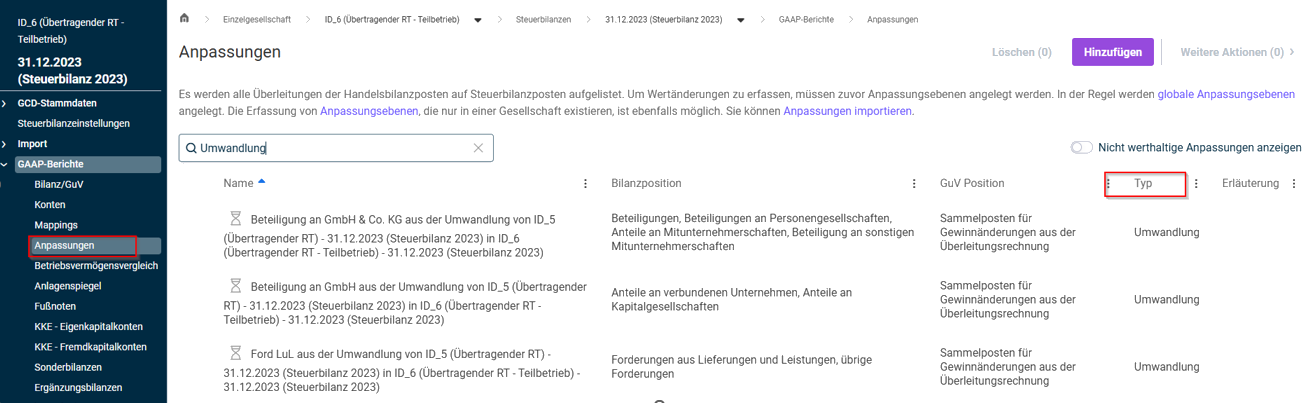
Since new tax adjustment issues are created each time the reorganization is carried out automatically, the existing tax adjustments must be deleted manually beforehand.
To do this, go to the Company | GAAP reports | Adjustments area. Both the text filter (according to the suffix in the case description) and the column filter for the Reorganization adjustment type can be used for the targeted selection of the affected tax adjustment issues: