You can create and configure adjustment levels in Consolidation & Financial Planning (CFP). Adjustment levels determine the guidelines according to which a value is posted and measured. There is at least one adjustment level on which all data imports are saved by default. In general, it is useful to reserve an adjustment level for the data imports from the financial accounting source system. This ensures that the values on this adjustment level in CFP precisely match the data of internal accounting. Any adjustment postings (HGB, IFRS, US-GAAP or corporation valuation adjustment postings in connection with the consolidated financial statements) should then be made on adjustment levels created specifically for this purpose.

To create an adjustment level in CFP:

1

Right-click the root folder Adjustment levels or another folder.

2

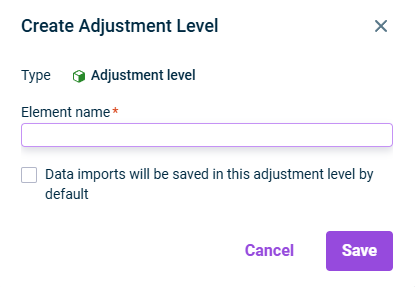
Choose Create | Adjustment level from the context menu. The Create Adjustment Level dialog is displayed:

Shows the 'Create Adjustment Level' dialog in CFP with the type 'Adjustment level', the mandatory 'Element name' field, the 'Data imports will be saved in this adjustment level by default' check box, and the 'Cancel' and 'Save' buttons.
Creating an adjustment level
3

Specify the name of the element.

4

Activate the Data imports will be saved in this adjustment level by default check box if you want to use the adjustment level as the adjustment level for data imports.

5

Click Save.

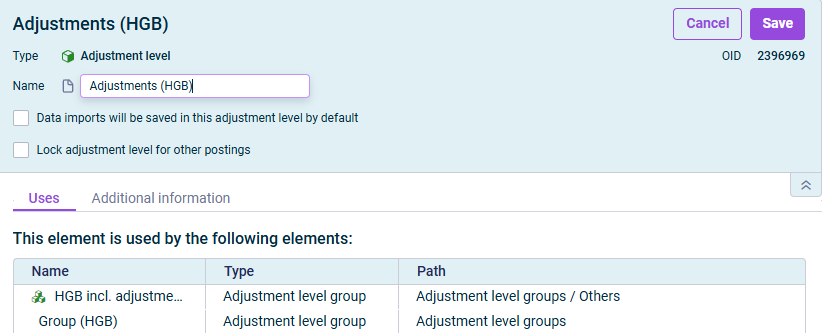
Shows the adjustment level 'Adjustments (HGB)' in editing mode in CFP with the 'Name' field, the 'Data imports will be saved in this adjustment level by default' and 'Lock adjustment level for other postings' check boxes, and the 'Cancel' and 'Save' buttons. The 'Uses' tab lists the adjustment level groups 'HGB incl. adjustme…' and 'Group (HGB)' that use this element.
Dialog for editing an adjustment level

To configure an adjustment level in CFP:

1

In the tree view, right-click the name of the adjustment level.

2

Click Edit at the top right to open the editing mode.

3

If needed, change the name of the element.

4

Activate the Data imports will be saved in this adjustment level by default check box if you want to use the adjustment level as the adjustment level for data imports.

5

Activate the Lock adjustment level for other postings check box if you want to block the adjustment level for all postings except data imports. In this way you can calibrate whether the import data matches the data of the source system.

6

Click Save.

Notes on adjustment levels in CFP:

  • There is exactly one adjustment level for data imports that cannot be deleted.
  • If the adjustment level is defined as a data import adjustment level, then the option Lock adjustment level for other postings is displayed.

This content was generated using AI and reviewed by Lucanet subject matter experts before publication.