The general ledger is used to keep and display accounts and items in Consolidation & Financial Planning (CFP). The account structure of a balance sheet is stored in the general ledger. In the general ledger, the original accounts from the financial accounting source systems are recreated, assigned, and maintained, and manually created accounts and items are managed.

By default, the general ledger is displayed as a workspace in the overview in the Reporting and analyzing folder.

The properties of the general ledger can be edited in the Workspace Configuration as described below.

To edit the properties of the general ledger in CFP:

1

In the structure view of the Workspace Configuration, click the name of the general ledger.

2

Click Edit in the upper right corner to open the edit mode.

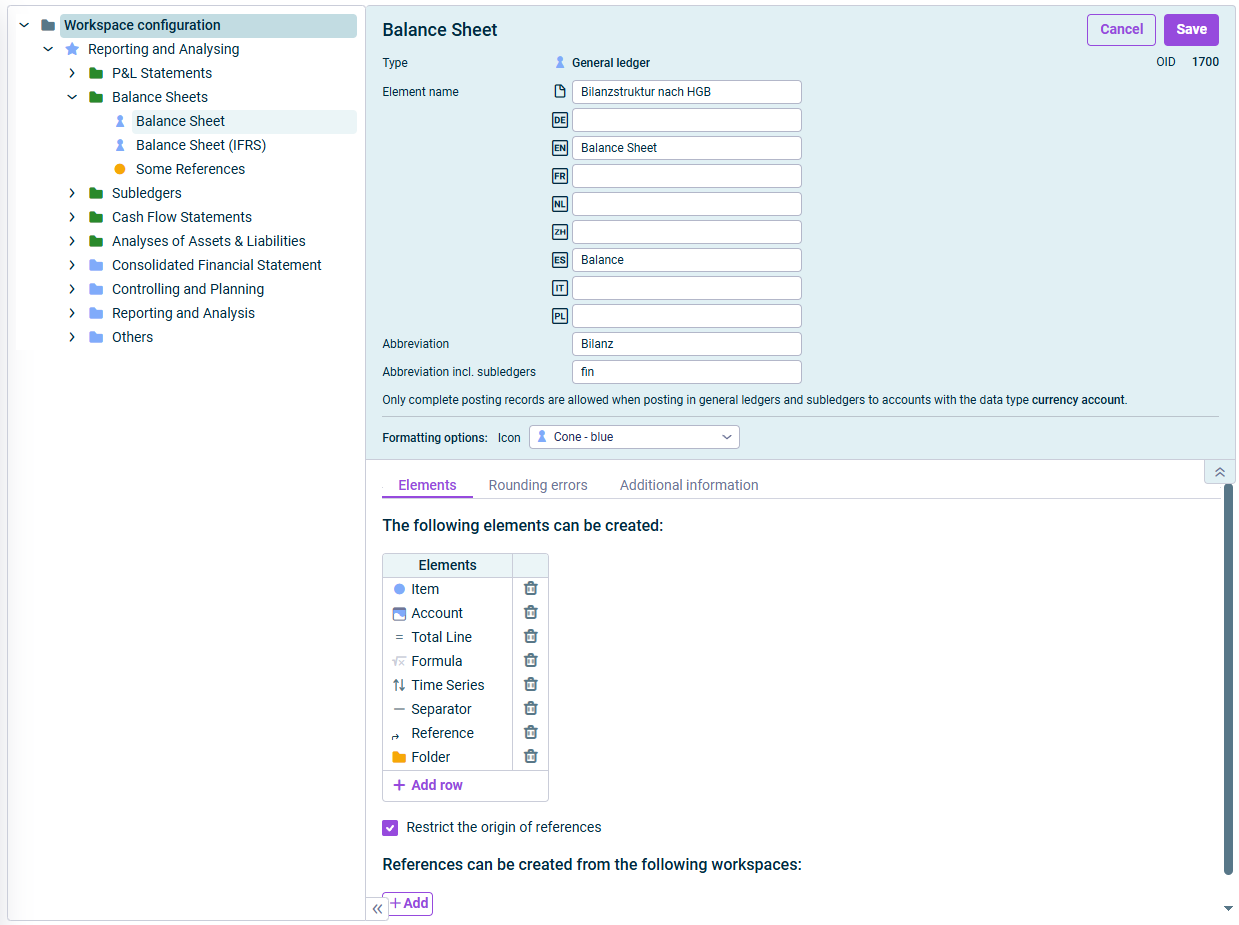
Shows the general ledger 'Balance Sheet' in edit mode in CFP, with the 'Workspace configuration' tree view, the 'Element name' 'Bilanzstruktur nach HGB', the 'Abbreviation' 'Bilanz', the 'Abbreviation incl. subledgers' 'fin' and the 'Icon' 'Cone - blue'. The 'Elements' tab lists elements such as 'Item', 'Account', 'Total Line', 'Reference' and 'Folder', next to the 'Rounding errors' and 'Additional information' tabs.
Edit mode of the general ledger

The following options are available for the general ledger in CFP:

You can configure the following general properties for the general ledger:

OptionDescription
Element nameName of the general ledger. If necessary, specify the country-specific language descriptions of the general ledger for the display languages available for the Lucanet user interface.
AbbreviationAbbreviation of the general ledger
Abbreviation incl. subledgersAbbreviation for the general ledger and all subledgers assigned to it.
Formatting optionsIf necessary, choose another icon from the drop-down list.

On the Elements tab you can define which elements can be created in the ledger:

  • To delete elements from the Elements list, click Delete icon next to the element you want to delete.

  • To add elements to the Elements list, click + Add row and choose the desired element in the displayed drop-down list. The following elements are available:

  • If references are permitted as elements: Activate the Restrict the origin of references check box if you only want to enable references to certain workspaces. Then, click + Add and select the workspaces for which references can be created.

If an object type is removed from the ledger's configuration, no further elements of this type can be created in the ledger. Elements previously created in the ledger with the removed object type are retained and can be edited, copied, moved, or deleted.

Configure the following on the Rounding errors tab:

  • Account for presentation of the rounding error from proportionate consolidation
  • Account for presentation of the rounding error from currency translation

This content was generated using AI and reviewed by Lucanet subject matter experts before publication.