Schedules can be reflected in Lucanet. In the Overview, each schedule is displayed in the folder as the workspace in which it was created.

To create a schedule:

1

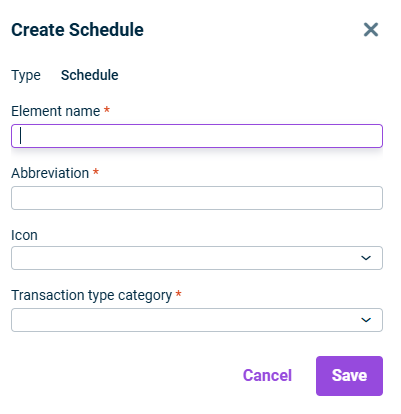
Right-click the desired folder in the Workspace configuration and select Create | Schedule from the context menu. The Create Schedule dialog is displayed:

Creating a schedule
2

Specify the name of the schedule.

3

Enter an abbreviation for the schedule.

4

From the Icon drop-down list, choose the icon to be displayed in front of the schedule name in the user interface.

5

In the Transaction type category area, select the schedule type. You can select from all the transaction type categories in the Transaction types workspace. The following preconfigured transaction type categories are available:

  • Accounts without category: Used for accounts that are not assigned to a specific category.
  • Fixed asset schedule: Used to define a fixed asset schedule. The fixed asset schedule indicates the reasons for the changes of fixed assets within a period.
  • Provision schedule: Used to define a provision schedule. The provision schedule indicates the reasons for the changes to provisions within a period.
  • Statement of changes in equity: Used to define a statement of changes in equity. The statement of changes in equity indicates the reasons for the changes of equity within a period.
  • Loan schedule: Used to define a loan schedule. The loan schedule indicates the reasons for the changes of liabilities from loans within a period.
6

Click Save.

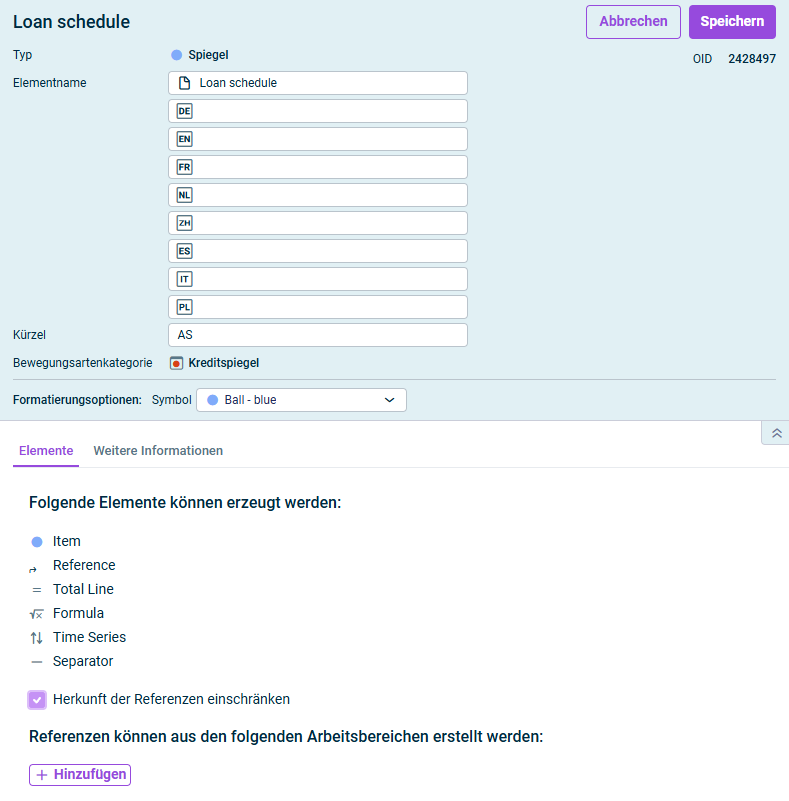
To configure a schedule, click the name of the scheudle in the tree view and then at the top right click Edit to open the editing mode:

Der Dialog zum Bearbeiten eines Spiegels wird angezeigt.
Bearbeiten eines Spiegels

The following options are available for schedules:

The following general properties can be configured for subledgers:

OptionDescription
Element nameName of the schedule. If necessary, specify the country-specific language descriptions for the display languages available for the Lucanet user interface.
AbbreviationAbbreviation of the schedule
Transaction type categoryShows the transaction type category assigned to the schedule
Formatting OptionsIf necessary, choose another icon from the drop-down list.

On the Elements tab, the element which elements can be created in the schedule are displayed:

If references are permitted as elements: If necessary, activate the Restrict the origin of references check box if you only want to enable references to certain workspaces. Then, click + Add and select the workspaces for which references can be created.