Transformation rules determine how the data from the source system are to be transformed before they are written to Lucanet.Financial Warehouse.
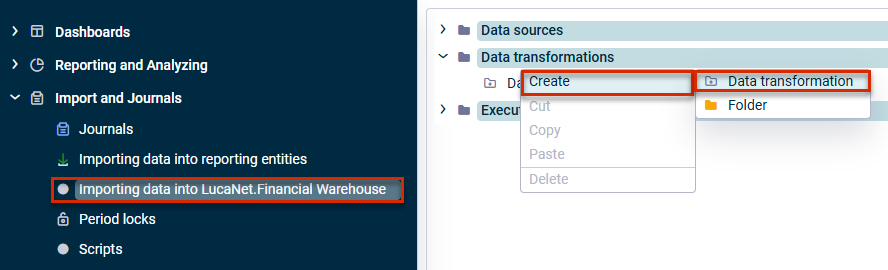
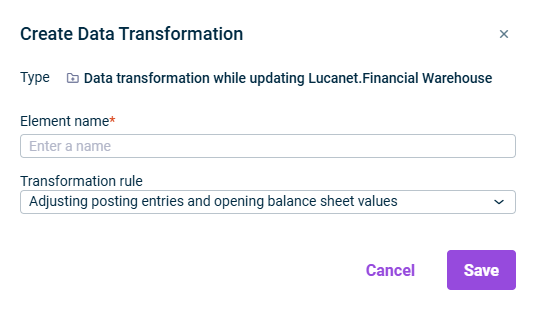
Transformation rules are assigned in the Data Transformations workspace in Lucanet. Any number of data transformations can be created and configured.
If further transformation rules are also required, these must also be implemented, if necessary, by Lucanet.Consulting using corresponding wizards (scripts).
The following transformation rules can be used in data transformations:
Transformation rules
Description
Adjusting posting entries and opening balance sheet values
Using this rule, posting entries and opening balance sheet values are adjusted by filling a target dimension with values based on a dimension. Information is only added if the target dimension is empty. With this transformation rule, it is possible to derive the partner code from a subledger account, for example.
Drill down by contra account
With this rule, a posting is used to check whether the specified dimension has been uniquely filled. If this is the case, the information is added to all further posting entries of the posting. If the specified dimension is not unique, a dummy code is used. This transformation rule makes it possible to copy the partner code to all posting entries of a posting, for example.
Adjusting posting headers
Using this rule, certain information is changed in the posting header (e.g. the adjustment levels or data levels to which the posting belongs).
Dimension: dimension to which the data transformation is to apply Data type: data type (numeric or alphanumeric) From/To: area for which the data are to be transformed
Base and target dimension
Basis: dimension to be used to fill the target dimension This dimension contains the values to be checked. Data type: data type of the base dimension Target: dimension to be filled. The values are written in this dimension.
Assignments
Basis Column: From/To: value range that the base dimension must contain so that the target dimension is filled. Target column: - Code: value (maximum of 20 characters) to be written into the target dimension - Name: (optional) descriptive name for the code
Filter
Dimension: dimension to be filtered by Data type: data type to be filtered by From/To: value range to be filtered by
Dimension: dimension to which the data transformation is to apply Data type: data type (numeric or alphanumeric) From/To: area for which the transformation is to be performed
Dimension
Dimension to be filled
Dummy code
Code: Description to be set if the dimension is not filled with unique values. Name: (optional) descriptive name for the code
Filter
Dimension: dimension to be filtered by Data type: data type to be filtered by From/To: value range to be filtered by
Dimension: dimension to which the data transformation is to apply Data type: data type (numeric or alphanumeric) From/To: area for which the transformation is to be performed
Adjustments to the posting header
Dimension: dimension to be changed. Available for selection are AdjustmentLevel and DataLevel. Code: code to be written into the dimension (maximum of 20 characters) Name: (optional): descriptive name for the code
Filter
Dimension: dimension to be filtered by Data type: data type to be filtered by From/To: value range to be filtered by