---
title: "Analyzing Databases"
source_url: https://support.lucanet.com/en/documentation/consolidation-financial-planning/imports-journals/analyze-database
language: en
last_updated: 2026-10-01
---
# Analyzing Databases
## Overview
With the **Analyze database** function, you can execute your own SQL queries against a connected database and display the result directly in Lucanet Consolidation & Financial Planning, without using a separate database tool.
Typical use cases for the **Analyze database** function are:
- Verifying the correctness of imported data by querying specific values and comparing the values of related tables
- Analyzing the database of a source ERP system when investigating a data import problem
Access to the databases during the analysis is read-only.
The following databases can be analyzed with the **Analyze database** function:
| Database | Description |
|---|---|
| Lucanet.Financial Warehouse | The temporary and the persistent Lucanet.Financial Warehouse |
| Database of a source system | Any database that you can connect in Lucanet Consolidation & Financial Planning, for example the database of an ERP system.
The database can be located in the cloud or in your local network. |
## Accessing the Analyze Database Function
In Lucanet Consolidation & Financial Planning, the **Analyze database** button is displayed in the detail view of the following elements:
- Element of type **Connection** (see [Elements in Directory Structures](https://support.lucanet.com/en/documentation/consolidation-financial-planning/report-analyze/elements-in-directory-structures.md))
- Data source for importing data into Lucanet.Financial Warehouse, once for the temporary and once for the persistent Lucanet.Financial Warehouse (see [Defining a Data Source](https://support.lucanet.com/en/documentation/consolidation-financial-planning/imports-journals/importing-data-into-lnfwh/defining-data-source-lnfwh.md))
- Data source of type **Lucanet.Financial Warehouse (#2068)** for importing data into reporting entities (see [Lucanet.Financial Warehouse (#2068)](https://support.lucanet.com/en/documentation/consolidation-financial-planning/imports-journals/importing-data-into-reporting-entities/defining-data-source/data-source-lnfwh.md))
In the detail view of an element of type **Connection**, the button is displayed as follows, for example:
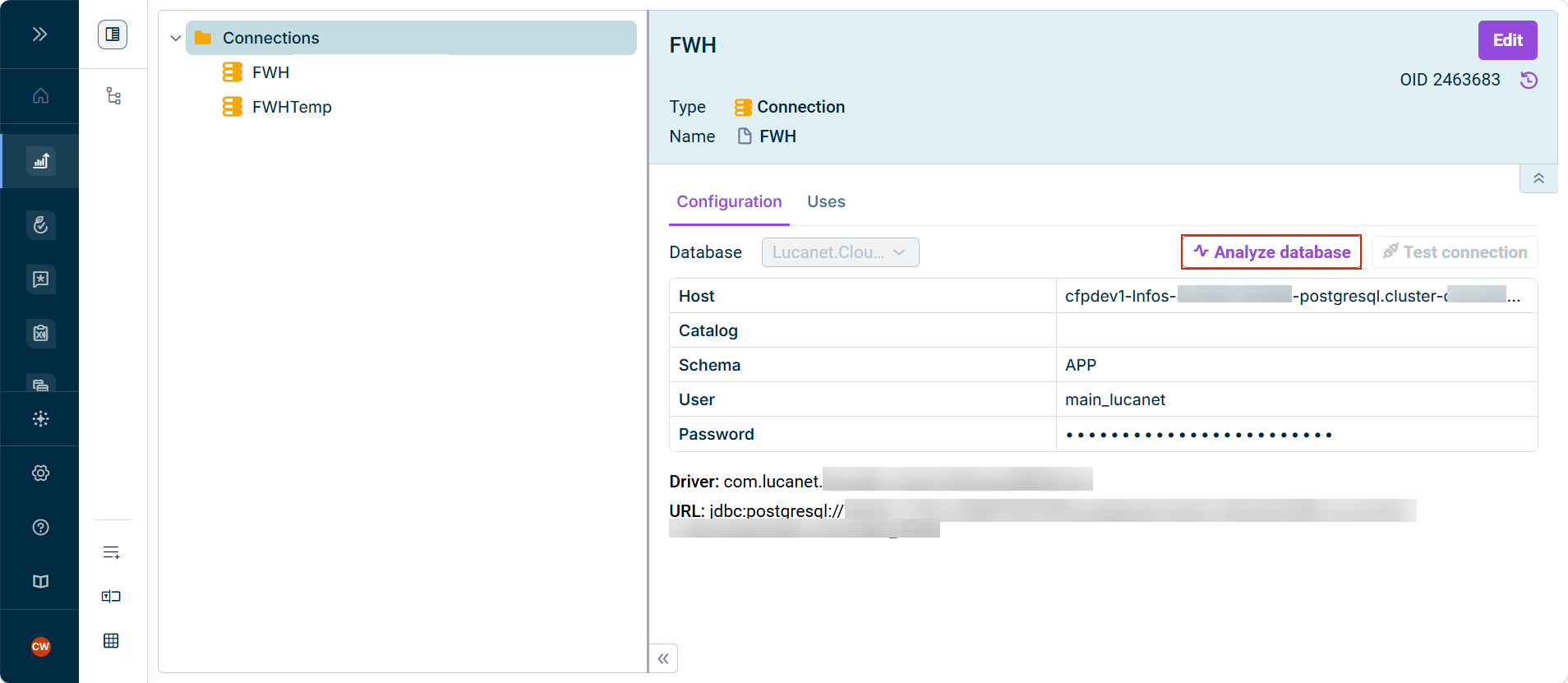
'Analyze database' button in the detail view of a connection
> **Note:** No separate permission is required for the **Analyze database** function. Access to the workspace that contains the respective element is sufficient.
## Opening the Query Window
To open a query window in Lucanet Consolidation & Financial Planning:
1. Click **Analyze database**.
2. If credentials are required for the database, the **Connect** dialog is displayed as follows, for example:

'Connect' dialog
Enter the credentials, select the application, and click **Connect** (for more information, see [Options in the 'Connect' Dialog](#options-in-the-connect-dialog)).
3. The **Analyze database** dialog is displayed as follows, for example:

'Analyze database' dialog
4. If necessary, in the **Catalog** field, specify the catalog of the database to which the queries are to be restricted.
The catalog is taken from the connection, if a catalog is configured there.
5. If necessary, in the **Schema** field, specify the schema of the database to which the queries are to be restricted.
A database can contain several schemas, for example one schema per Lucanet.Financial Warehouse. The schema is taken from the connection, if a schema is configured there.
6. Click **Query**.
The query window is displayed as follows, for example:
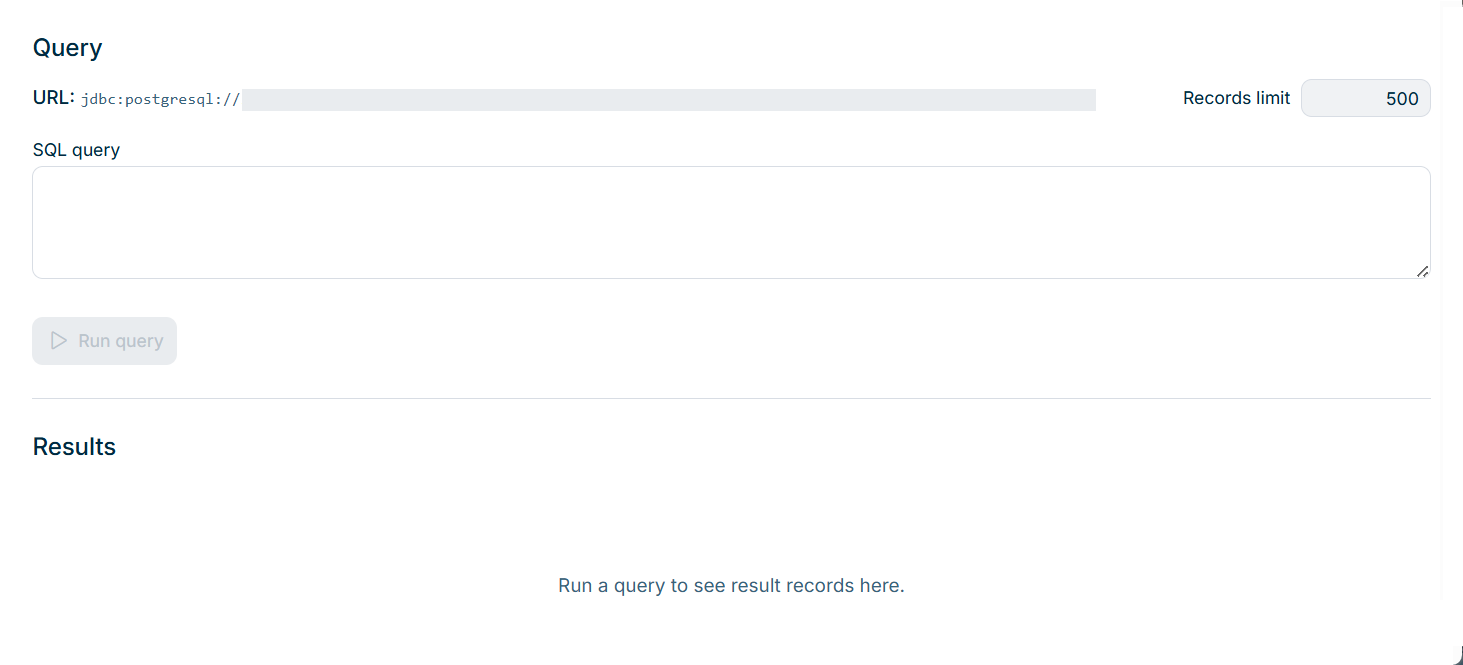
Query window before the first query
Under **URL**, the database against which your queries are executed is displayed. The **Records limit** field contains the maximum number of records that are displayed in the **Results** area: **500**.
### Options in the 'Connect' Dialog
The **Connect** dialog is displayed if credentials are required for the database. The following options are available in the dialog:
| Option | Description |
|---|---|
| **User name** | The name of the database user with which the queries are executed.
The user name is taken from the connection and can be changed. |
| **Password** | The password of the database user |
| **Application** | The execution target of the queries. Select one of the following options:
- **Execute on the server** (default): for databases that are reachable from Lucanet.Cloud
- Name of a Lucanet.Script Execution Application (SEA): for databases in your local network. One entry is displayed per SEA application that is created in your environment (see [Installing and Updating Lucanet.Script Execution Application](https://support.lucanet.com/en/documentation/consolidation-financial-planning/basic-configuration-cfp/install-and-use-opsea.md)). |
## Running a Query
To run a query in Lucanet Consolidation & Financial Planning:
1. Specify the desired statement in the **SQL query** field.
Lucanet does not restrict the SQL statements. Which tables and data you can query does not depend on your permissions in Lucanet, but on the permissions of the database user that is configured in the connection.
For sample queries, see [SQL Queries for Lucanet.Financial Warehouse](https://support.lucanet.com/en/documentation/consolidation-financial-planning/imports-journals/analyze-database/sql-queries-fwh.md).
2. Click **Run query**.
The result is displayed in the **Results** area below the field as follows, for example:
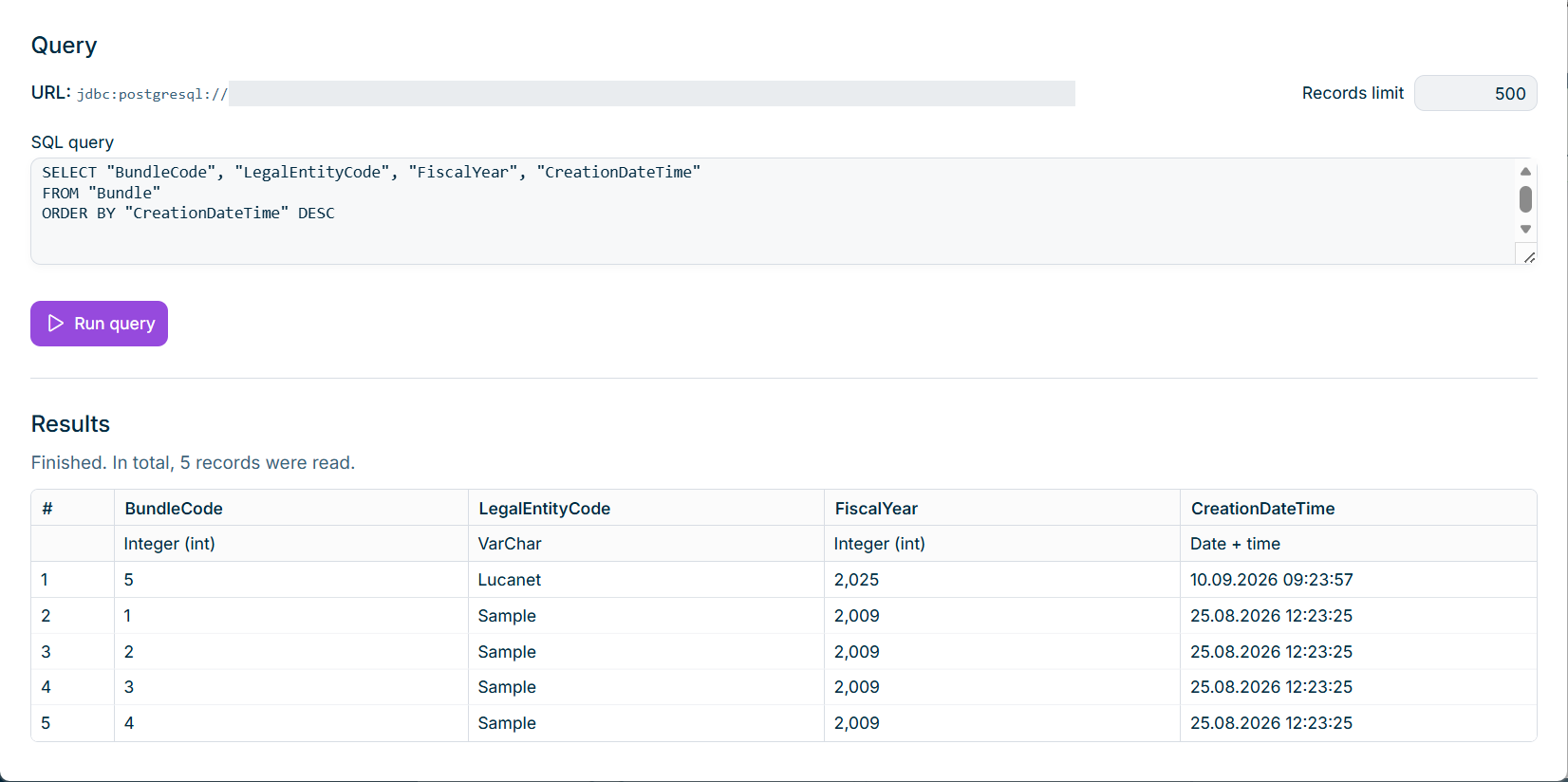
Query window with the result of a statement
Above the result, the total number of records read is displayed. Below the column headers, the data type of each column is displayed.
The **Records limit** applies to the display only and cannot be changed. The query itself always runs to completion on the database, which is why the total number of records read can be higher than the number of records displayed.
If the statement cannot be executed, an error message is displayed in the **Results** area. The message comes from the database and can be a technical message.
> **Warning:** Queries on very large tables can return several million records. Restrict the result set in the statement itself using the syntax of the target database, for example `LIMIT` in PostgreSQL or `TOP` in MS SQL Server.
## Comparing Data in Multiple Windows
In Lucanet Consolidation & Financial Planning, you can open multiple query windows at the same time and position them next to each other, so that you can compare the data of related tables side by side. Each window keeps its own connection, statement, and result. Opening a new window does not affect the windows that are already open.